
6.4 KiB
ComfyUI Functional Usage Guide
This guide walks through the day-to-day workflow of using ComfyUI-Functional. For Chinese-language instructions, please refer to https://duanyll.com/2025/9/25/ComfyUI-Functional/.
Prerequisites
- A working ComfyUI installation.
- ComfyUI-Manager for one-click installs (optional, but recommended).
- The Basic Data Handling node pack. Always use its
LISTdata type when passing arrays into or out of the functional nodes.
Installing or Updating the Extension
- Install through ComfyUI-Manager by searching for
comfyui_functional. - Manual installation: clone this repository under
ComfyUI/custom_nodesand restart ComfyUI. - Load the sample graphs found under
example_workflows/in this repo to experiment with the nodes.
⚠️ This node pack is intentionally hacky: it reaches into ComfyUI's scheduler to run and reuse node outputs. Expect breaking changes whenever ComfyUI is updated and keep test workflows handy.
Building Functions Inside ComfyUI
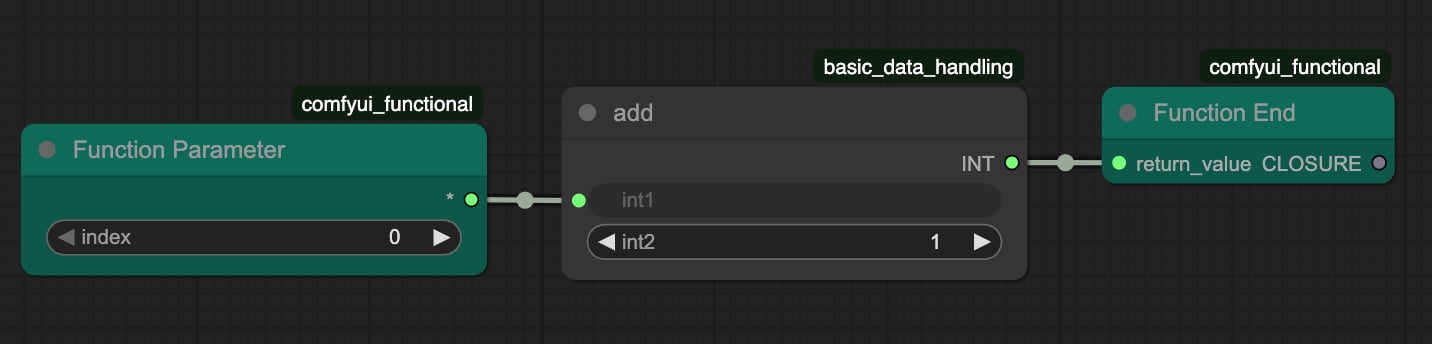
- Drop Function Parameter nodes for each argument your function accepts. Double-click the node title to rename it for clarity.
- Wire the parameters into the computation graph that forms the function body.
- Connect the last node of the body to a Function End node. Each function can return only one value; bundle multiple outputs into a
LISTif needed.
Tips:
- Nodes that do not depend on Function Parameter inputs are evaluated a single time during function definition and reused for every call. This makes it safe to load checkpoints or text encoders inside a function.
- When you see
Prompt has no outputs, it usually means you forgot to connect the result toFunction Endor to actually call the function (see below).
Calling Functions and Reusing Graphs
- Add a Call Function node.
- Connect the
Functioninput to theFunction Endoutput. - Provide arguments in the same order as the Function Parameter nodes.
- Use the
Returnoutput like a regular node output anywhere in your workflow.
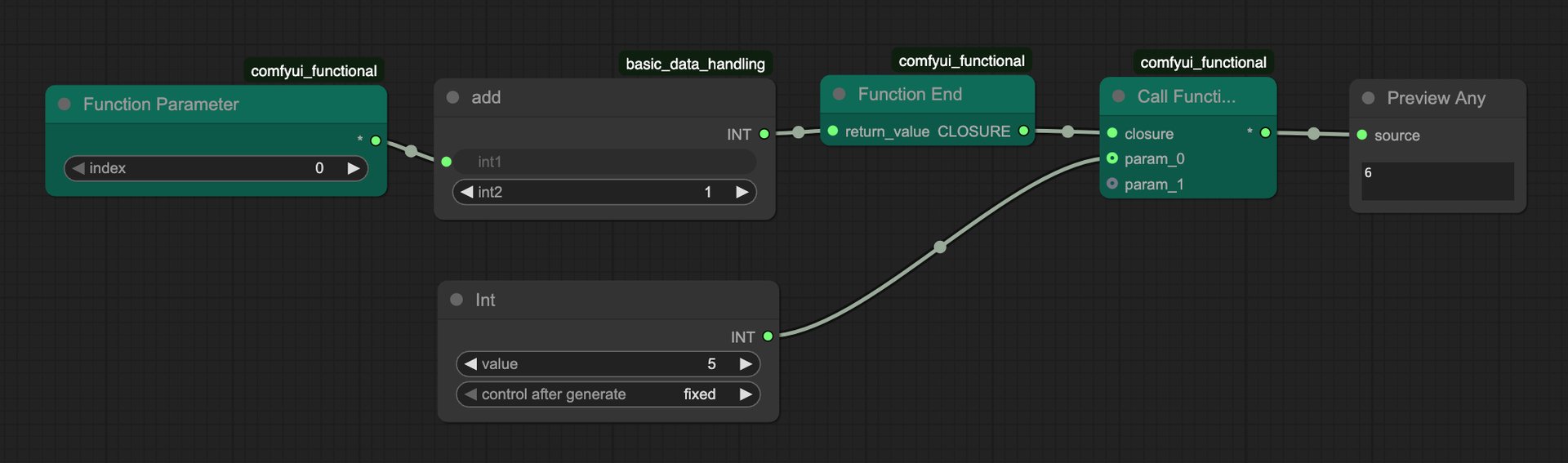
You can feed the same function into multiple Call Function nodes to reuse logic throughout the graph, or even pass functions as arguments to build higher-order abstractions. Recursive calls are possible—feed the function object back into one of its own arguments—but always protect them with a termination condition to avoid infinite loops.
Working with Lists and Control Flow
To implement loops or other flow control primitives, rely on the high-order nodes found under duanyll/functional/high_order.
- Always convert ComfyUI Data Lists into
LISTobjects before sending them into functional nodes.Data Listvalues force eager evaluation and will crash or hang your workflow. - The table below summarizes the built-in high-order nodes; see
docs/node-reference.mdfor parameter details and new nodes you can script yourself.
| Node | Purpose |
|---|---|
Comap |
Apply multiple functions to the same input and collect the results. |
Fold |
Reduce a list from left to right (functools.reduce-style). |
Map |
Apply a function to every element in a LIST. |
MapIndexed |
Like Map, but passes the element index as the second argument. |
Nest |
Apply a function to an initial value n times. |
NestWhile |
Keep applying the function until the predicate returns False; behaves like a while loop. |
Select |
Filter a list based on a predicate function. |
TakeWhile |
Consume items from the start of a list while the predicate stays True. |
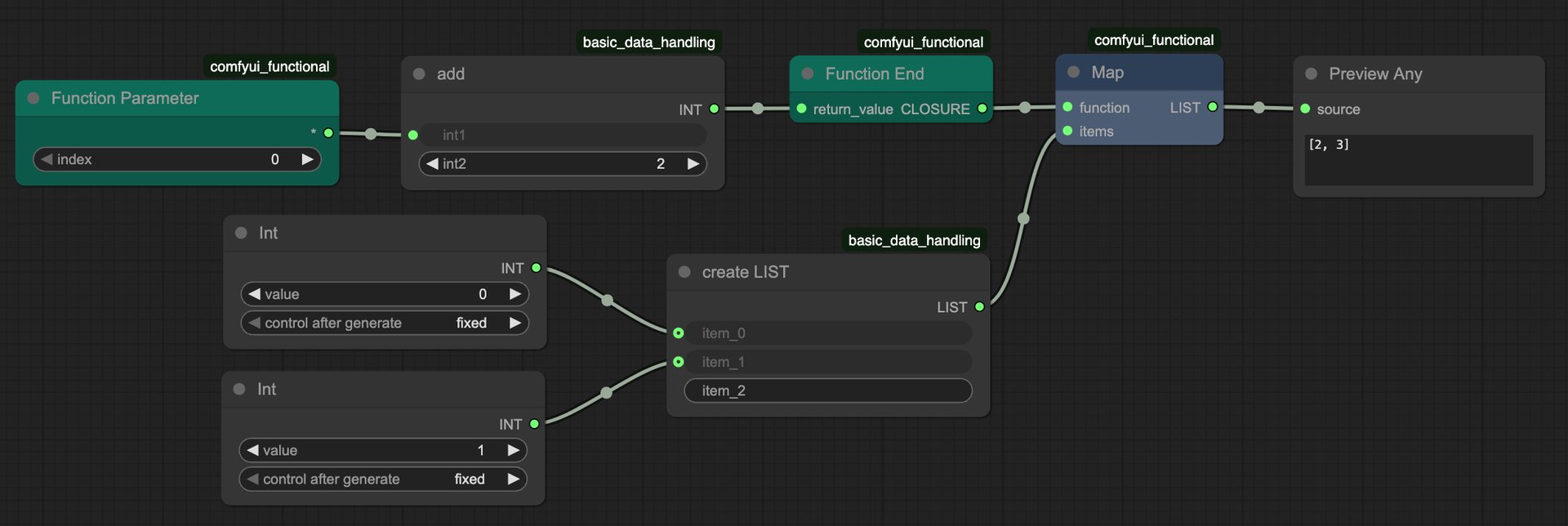
Implementation hint: the nodes rely on Python coroutines. Take a look at comfyui_functional/high_level.py and CoroutineNodeBase if you want to add your own high-order helpers.
Using Side Effects Safely
Some situations call for side effects (logging, collecting intermediate results, pacing execution). The following nodes make that practical:
Sow/Reap:Sowpushes values into an implicit list,Reapreturns everything collected so far. Chain thesignalinput/output with the surrounding nodes to enforce execution order.Inspect: Attach a raw node output to thevalueoutput on Inspect to probe intermediate values without forcing the entire branch to run at graph build time. Only runs when itssignaloutput is consumed.Sleep: Adds a delay to make Inspect output easier to read in fast loops.
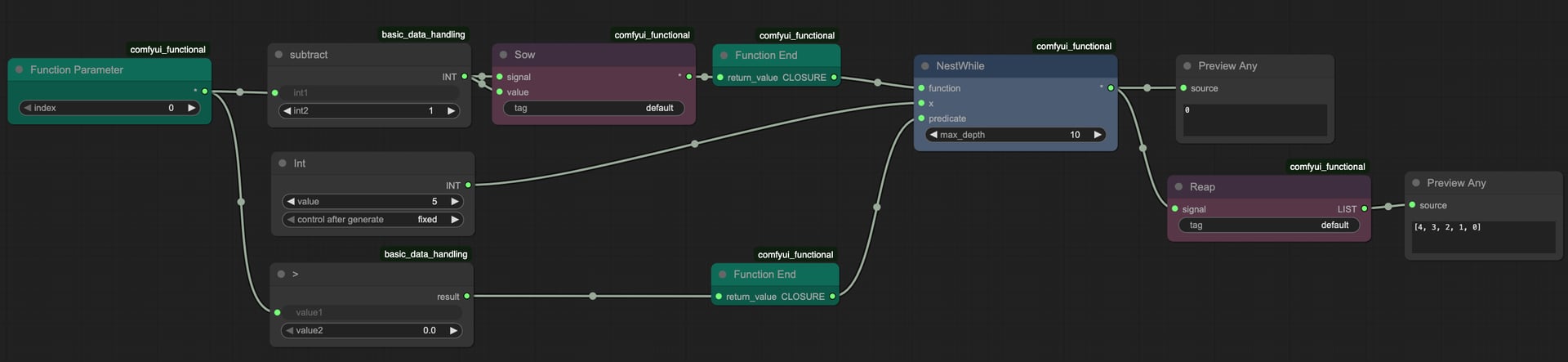
Because these nodes may disable ComfyUI's cache for correctness, expect longer runtimes whenever side effects are involved.
Debugging Checklist
- Function body outputs must terminate at
Function End. Any loose connection that depends on Function Parameters will fire eagerly and break evaluation. - Protect recursive or long-running loops with
max_depthorNestWhilepredicates. - Use
Inspectliberally to tap into conditionals. It prevents ComfyUI from rendering both branches of anIf/Elsewhen only one should run.
Example Workflows
The example_workflows/ directory ships with working graphs:
functional-map.json– demonstrates Map/MapIndexed on a numericLIST.functional-list-param.json– shows how to juggle multiple parameters plus list inputs.functional-nested-calls.json– functions that call other functions (mirrors the blog demo).functional-recursion.json– guarded recursion viaCall Function.functional-sow-reap.json&functional-inspect.json– Sow/Reap, Inspect, and Sleep in context.
Open them via ComfyUI's load workflow dialog, study the wiring, and start adapting them for your projects.
Common Pitfalls
- "Prompt has no outputs": add a Call Function node or ensure something depends on the Call Function output.
- Data List lock-ups: convert everything to
LISTusing Basic Data Handling's conversion nodes before interacting with functional nodes. - Stale cached results: the pack disables caching when it detects side effects. If you still see stale data, clear your ComfyUI cache manually.
Further Reading
- Blog (Chinese): https://duanyll.com/2025/9/25/ComfyUI-Functional/
- Node reference:
docs/node-reference.md