
18 KiB

Super Pop Color Adjustment (SuperBeasts.AI)
Bring the SuperBeasts “pop” to any image in one click using a new custom residual color correction model trained to push vibrant palette, deep blacks, crisp highlights, and HDR bite with ease.
 Download the Standard ComfyUI Workflow (Save the image and drag into ComfyUI).

Why I built it
Everything I post gets graded: lift blacks, pull whites, bend curves, punch colour. Existing auto tools (and many AI outputs — looking at you, muddy yellow “whites”) just weren’t landing, especially across batches or iterative generations. Training my own lightweight correction model let me reclaim hours of post and lock in a consistent SuperBeasts look I could reuse — and share.
Personal project, shared as‑is.
Works great generally across my SuperBeasts production flow and a wide mix of test art, but it’s not exhaustively validated on every style, lighting condition, or colour space. Expect edge cases, occasional under or overcorrection, and behaviour that varies with resolution/patch overlap. But by and large it's still a huge timer saver in my opinion so please experiment and let me know what you think.
If you want to show support please take a momenet to follow me on Instagram @SuperBeasts.AI
Happy generating!!
Using Super Pop
Before starting please review the the licence and System Requirements.
- Add SB Load Model (SuperBeasts.AI) node.
- Pick SuperPopColorAdjustment/latest. (Now from V2 using .safetensors)
- Connect to Super Pop Color Adjustment (SuperBeasts.AI) node.
- Input source image and tune Max Strength, Count, Overlap (recommendations below)
- Optional - Use the Super Pop Residual Blend (SuperBeasts.AI) for full control of the strength. (Useful to experiement with strength settings without repeat runs of the model)
Auto model weight download: Weights are automatically downloaded the first time the SB Load Model node runs using a specific version or 'latest'.
If you prefer manual download, grab them from the GitHub release page:
https://github.com/SuperBeastsAI/SuperBeastsAI-Models/tree/main/SuperPopColorAdjustment/
and drop the .onnx file into custom_nodes/ComfyUI-SuperBeasts/models/.
License: Weights are SPCA-Community-NoSaaS. Local/client use OK; no public SaaS redistribution. See licence in the model repo.
Same settings multiple corrections (Stength: 1.0)
Highlights/Shadows Correction
| Original | SPCA | Original | SPCA |
 |
 |
 |
 |
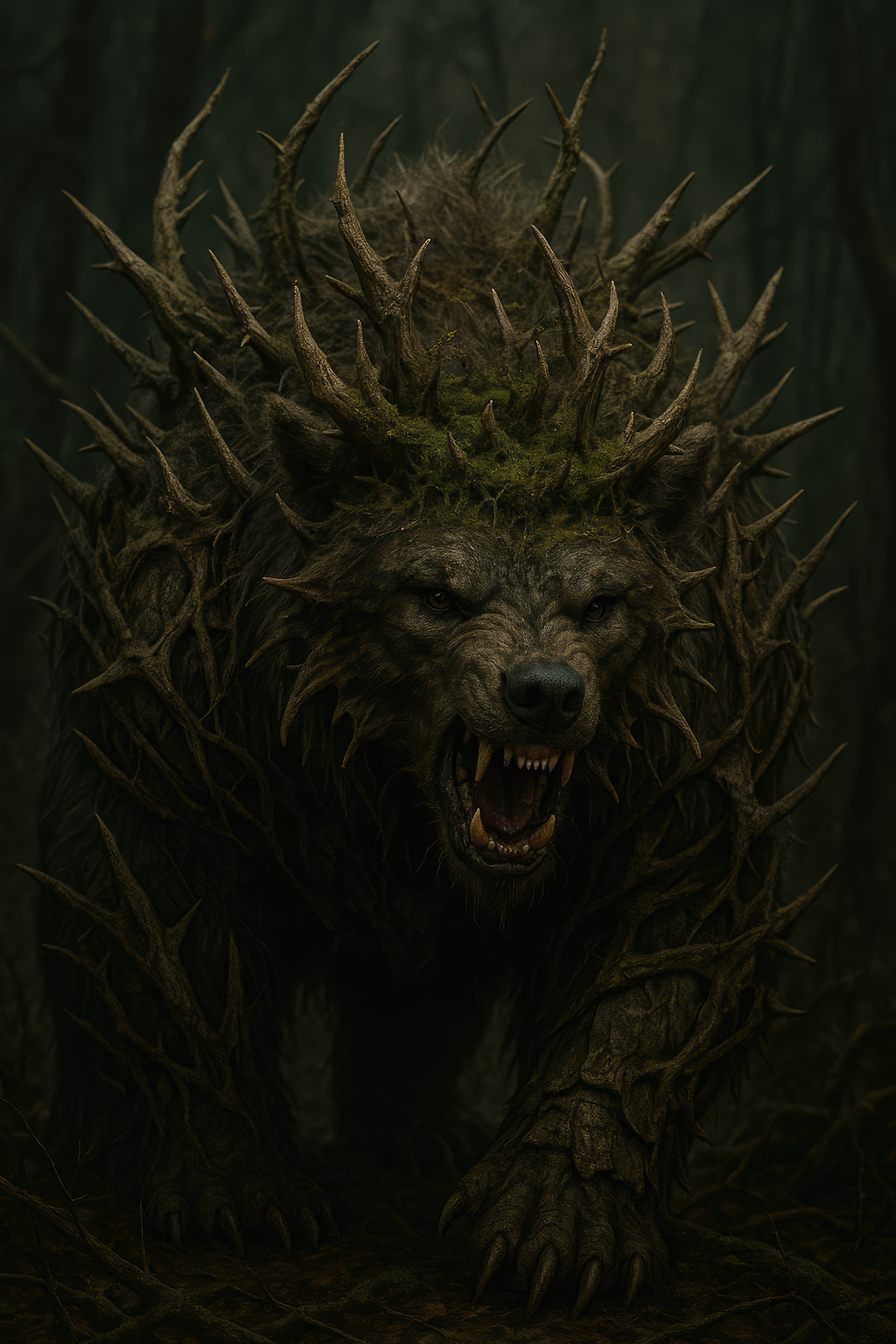 |
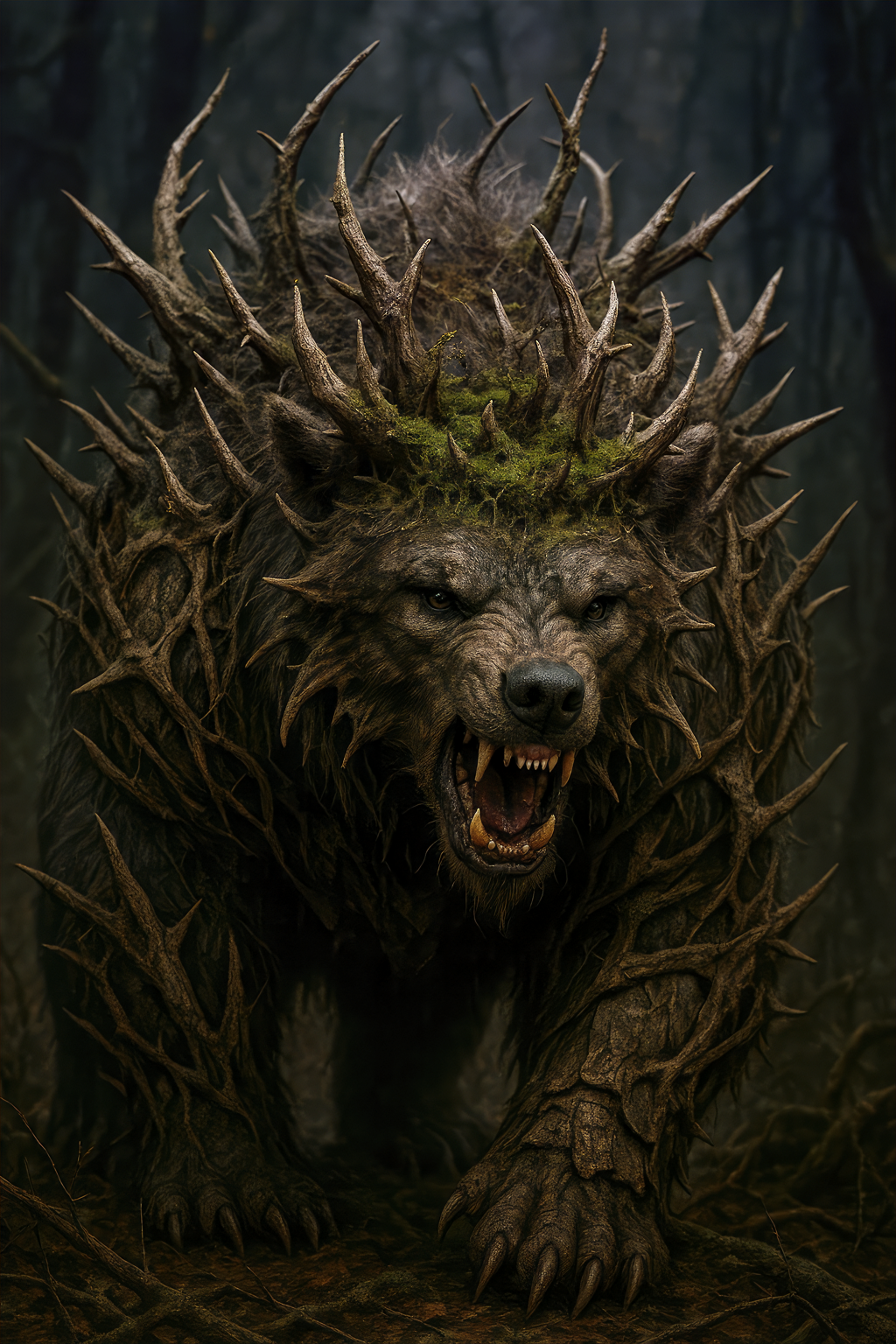 |
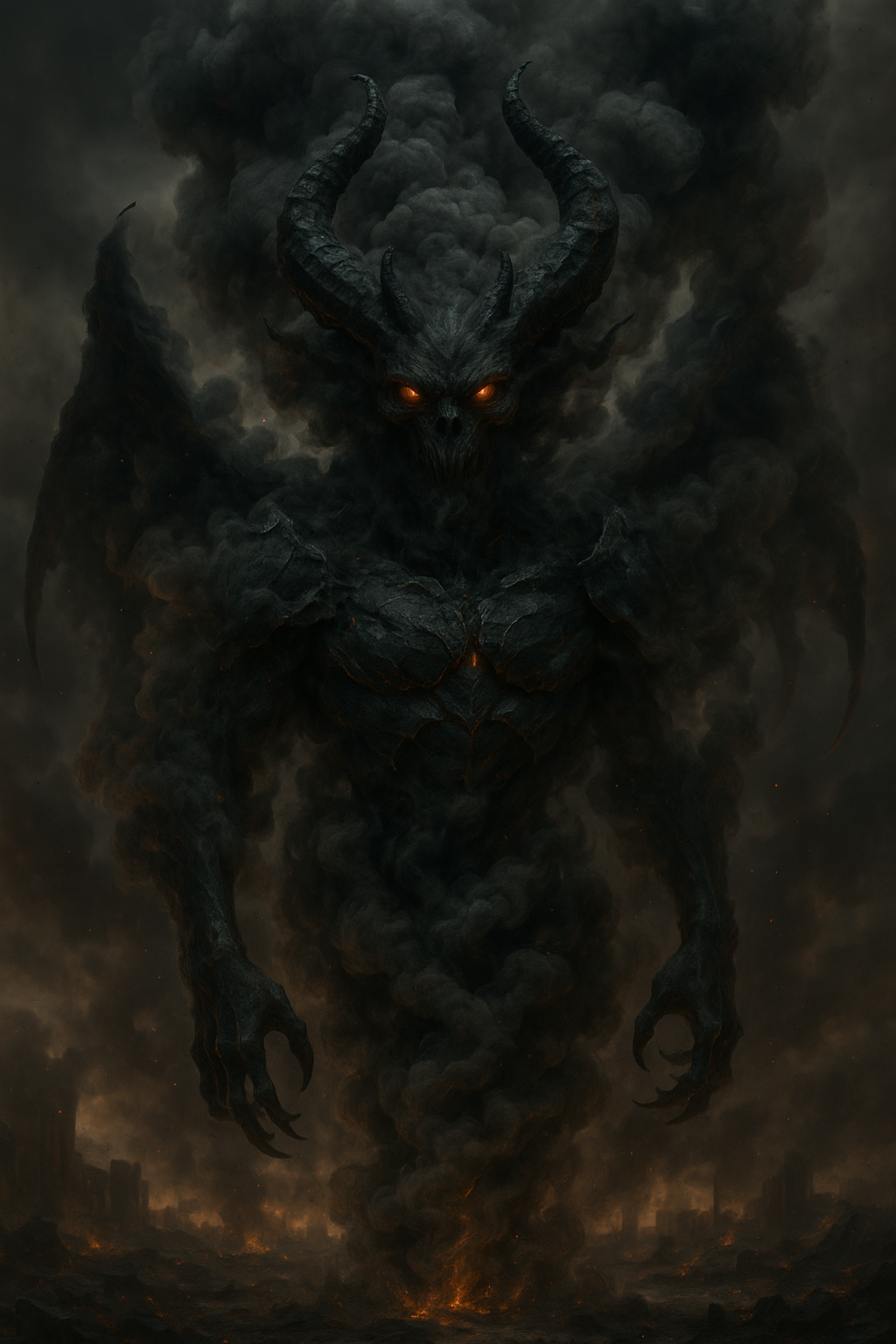 |
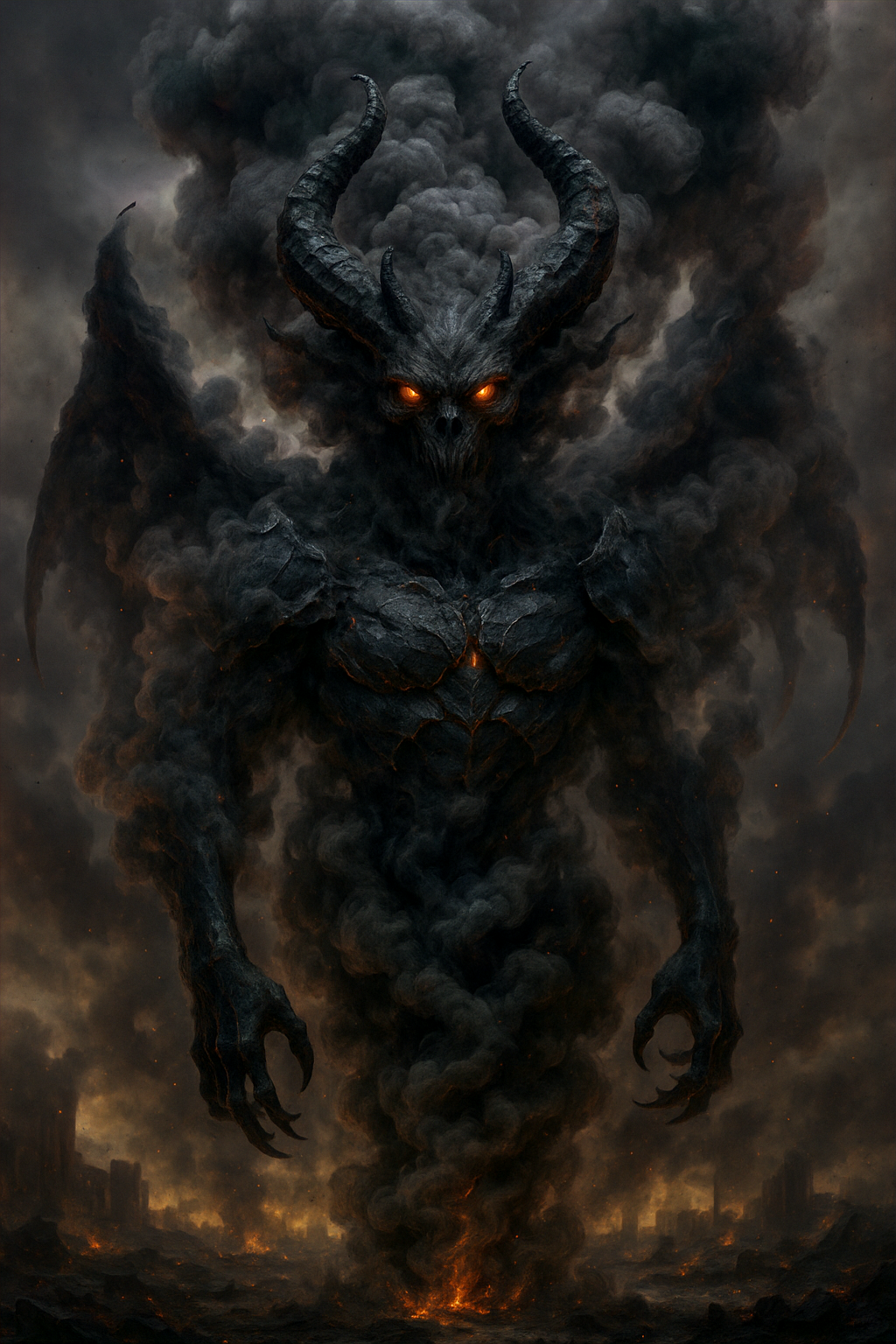 |
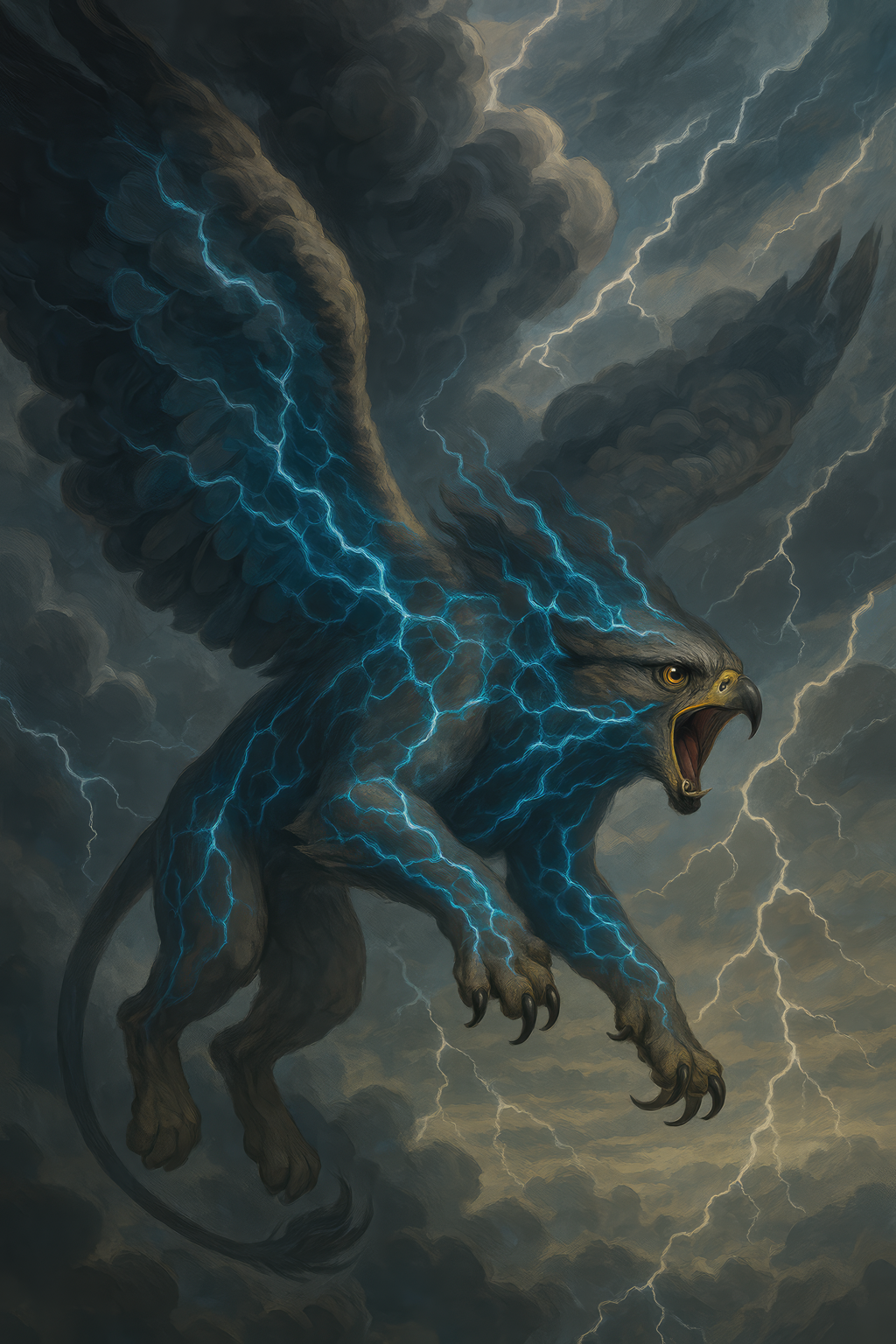
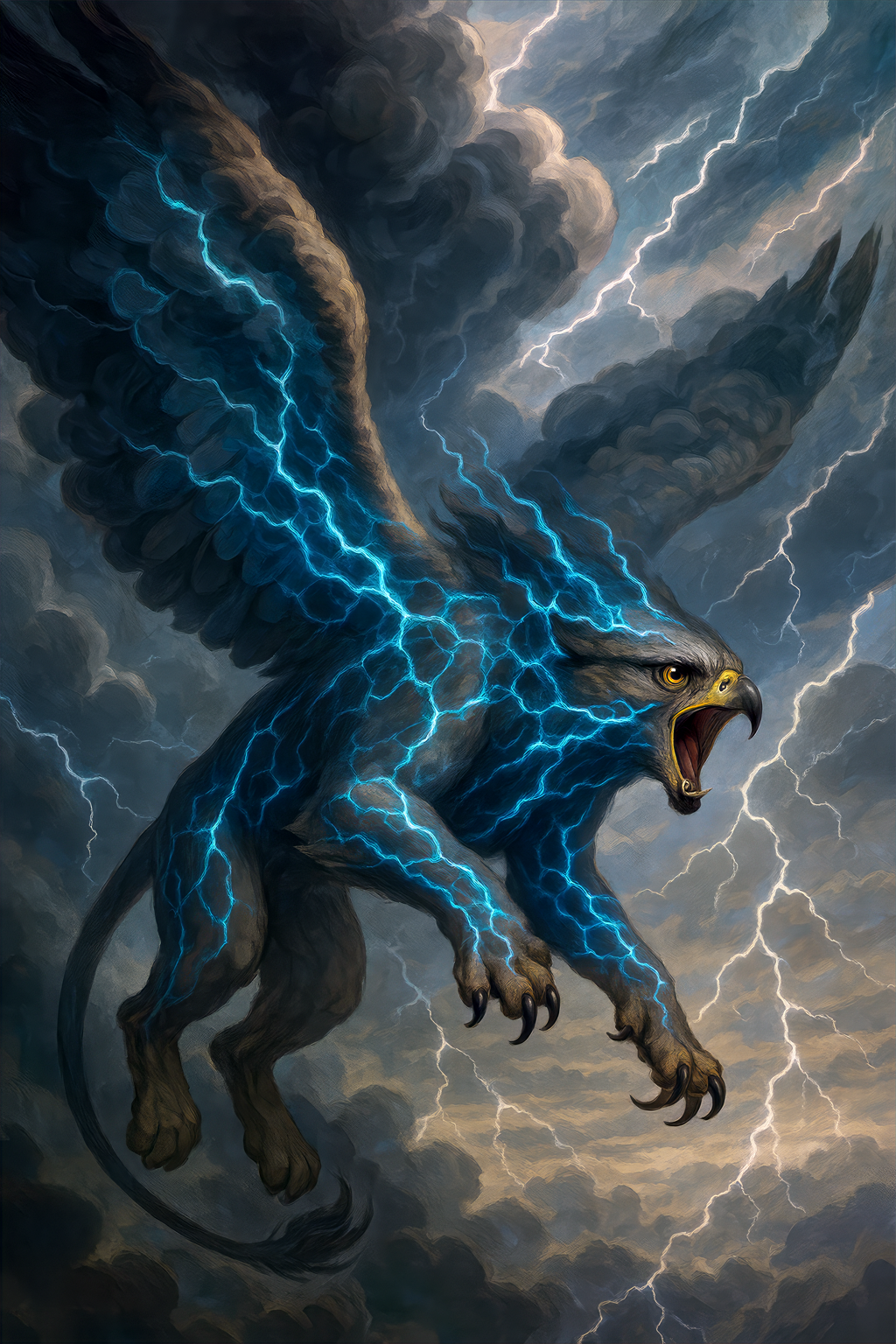
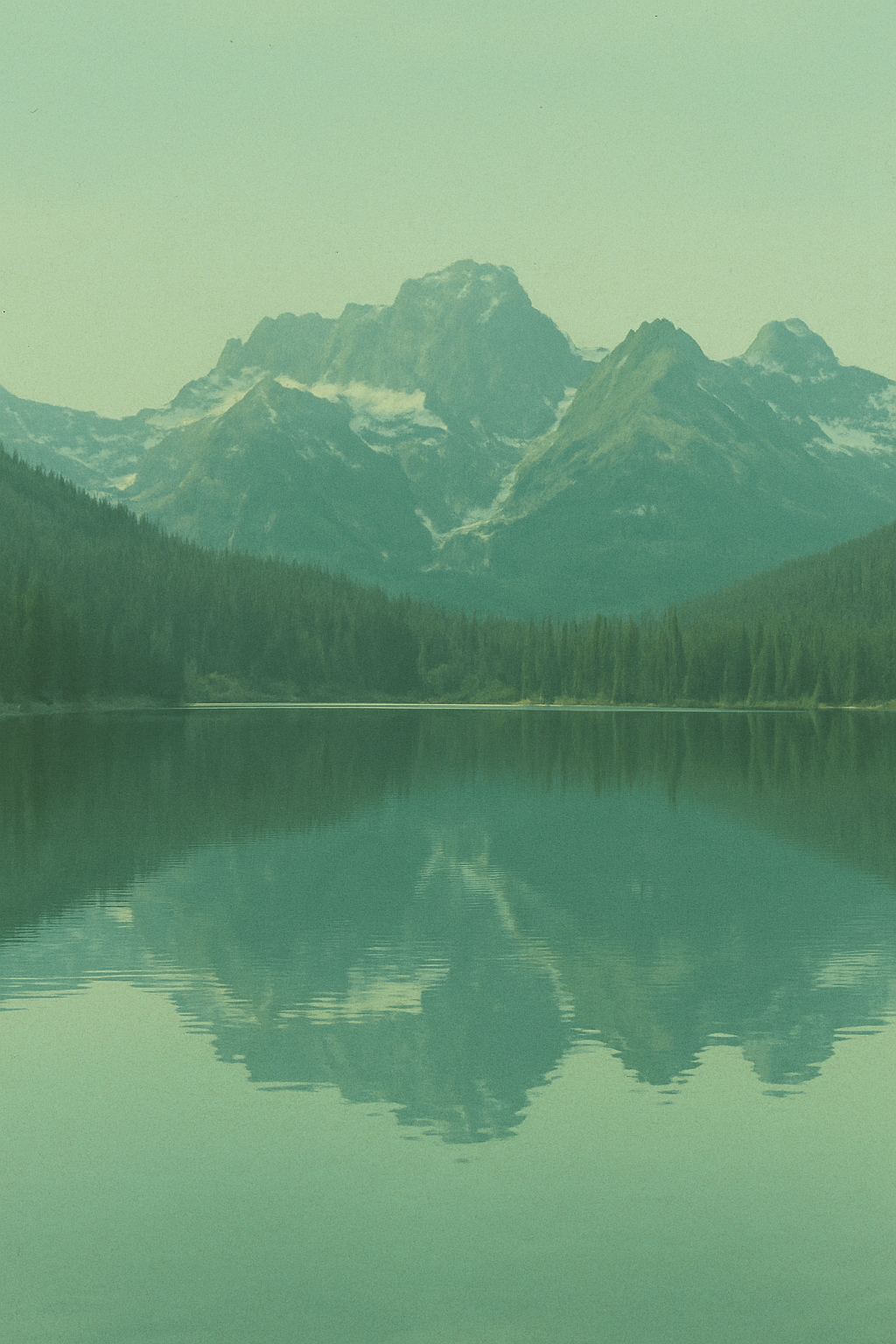
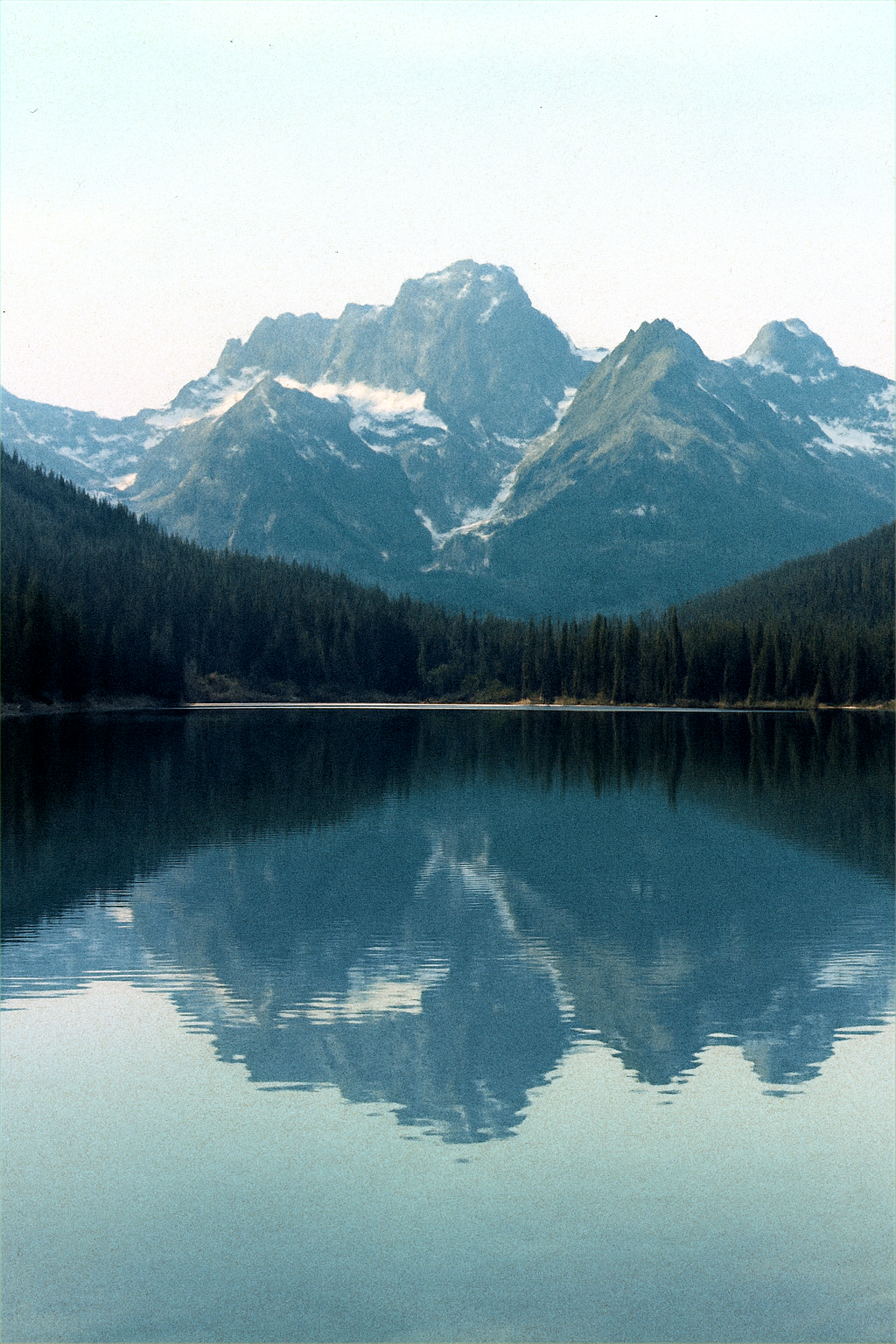
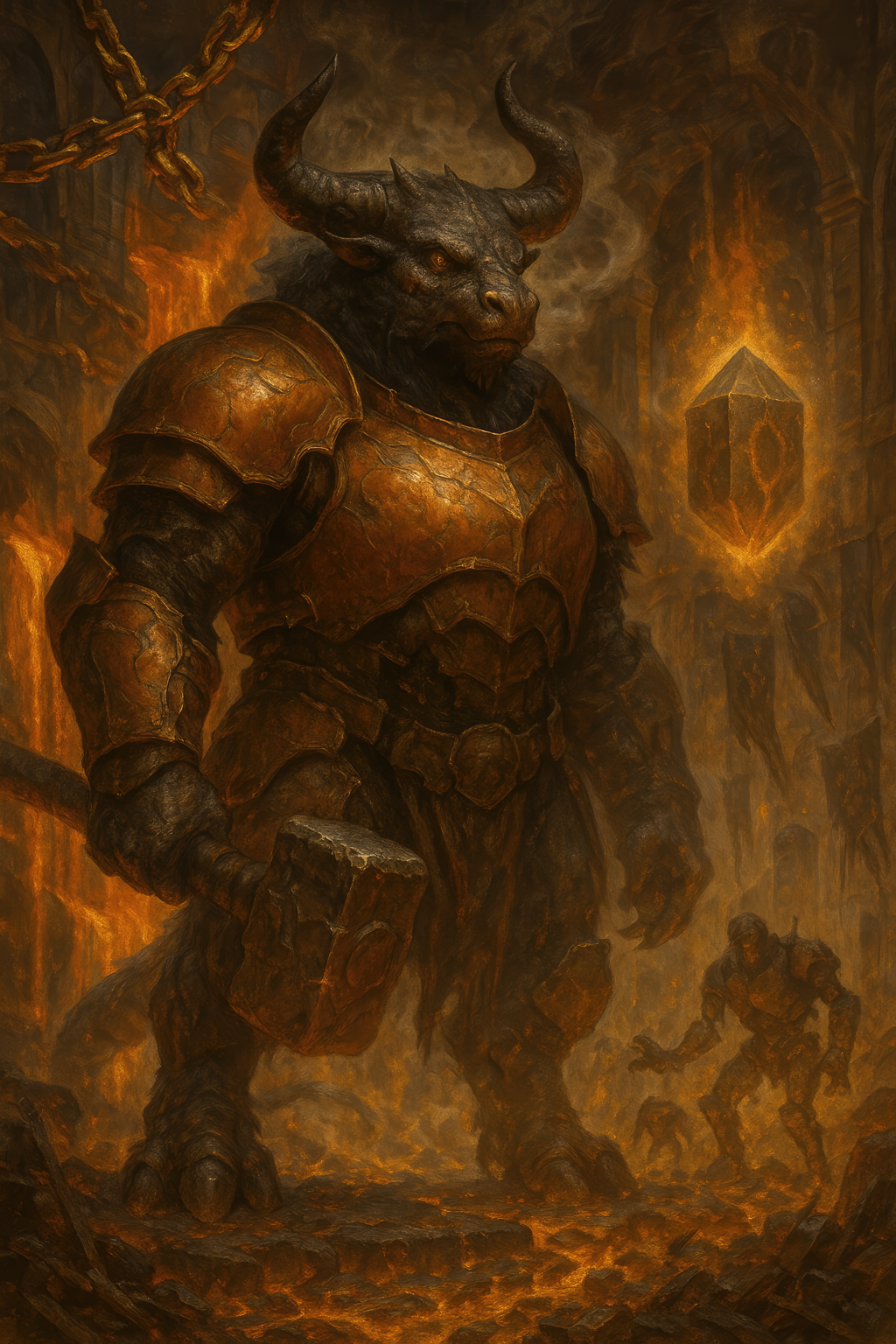
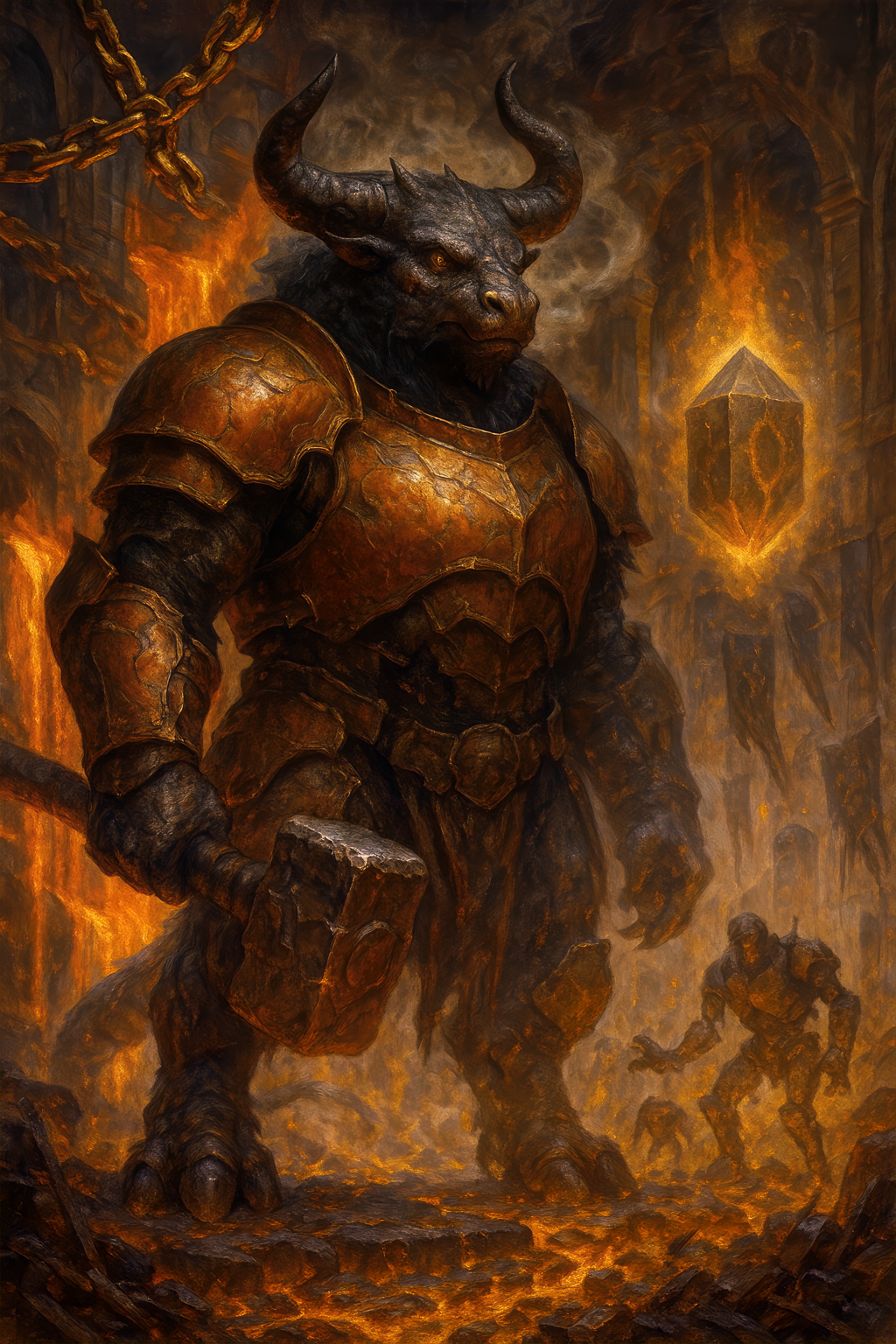
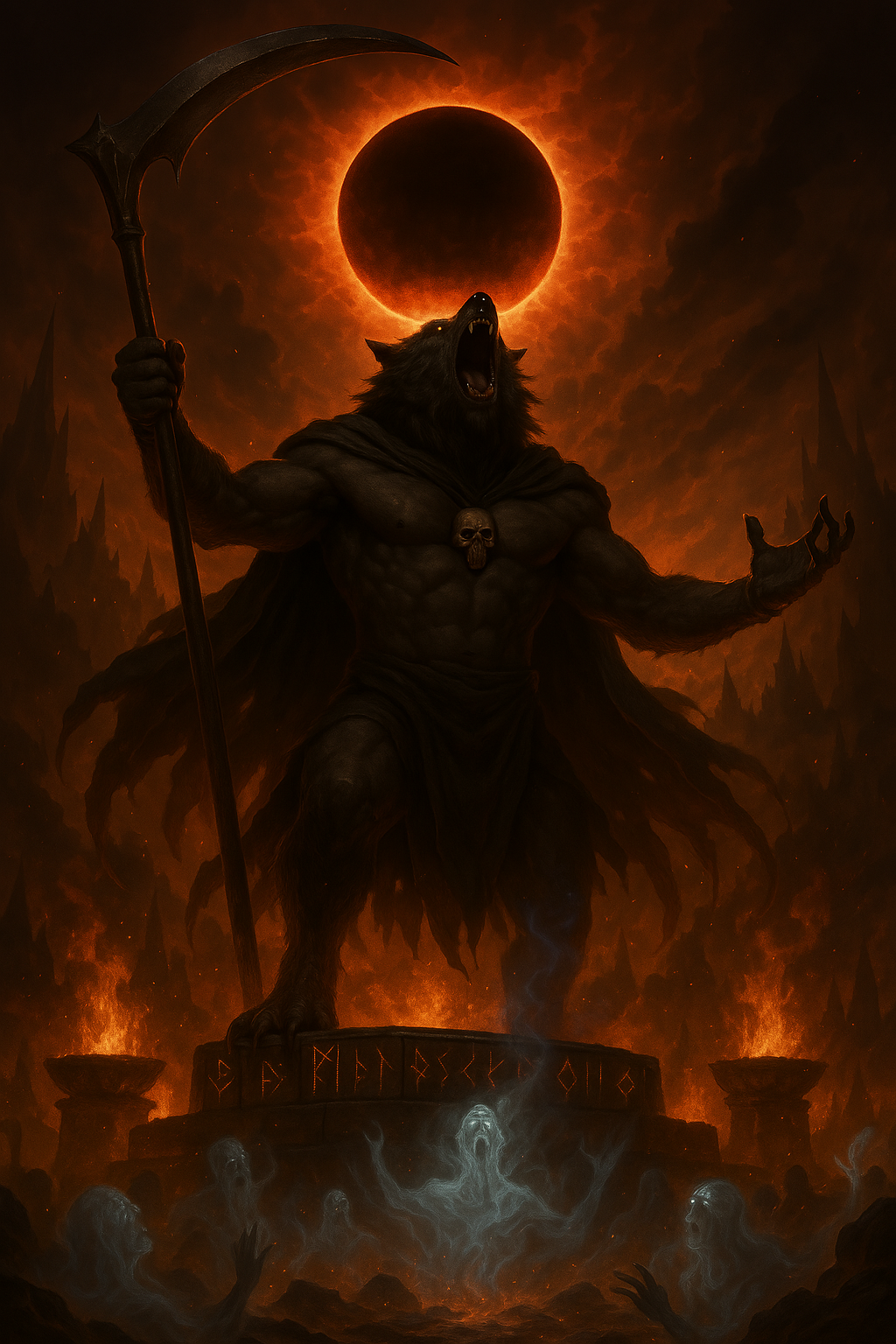
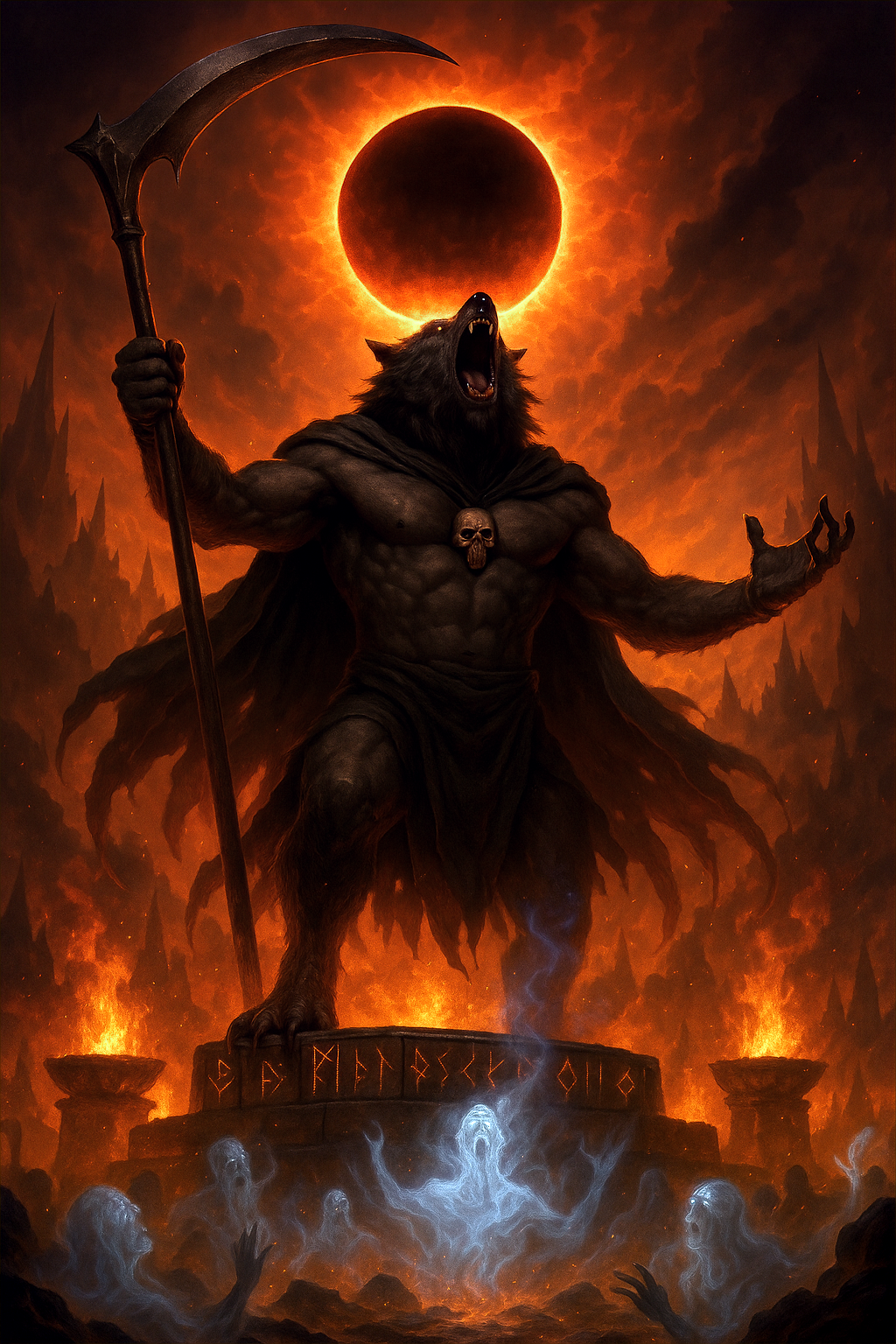
Dull/Washed Out/Muted Correction
| Original | SPCA | Original | SPCA |
 |
 |
 |
 |
 |
 |
 |
 |
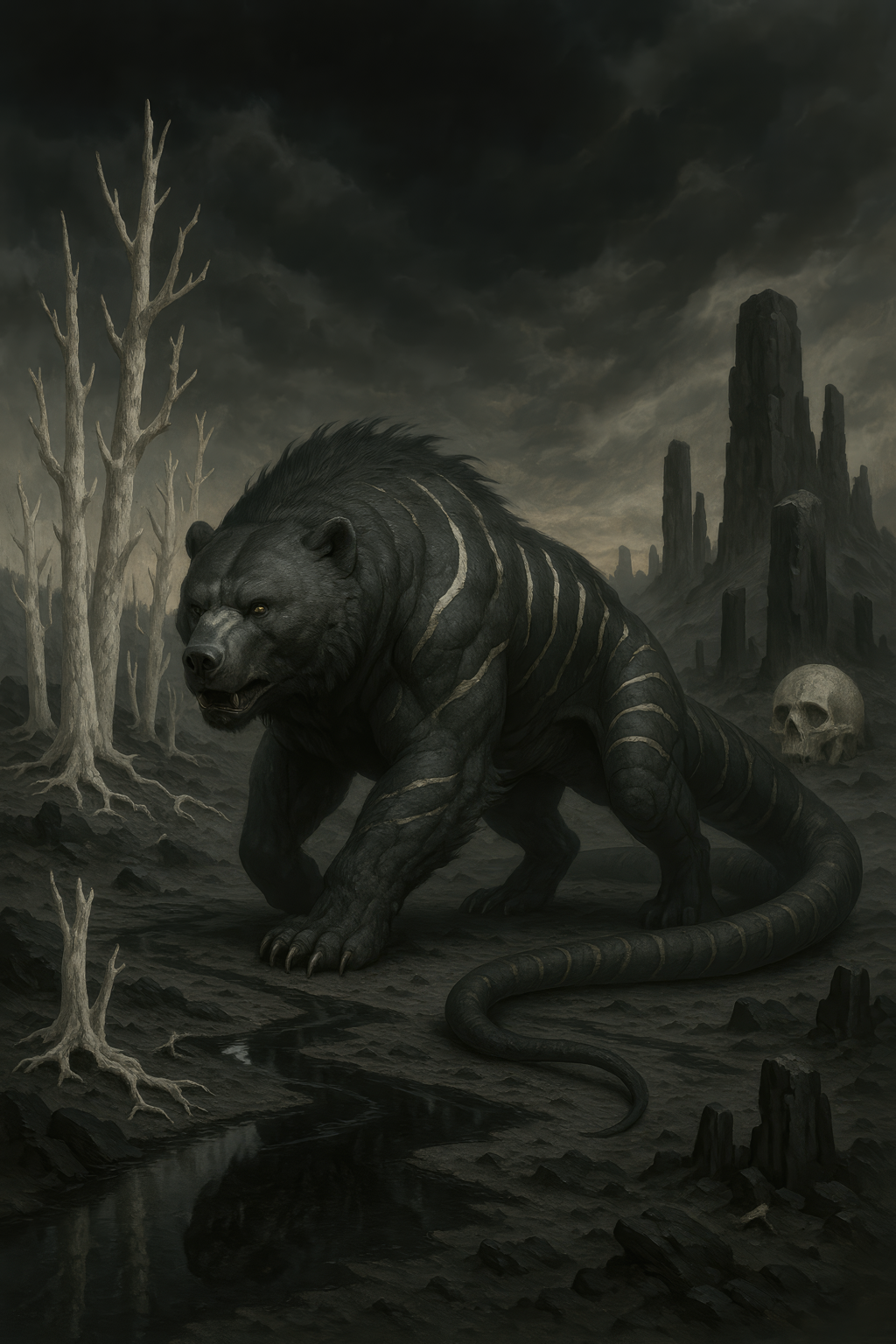
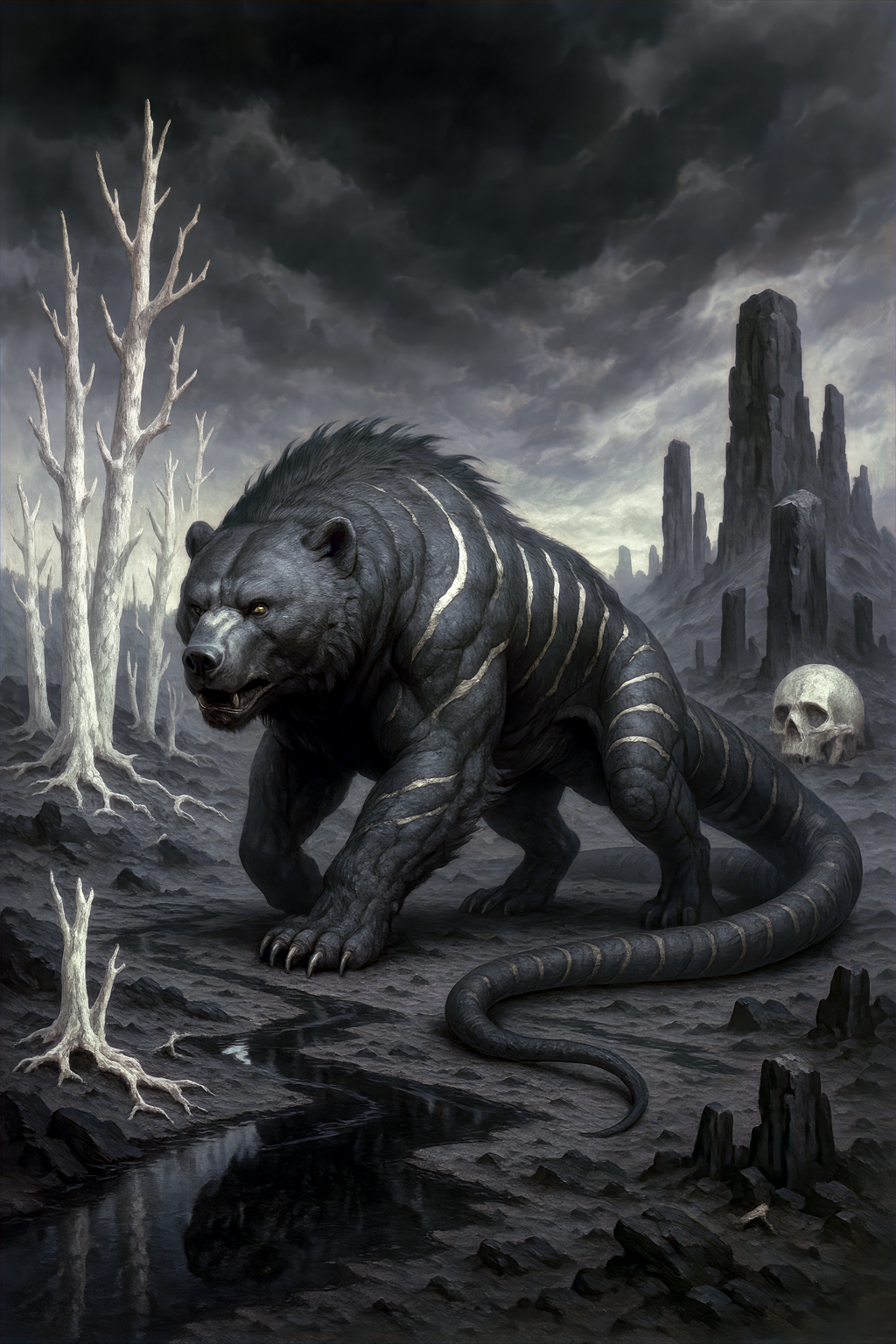
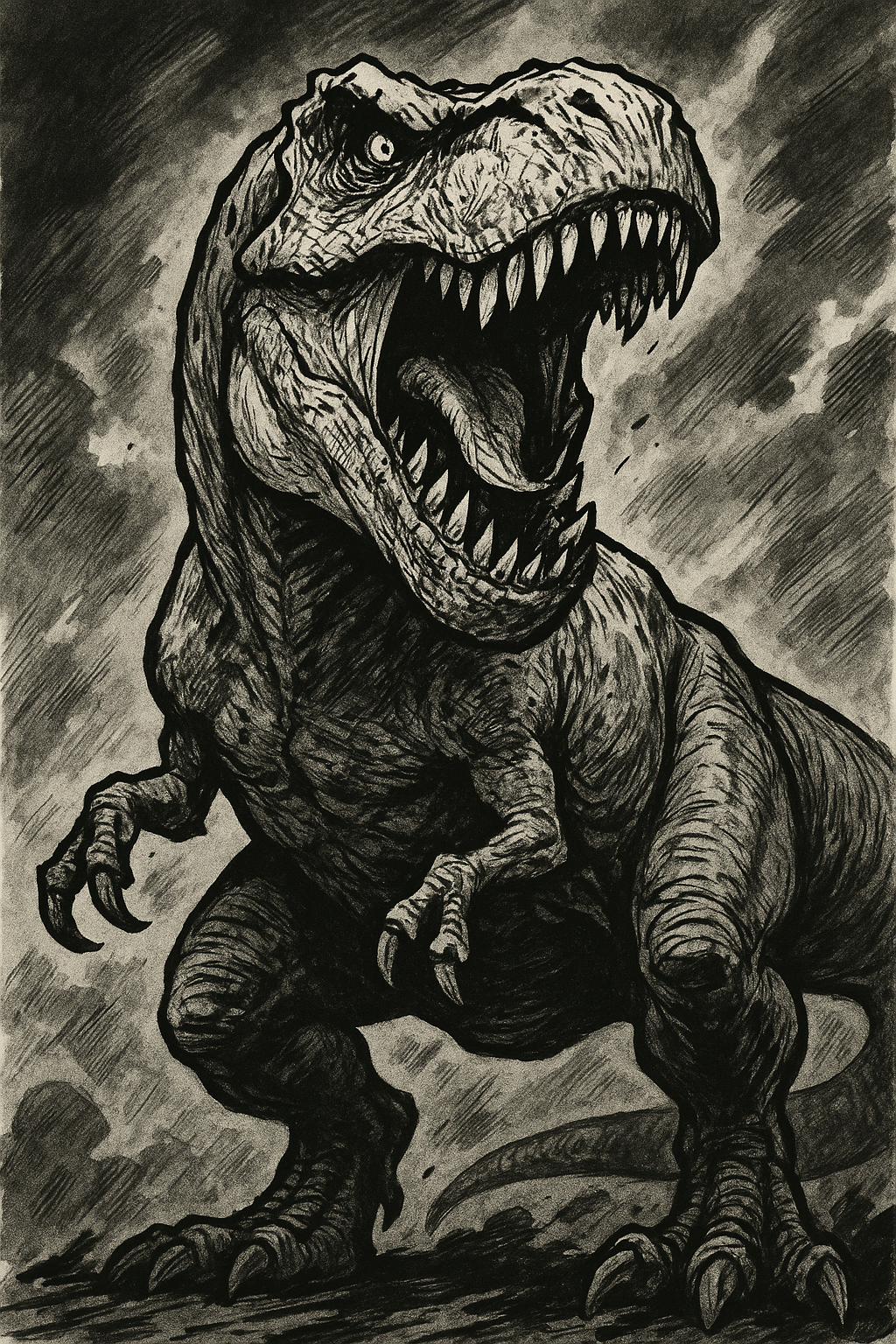
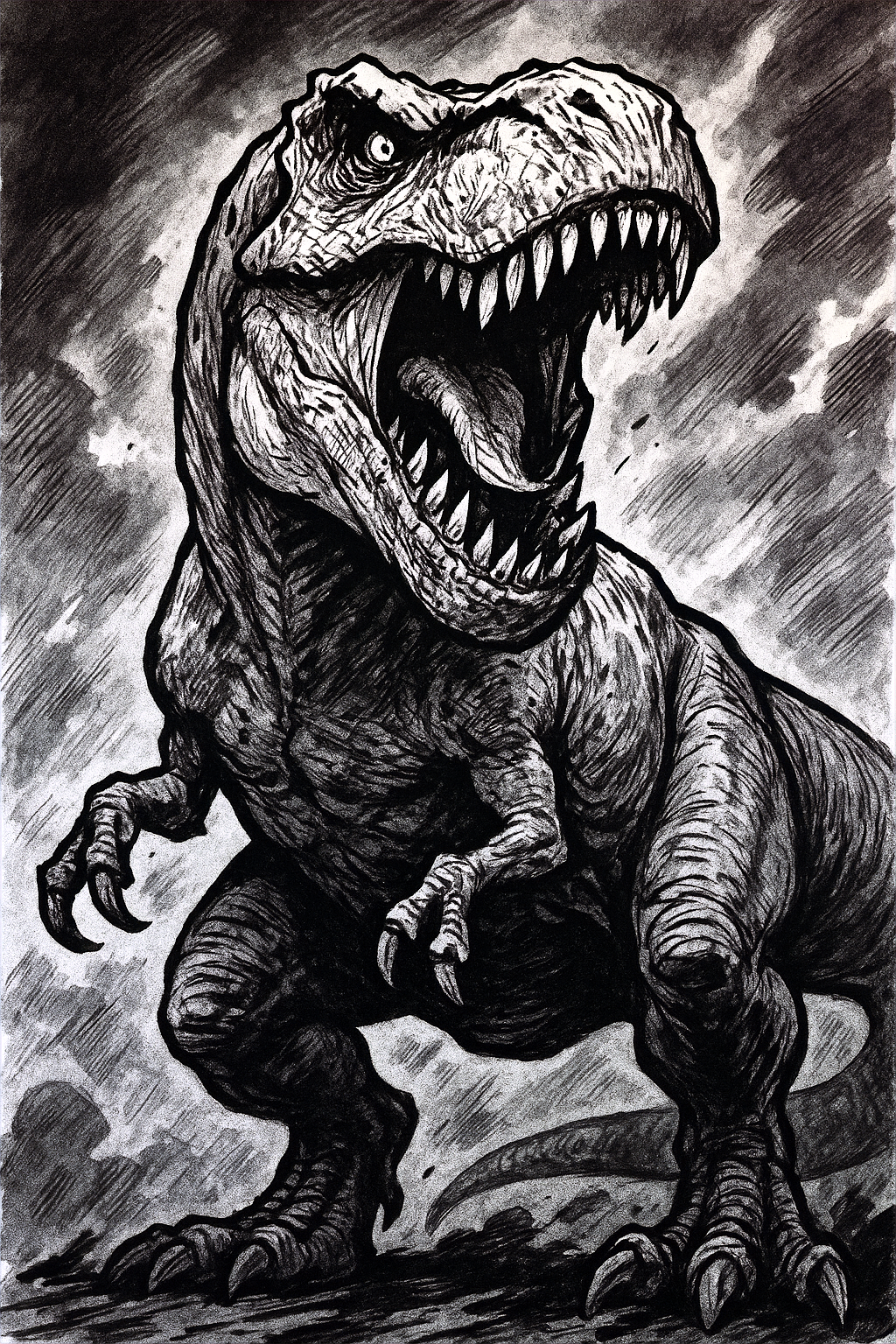
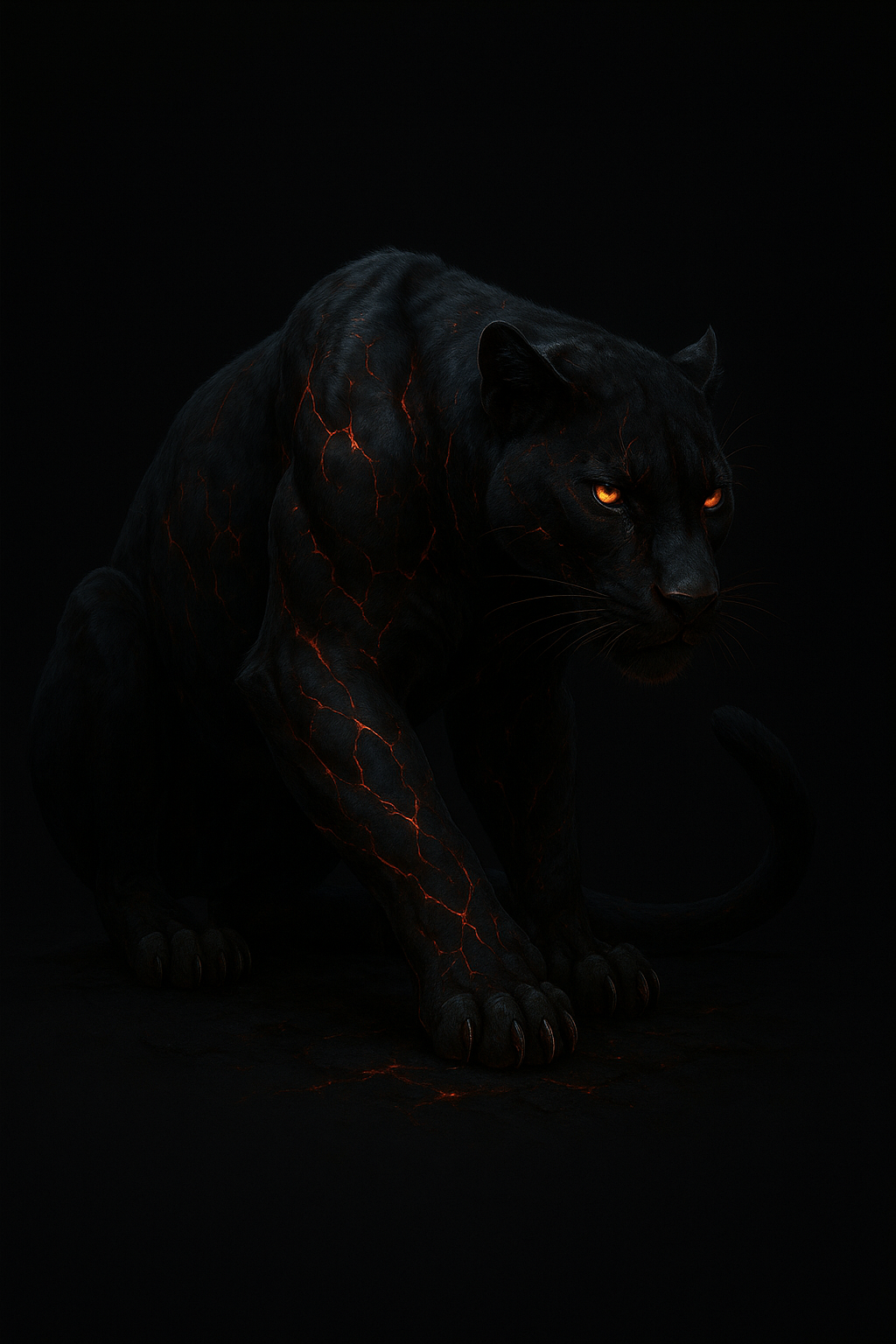
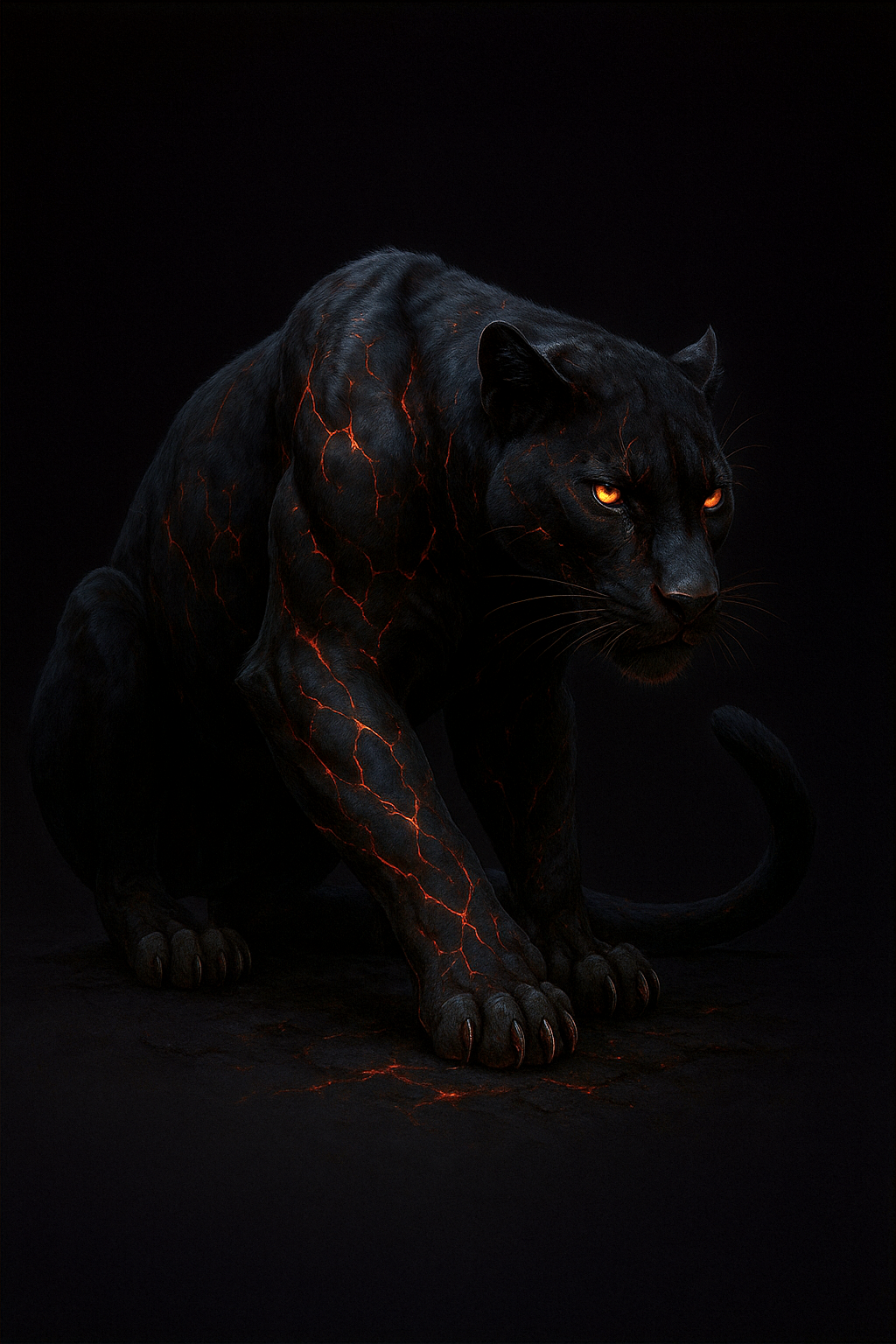
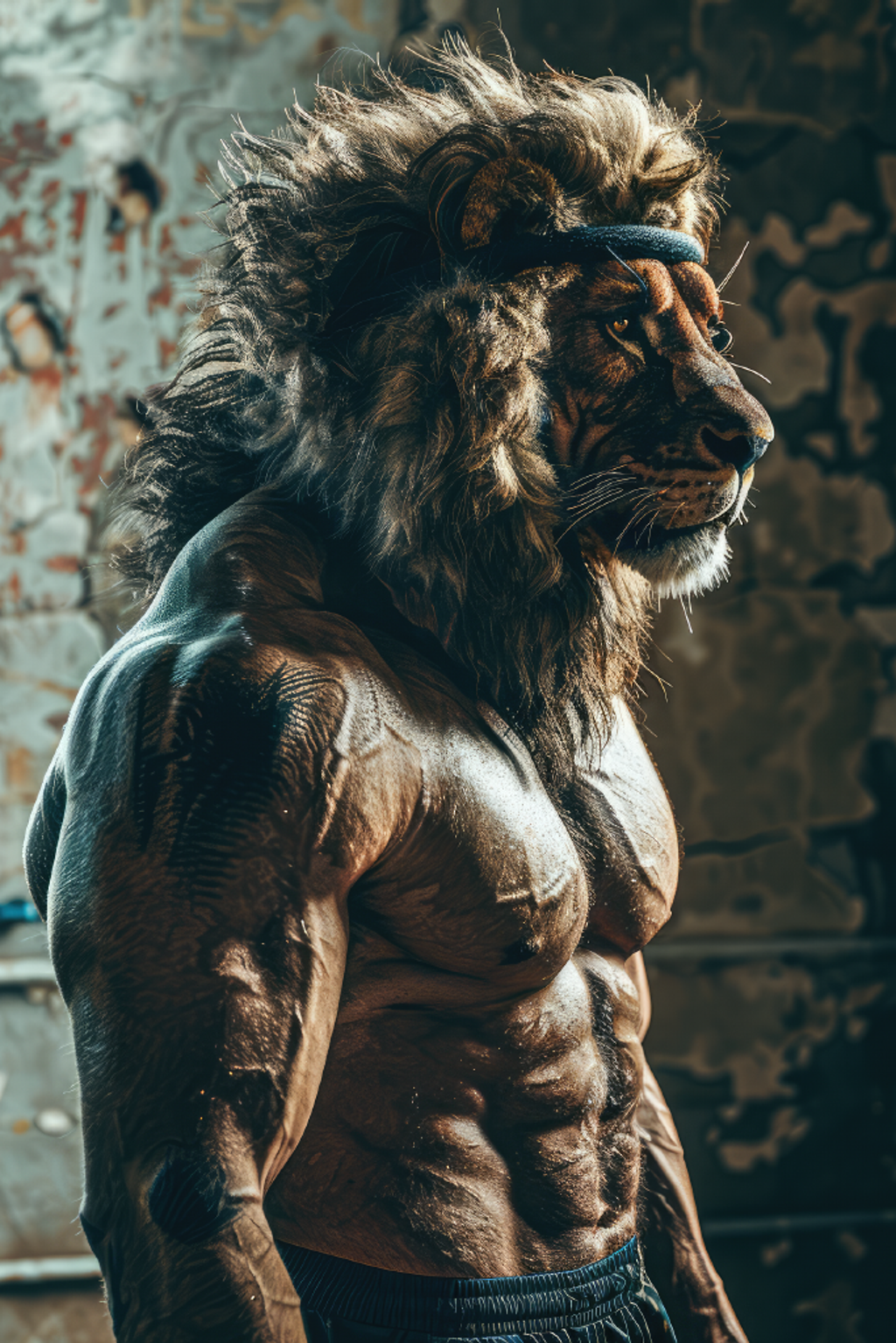
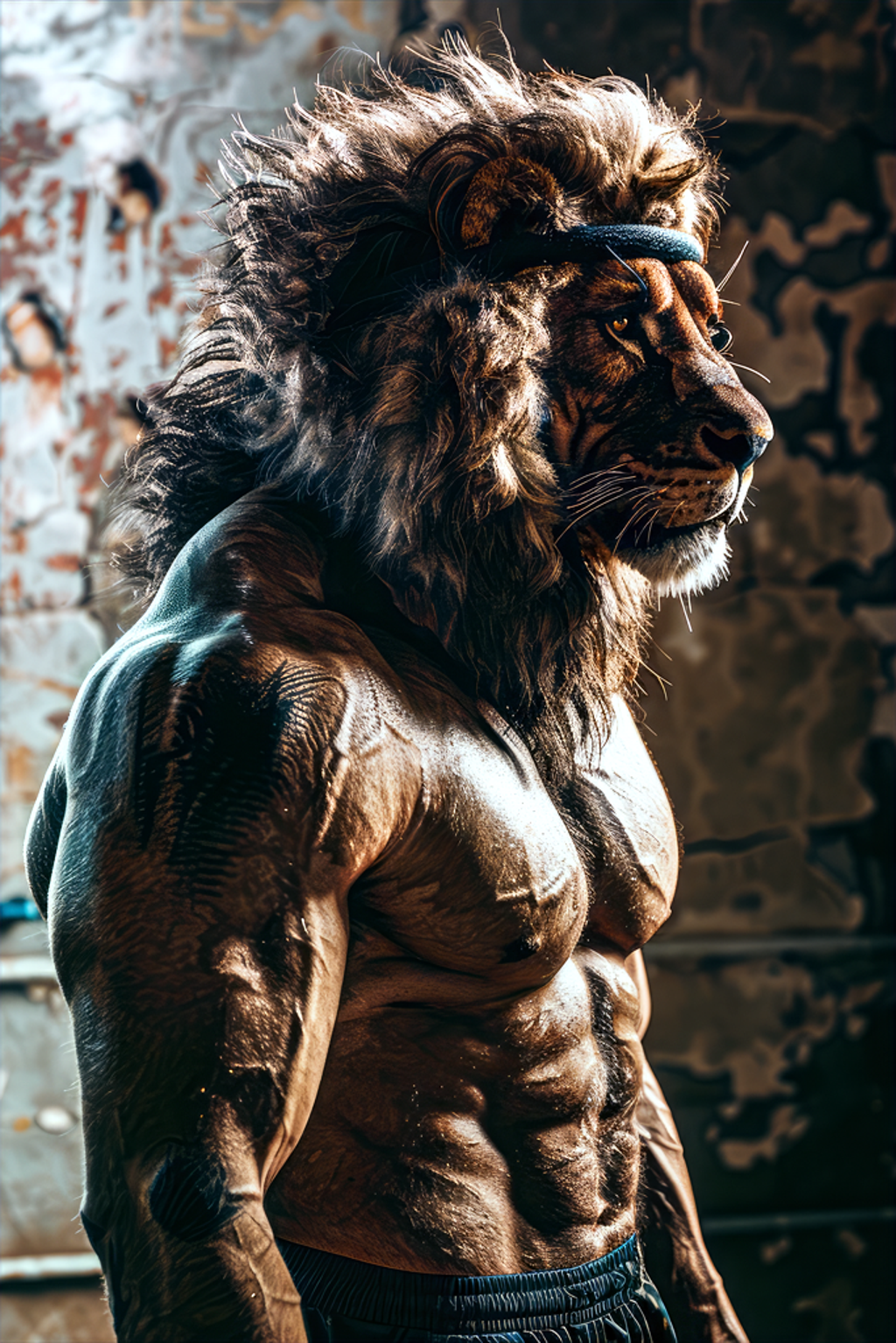
Black/White Levels & Contrast Correction
| Original | SPCA | Original | SPCA |
 |
 |
 |
 |
 |
 |
 |
 |
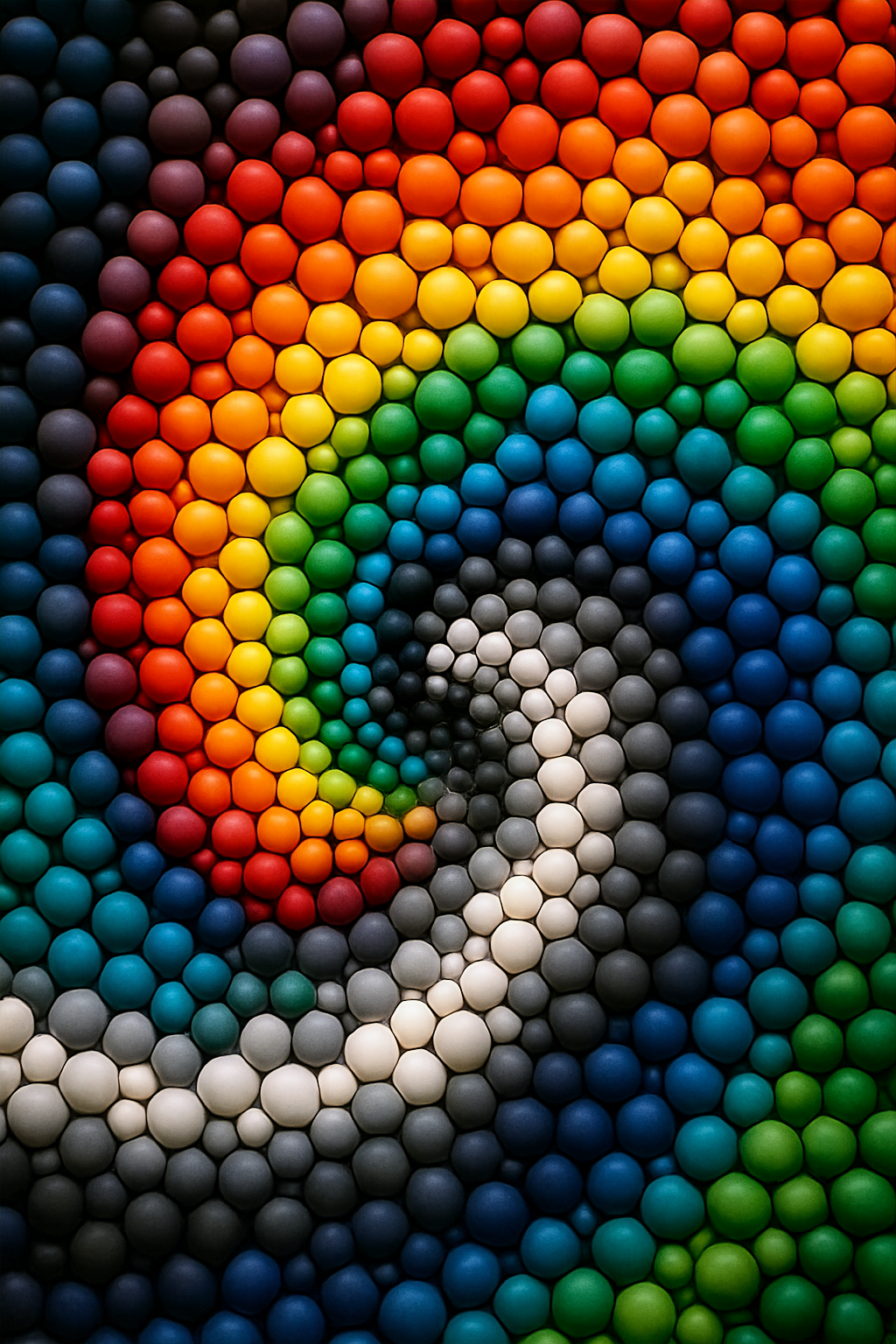
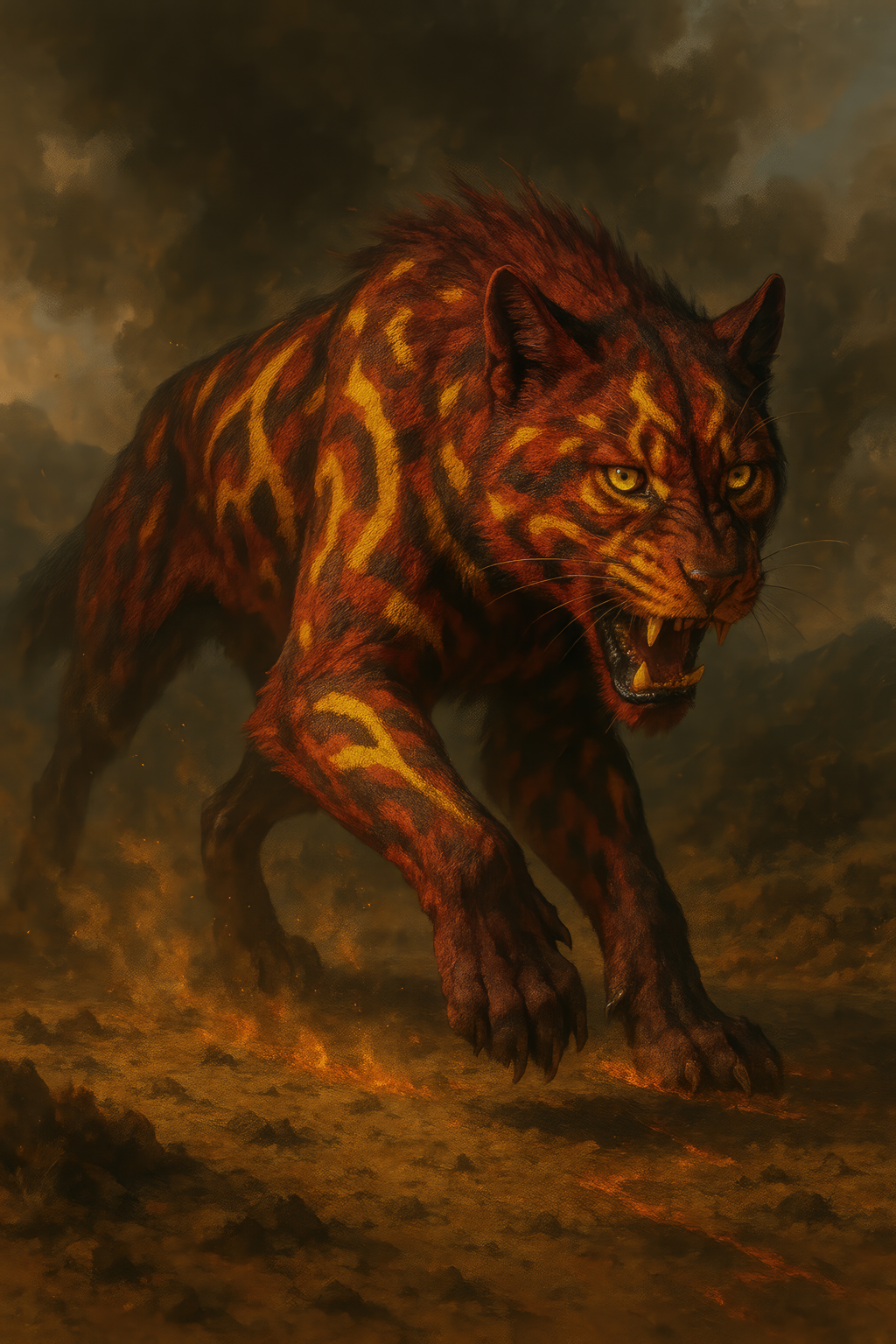
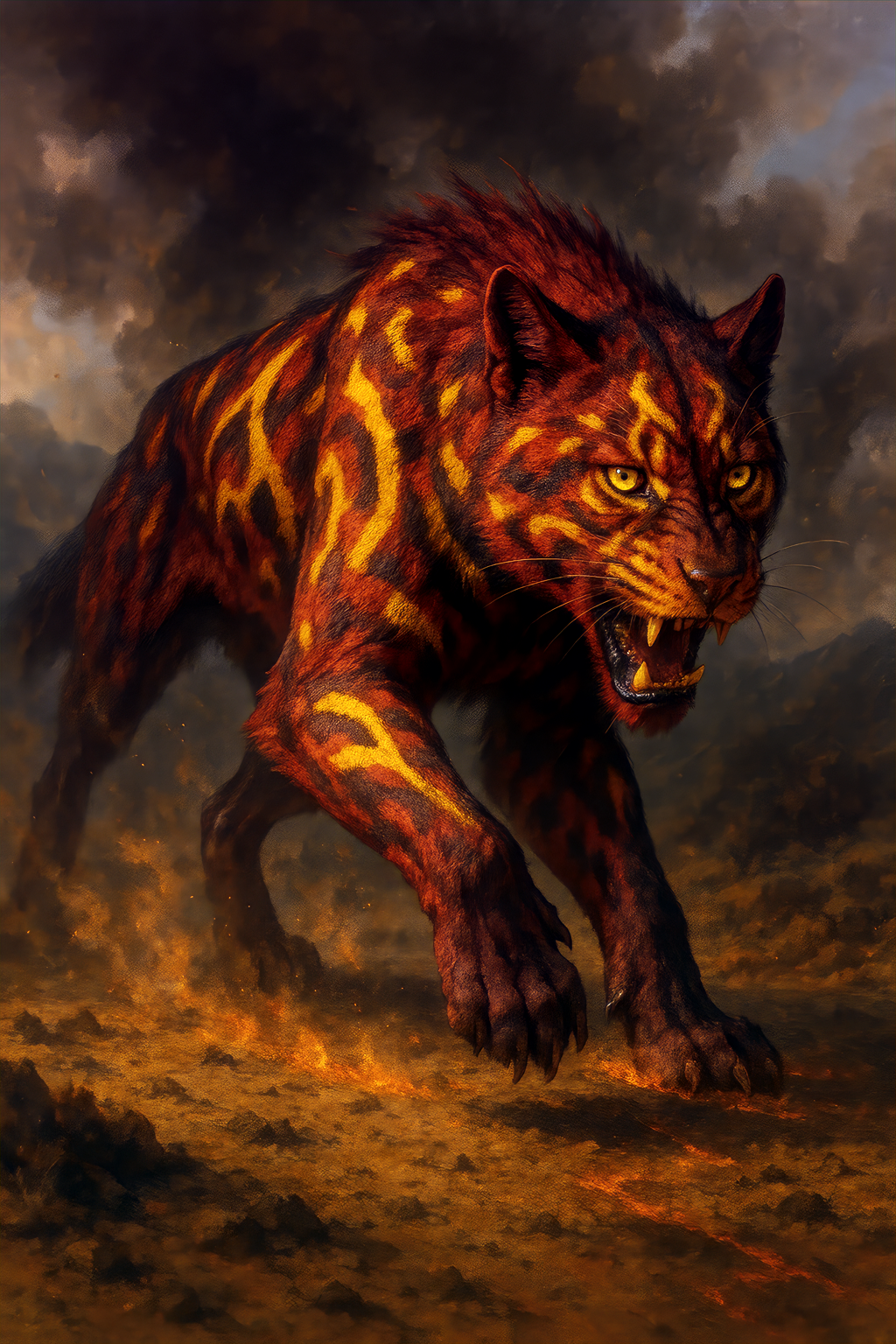
Color Correction
| Original | SPCA | Original | SPCA |
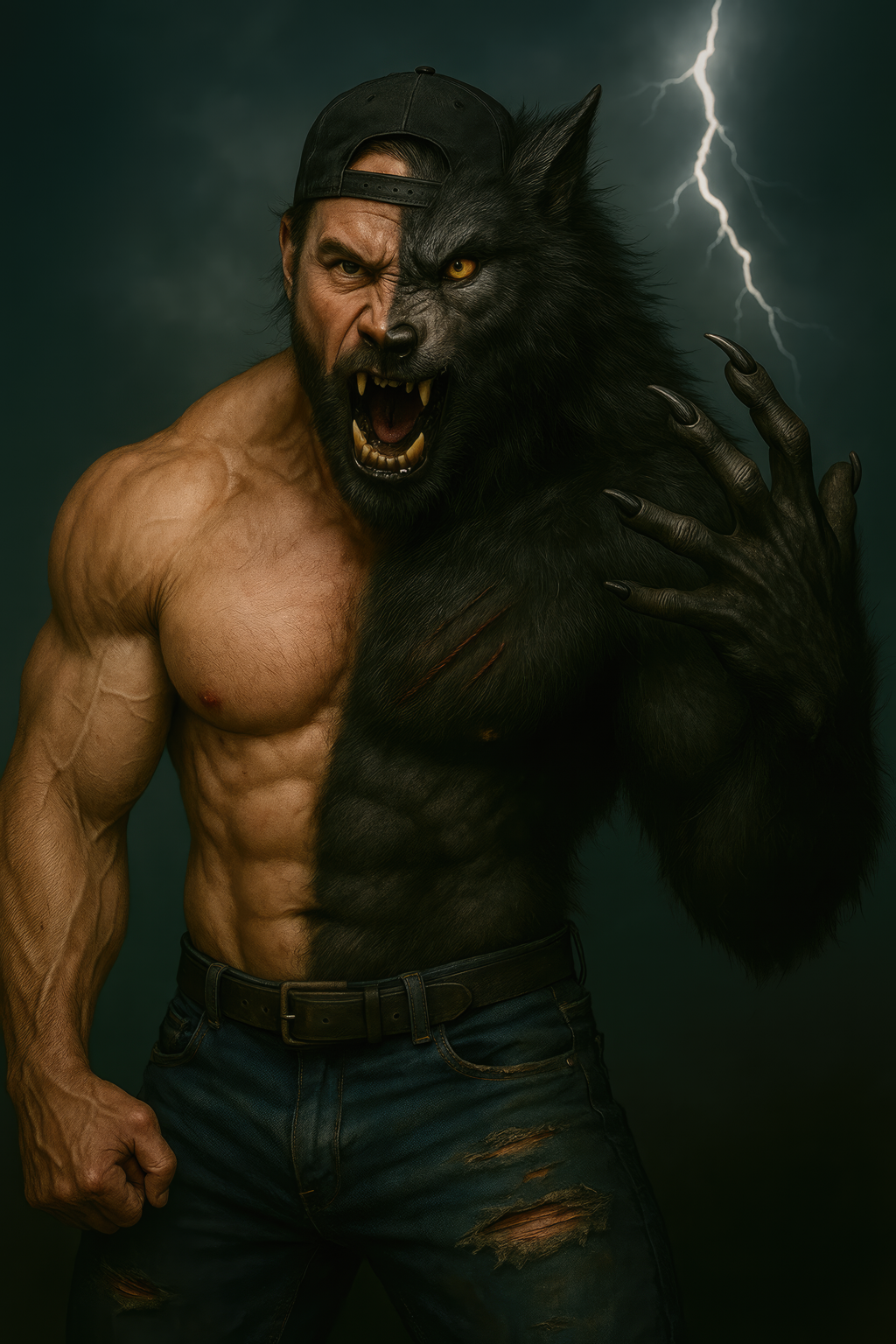 |
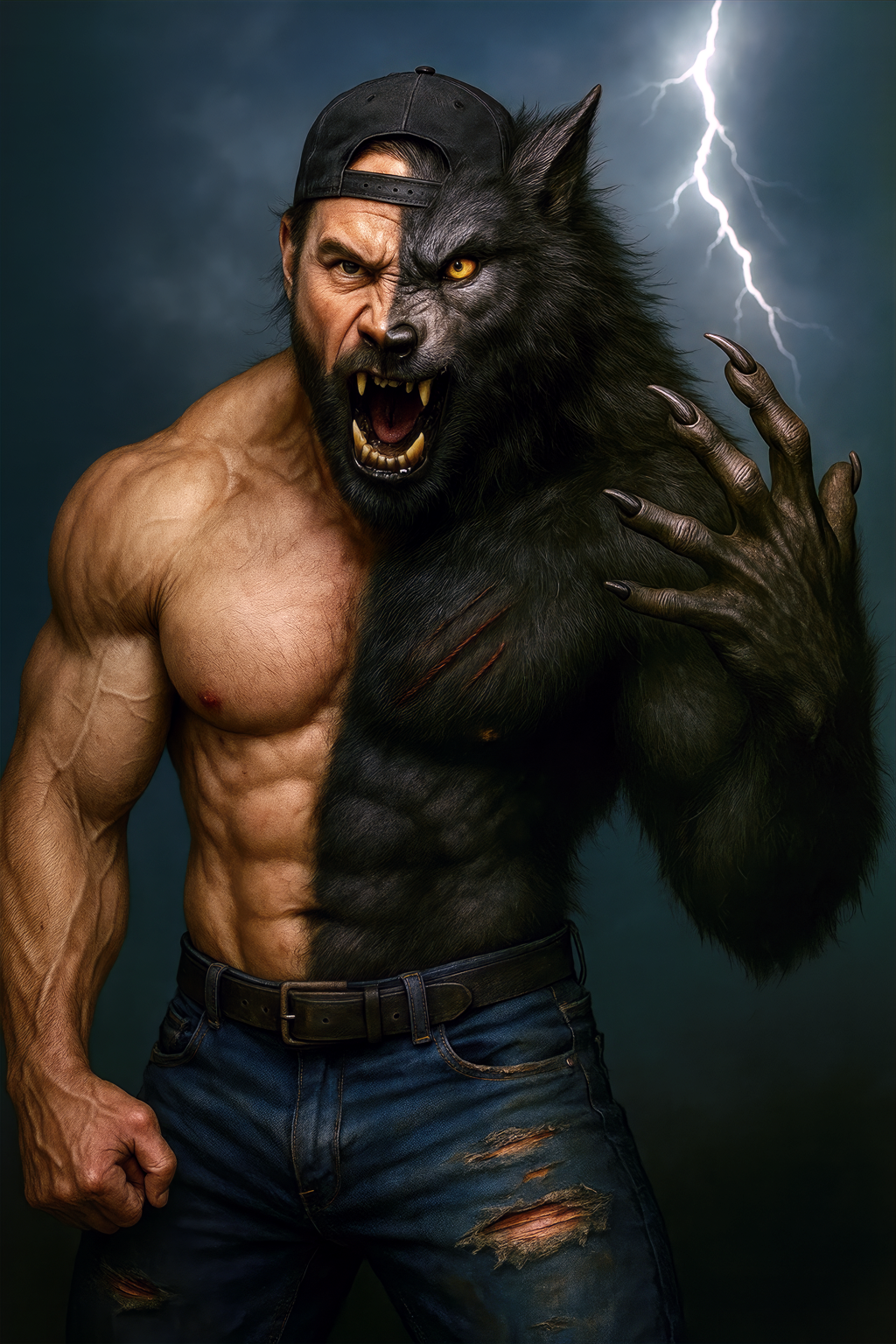 |
 |
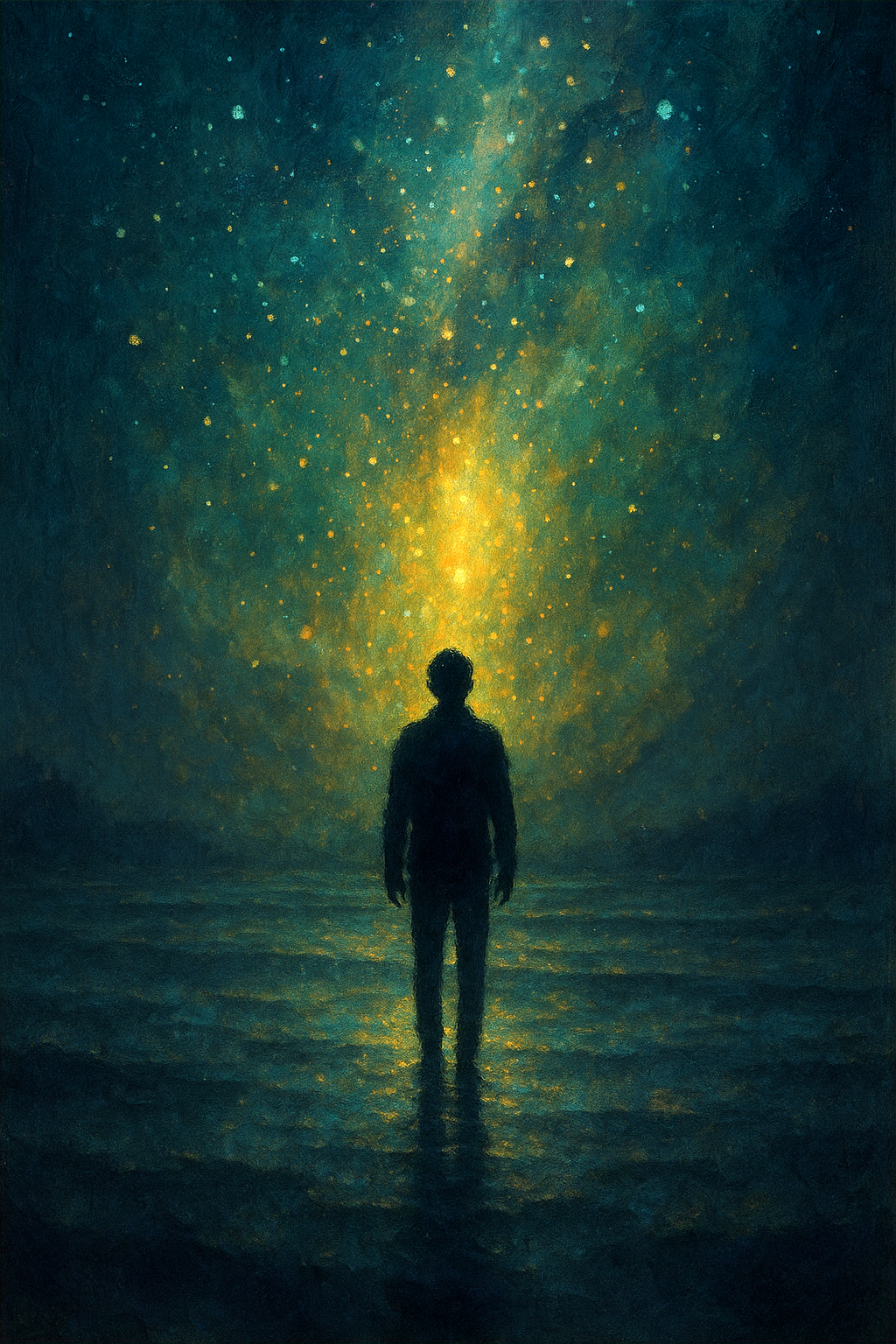 |
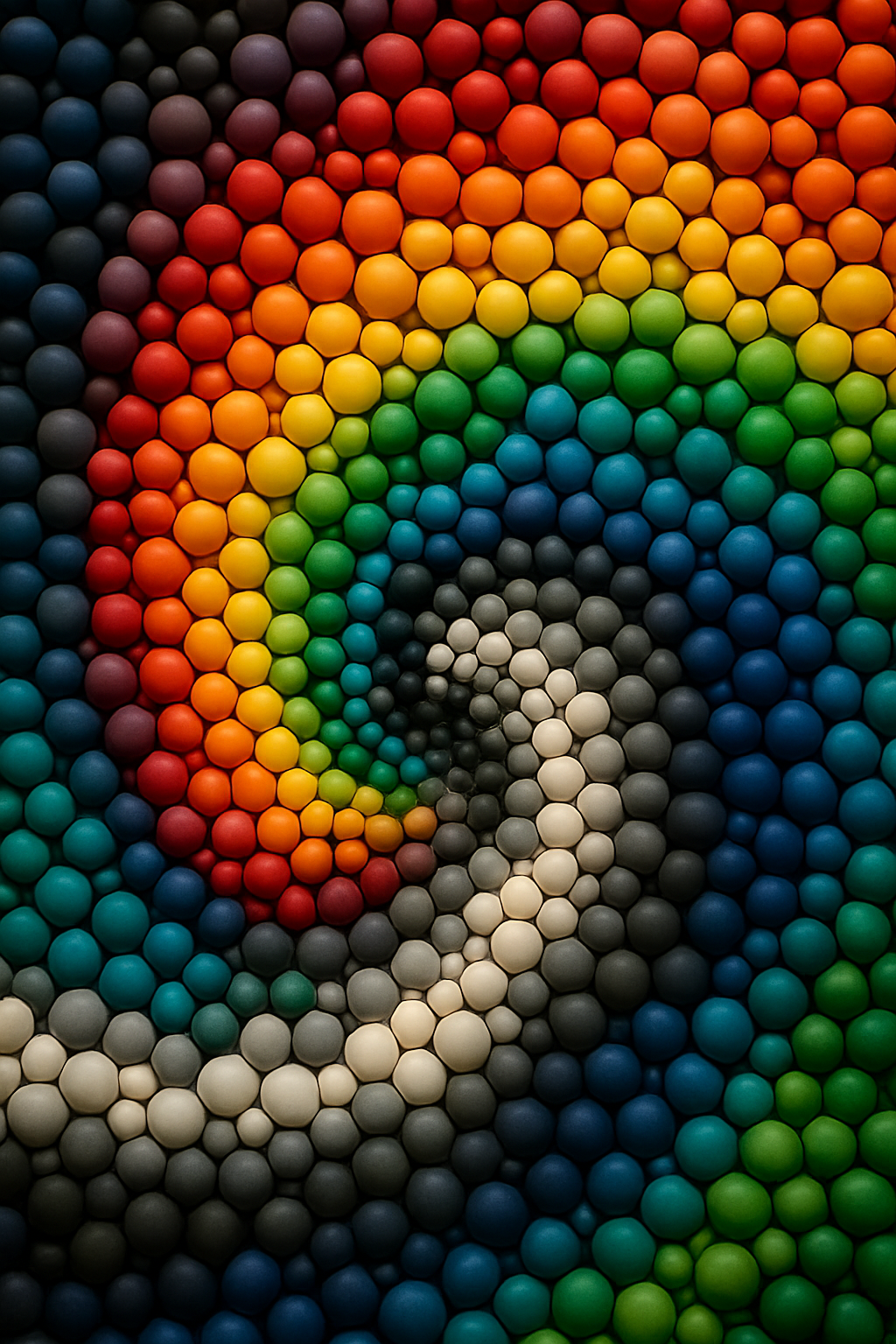 |
 |
 |
 |
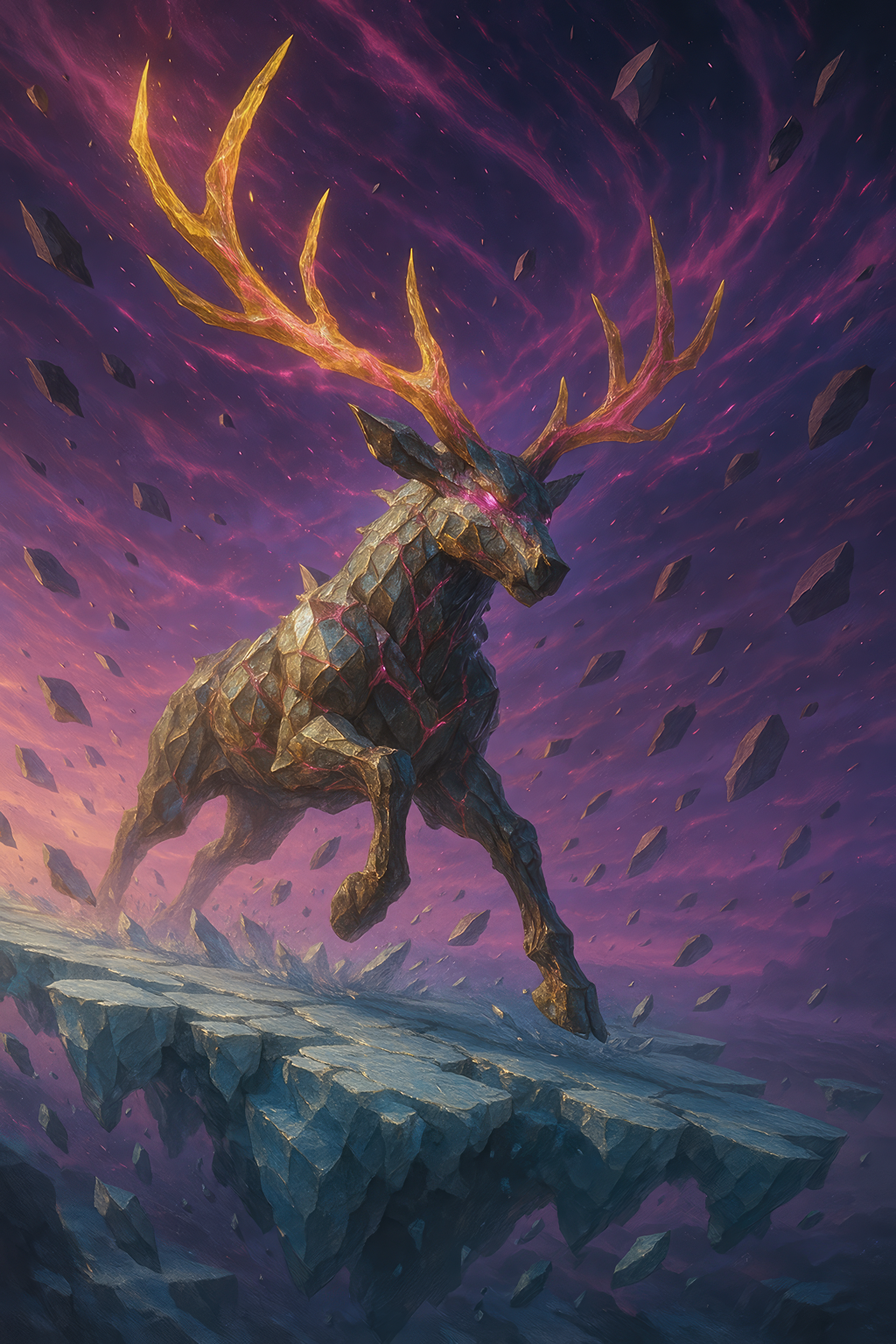
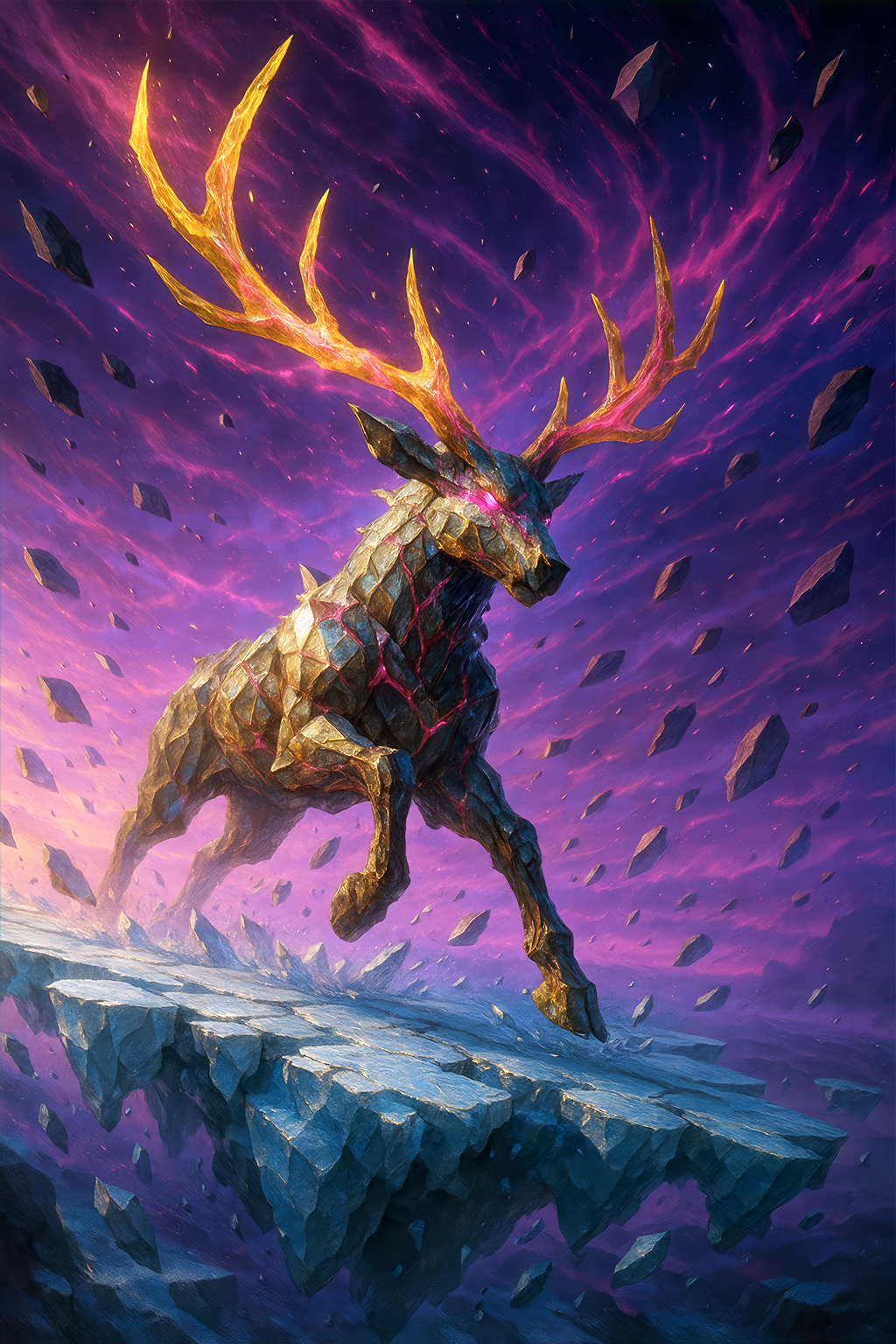
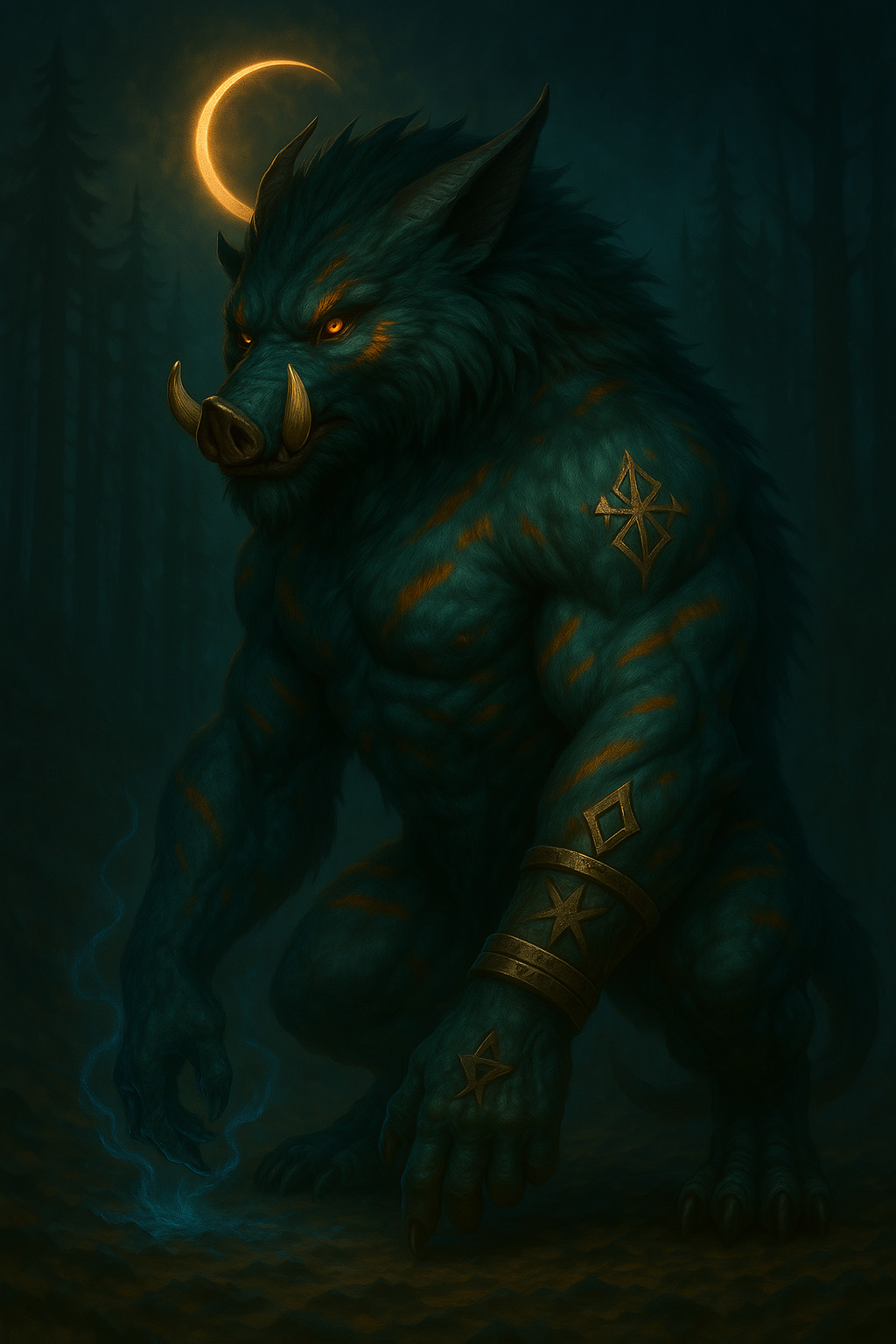
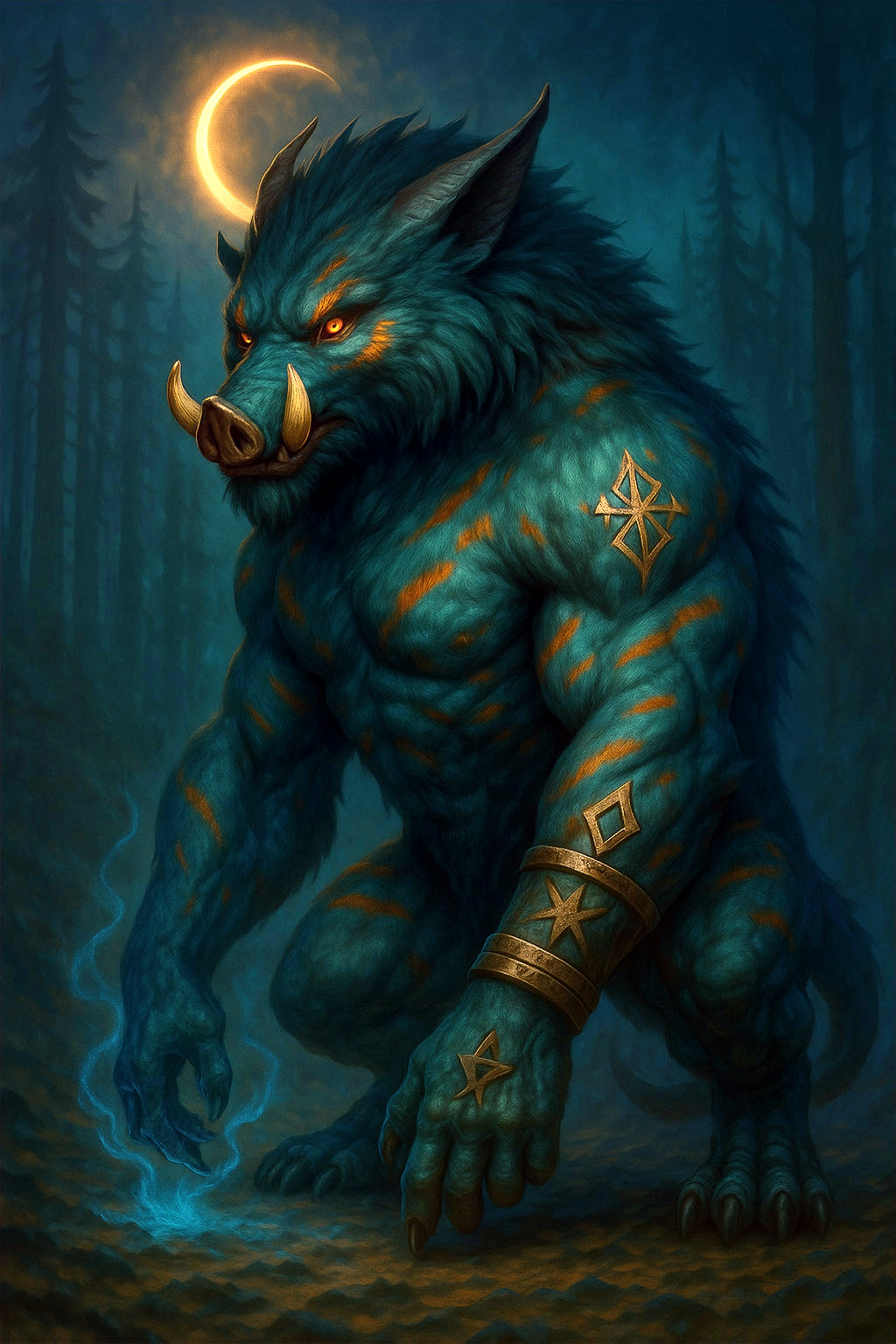
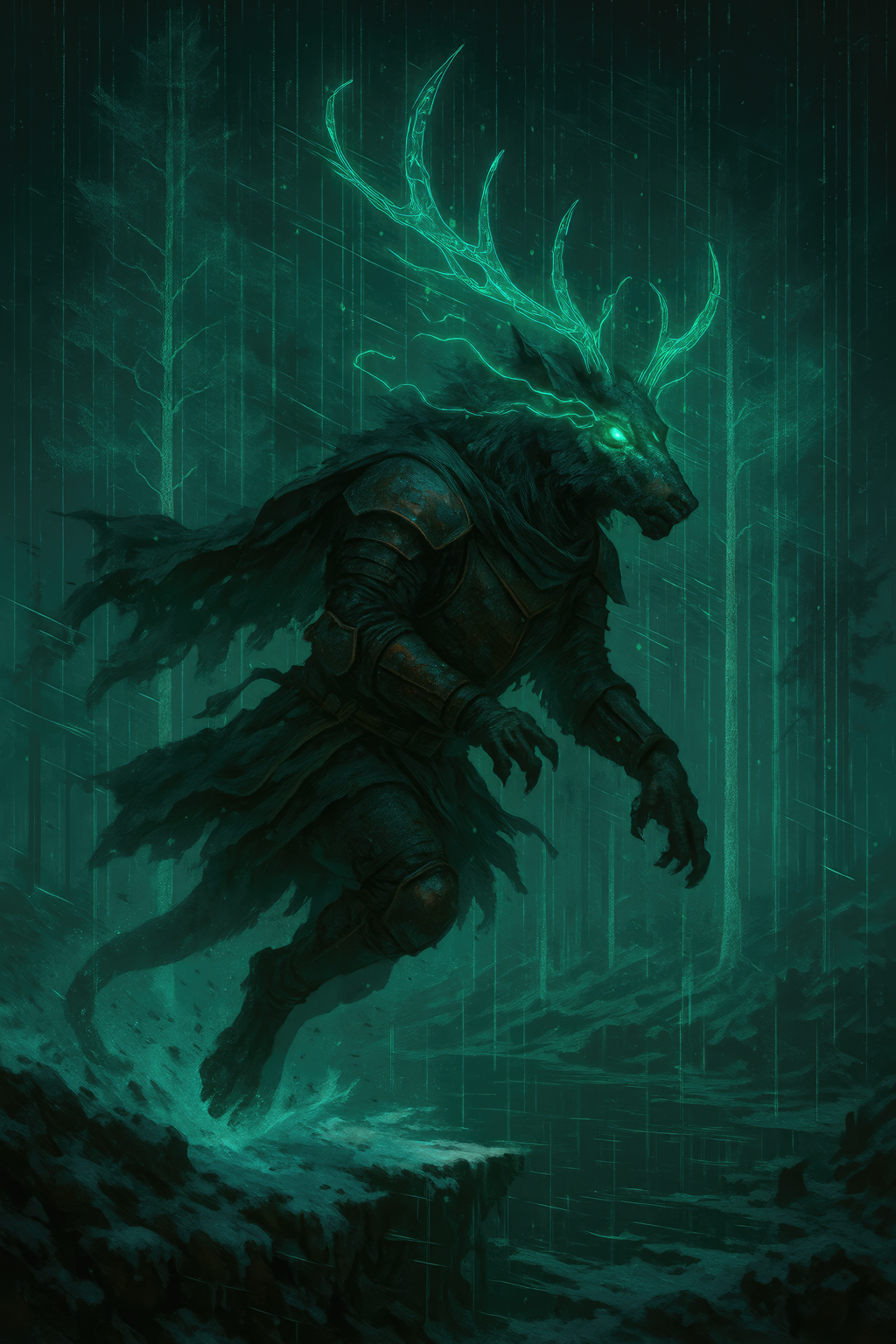
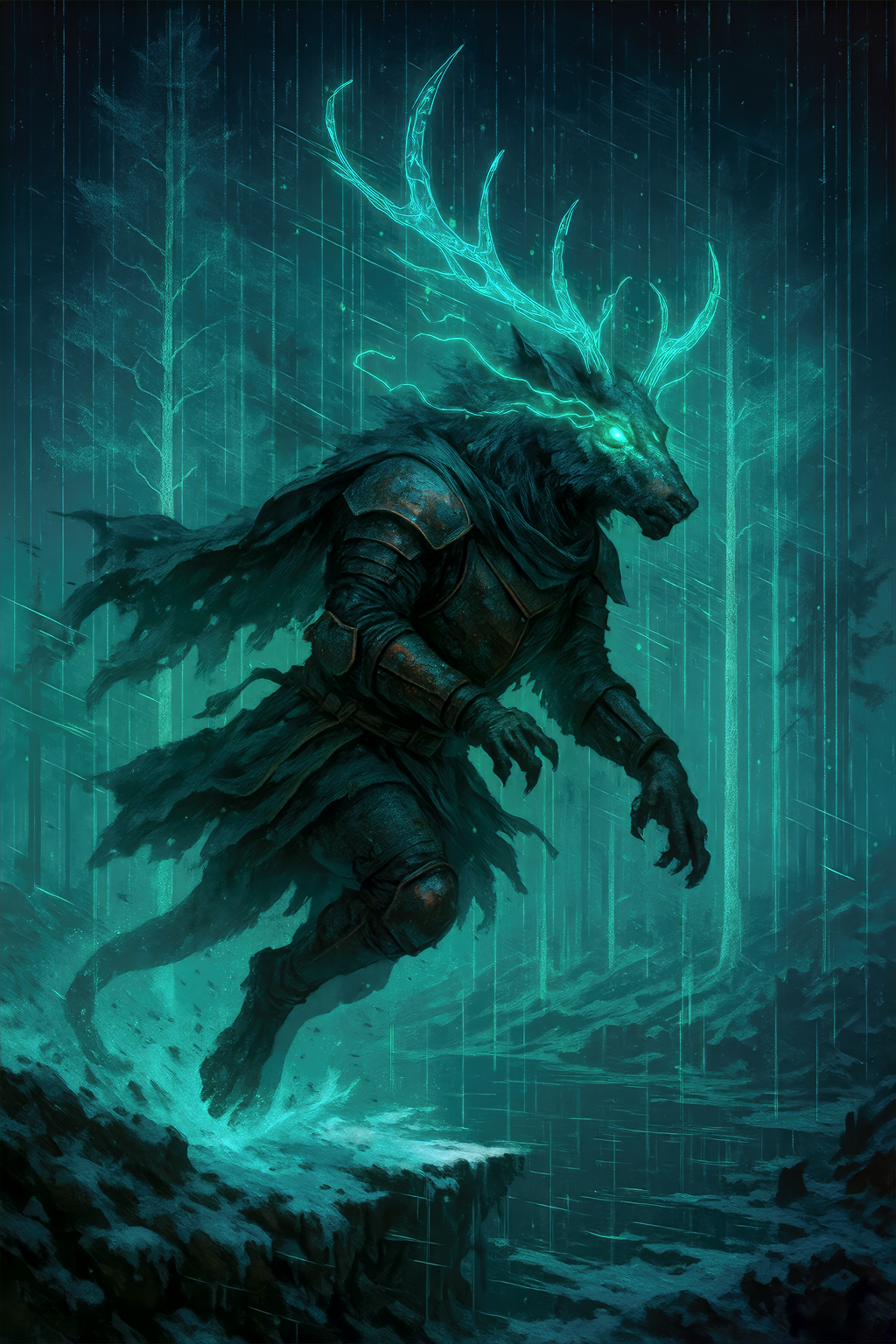
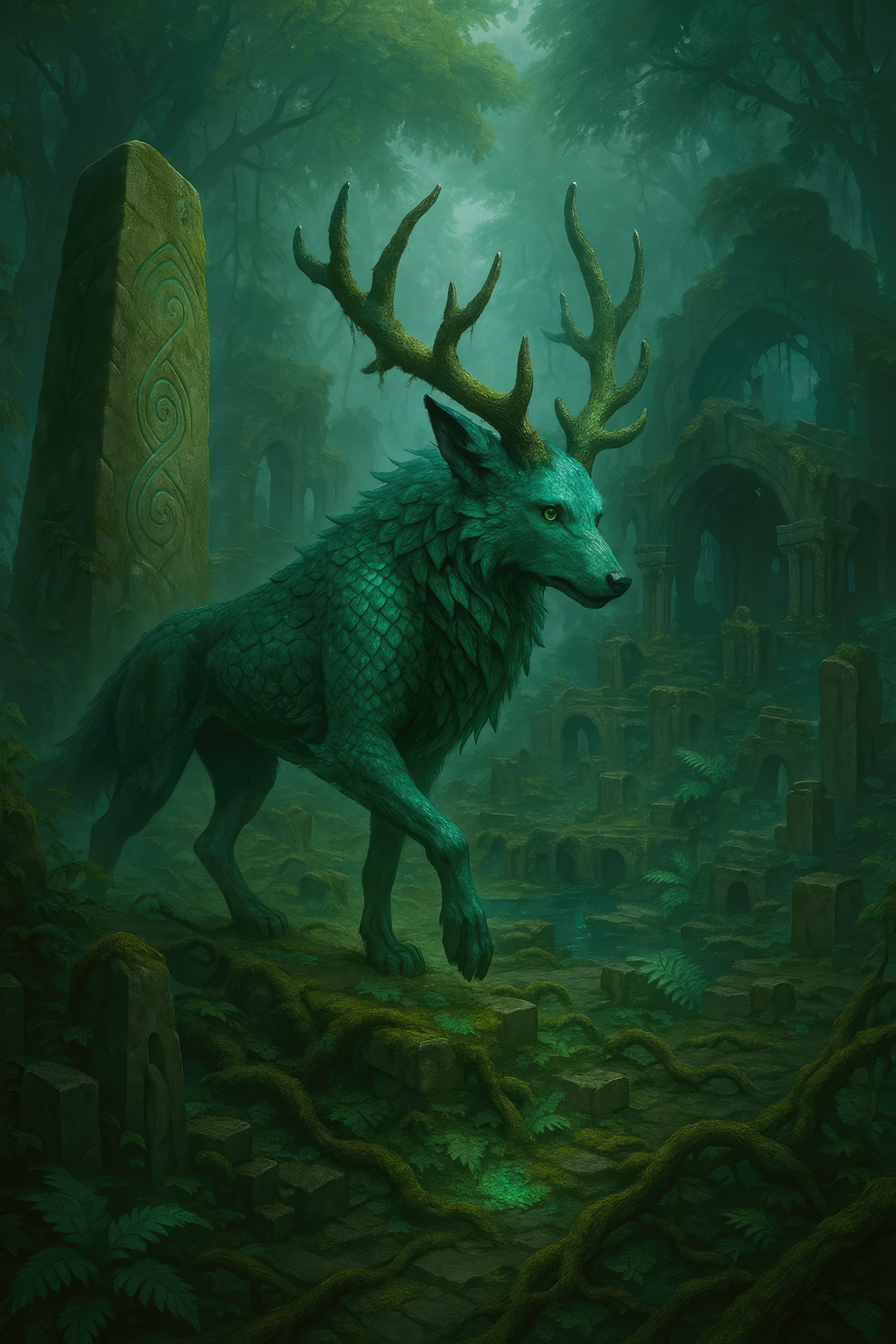
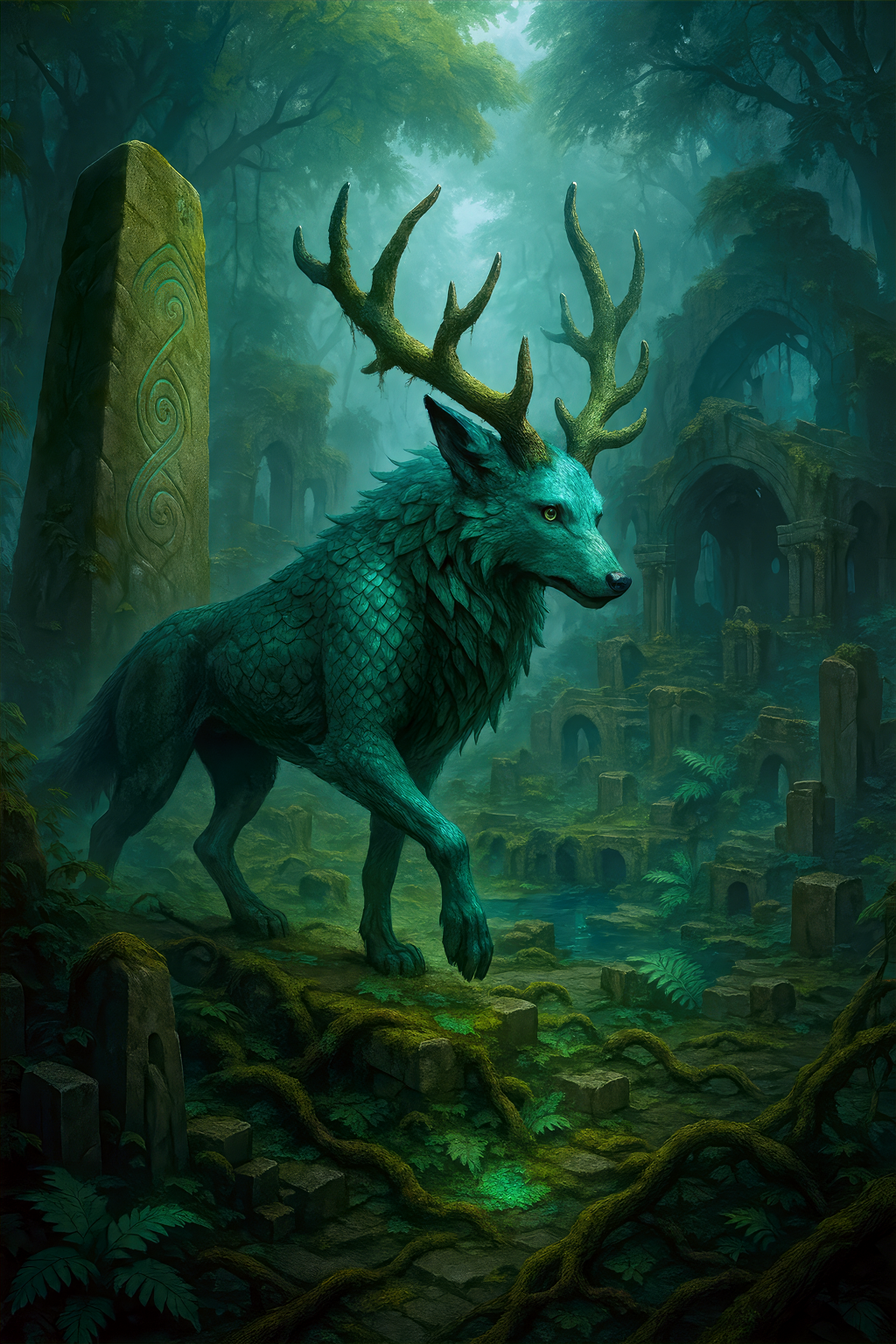
Vibrancy Improvements
| Original | SPCA | Original | SPCA |
 |
 |
 |
 |
 |
 |
 |
 |
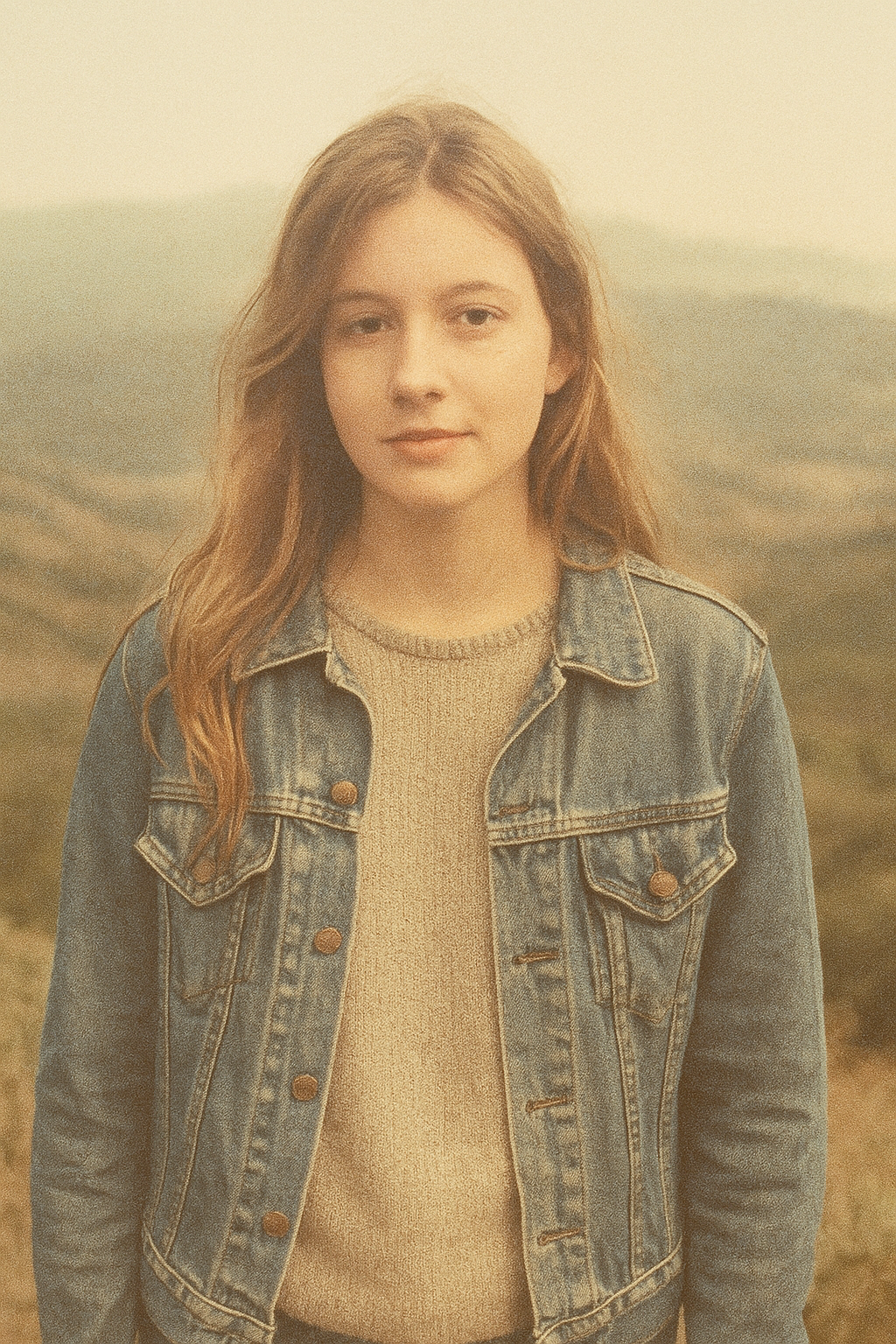
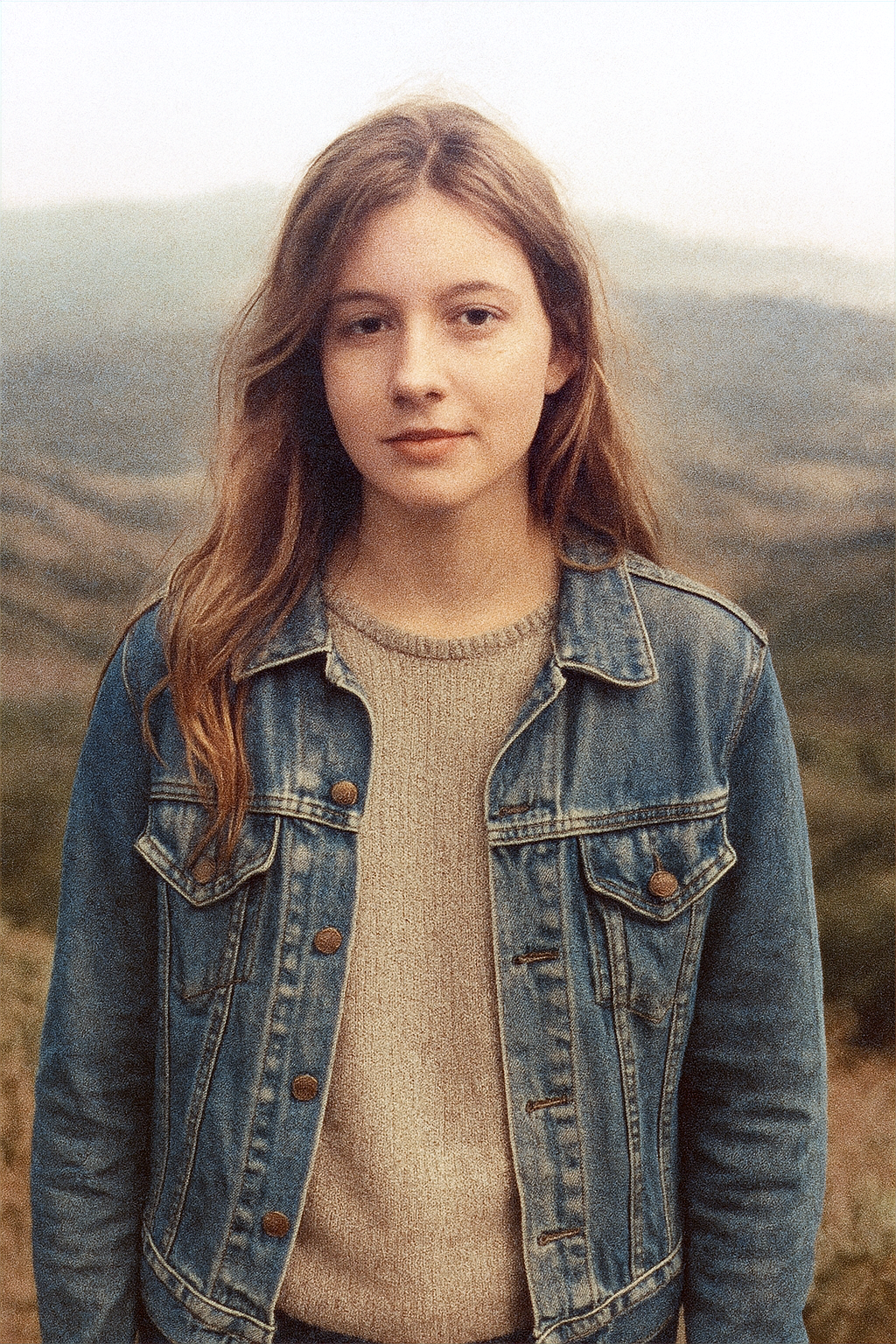
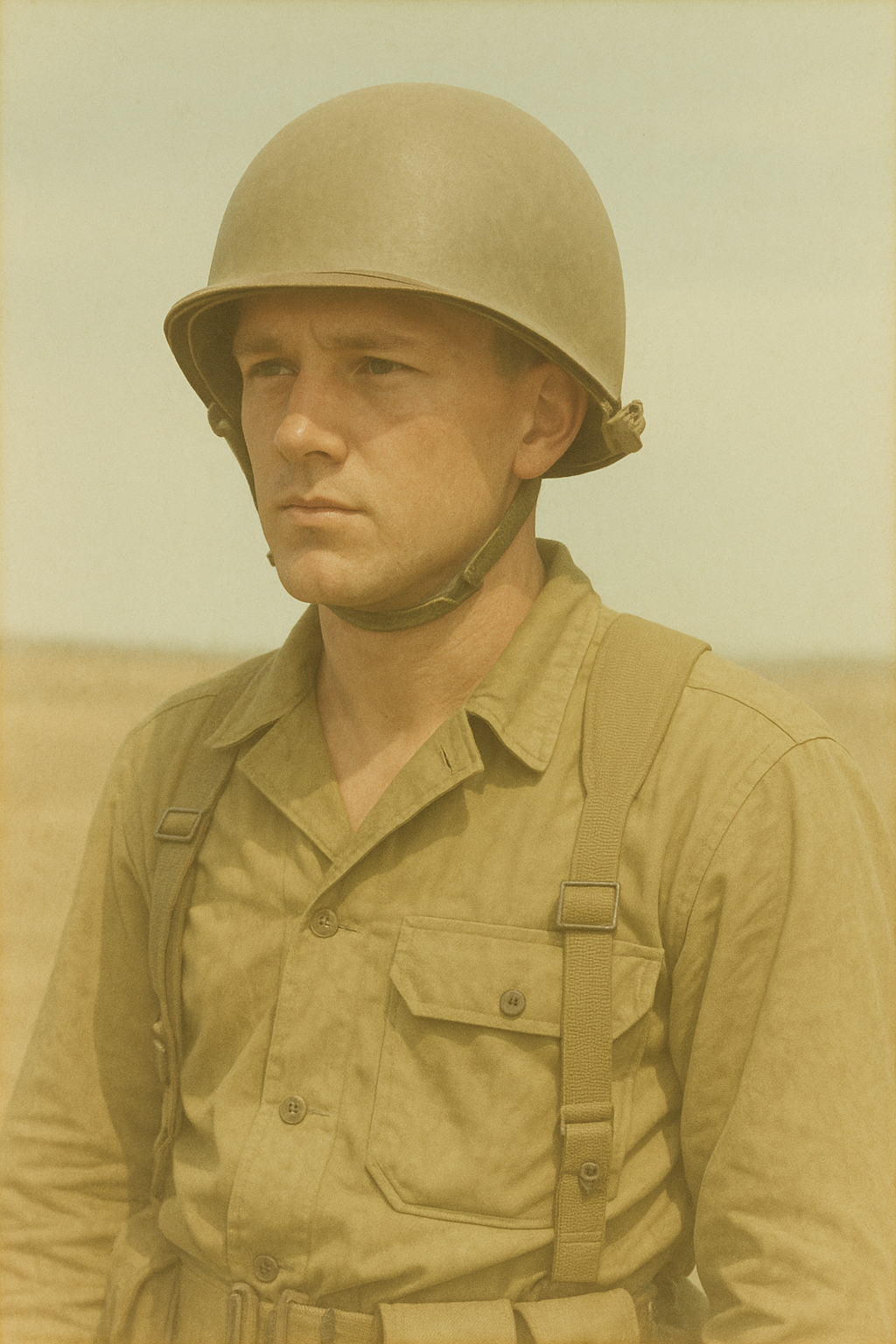
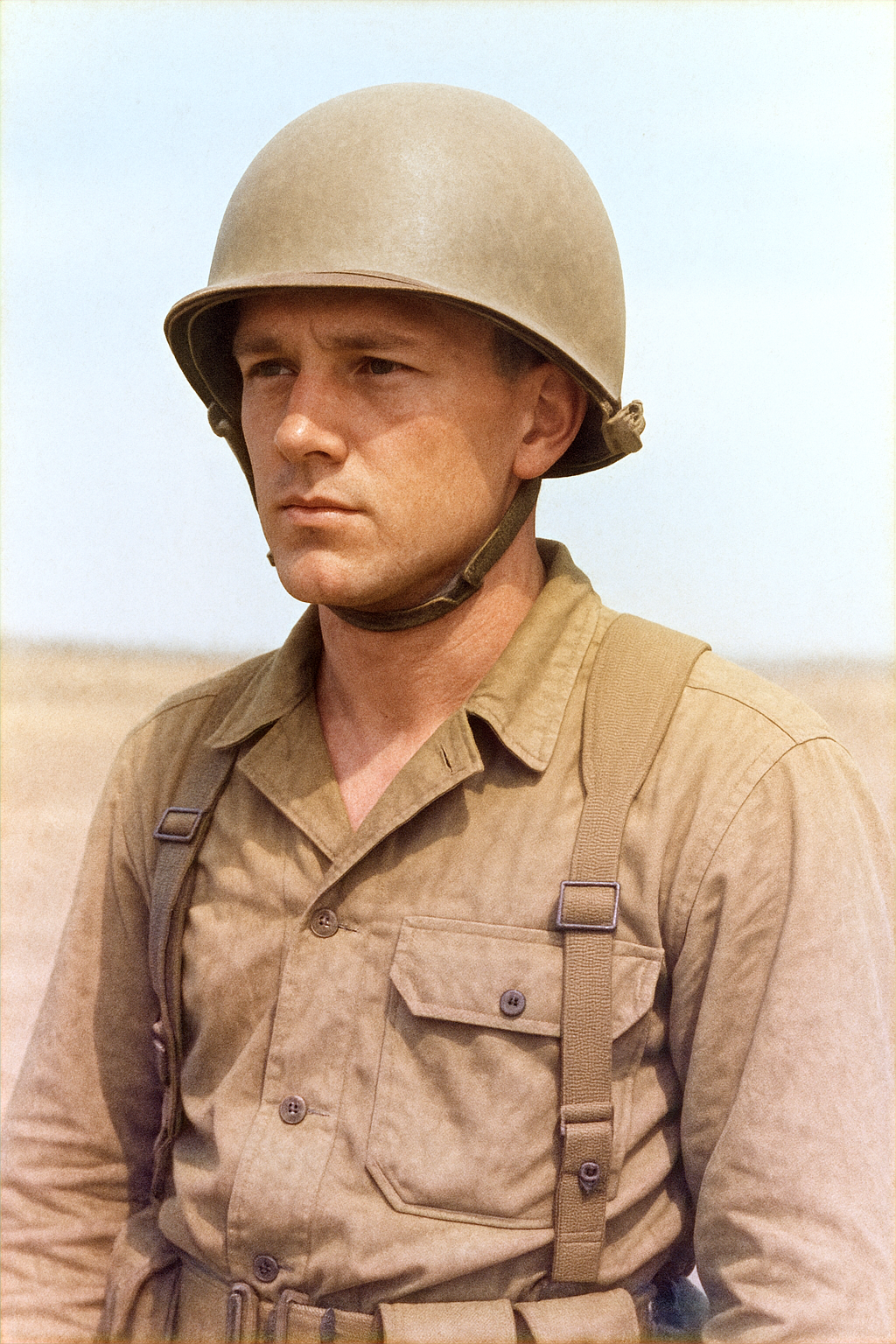
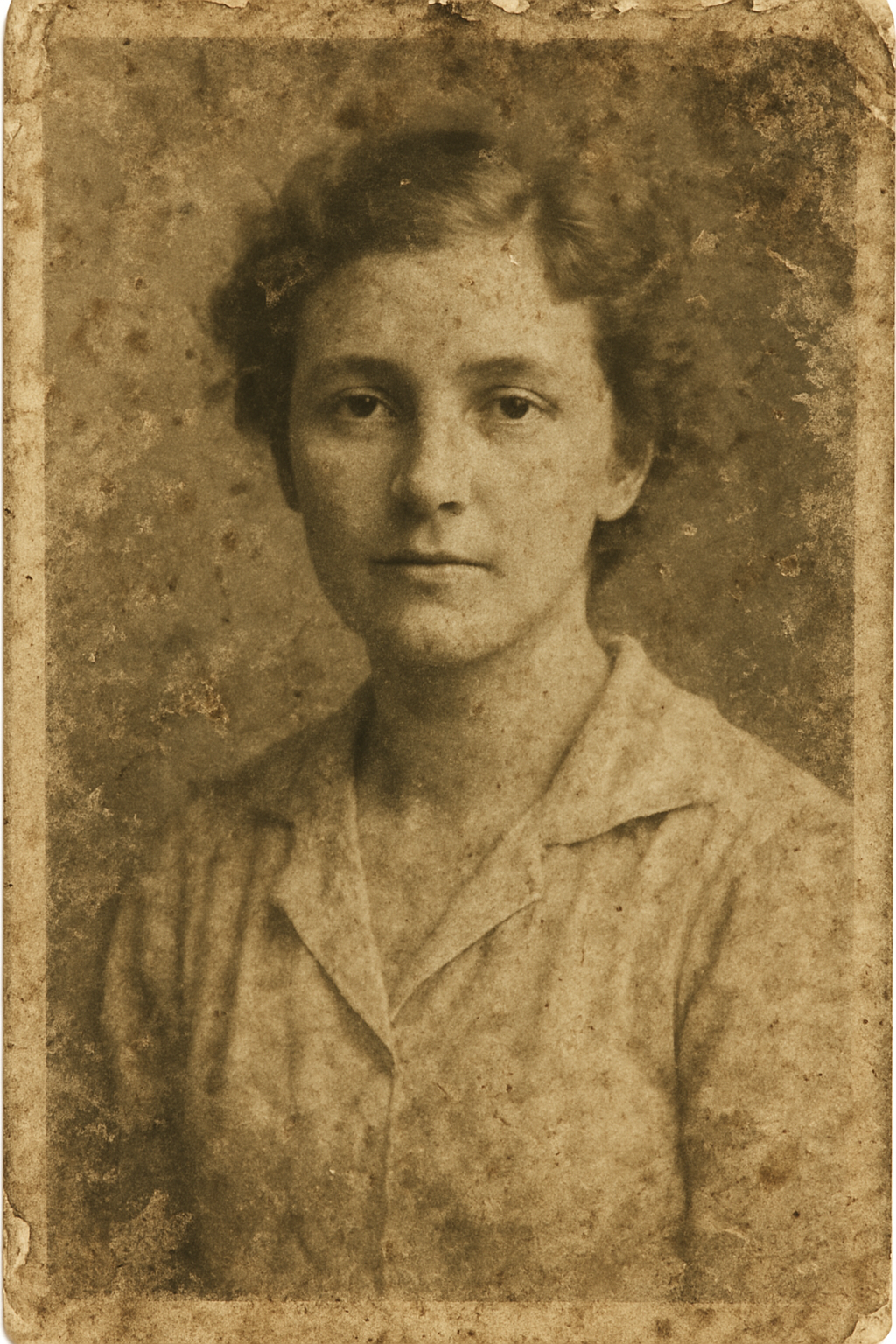
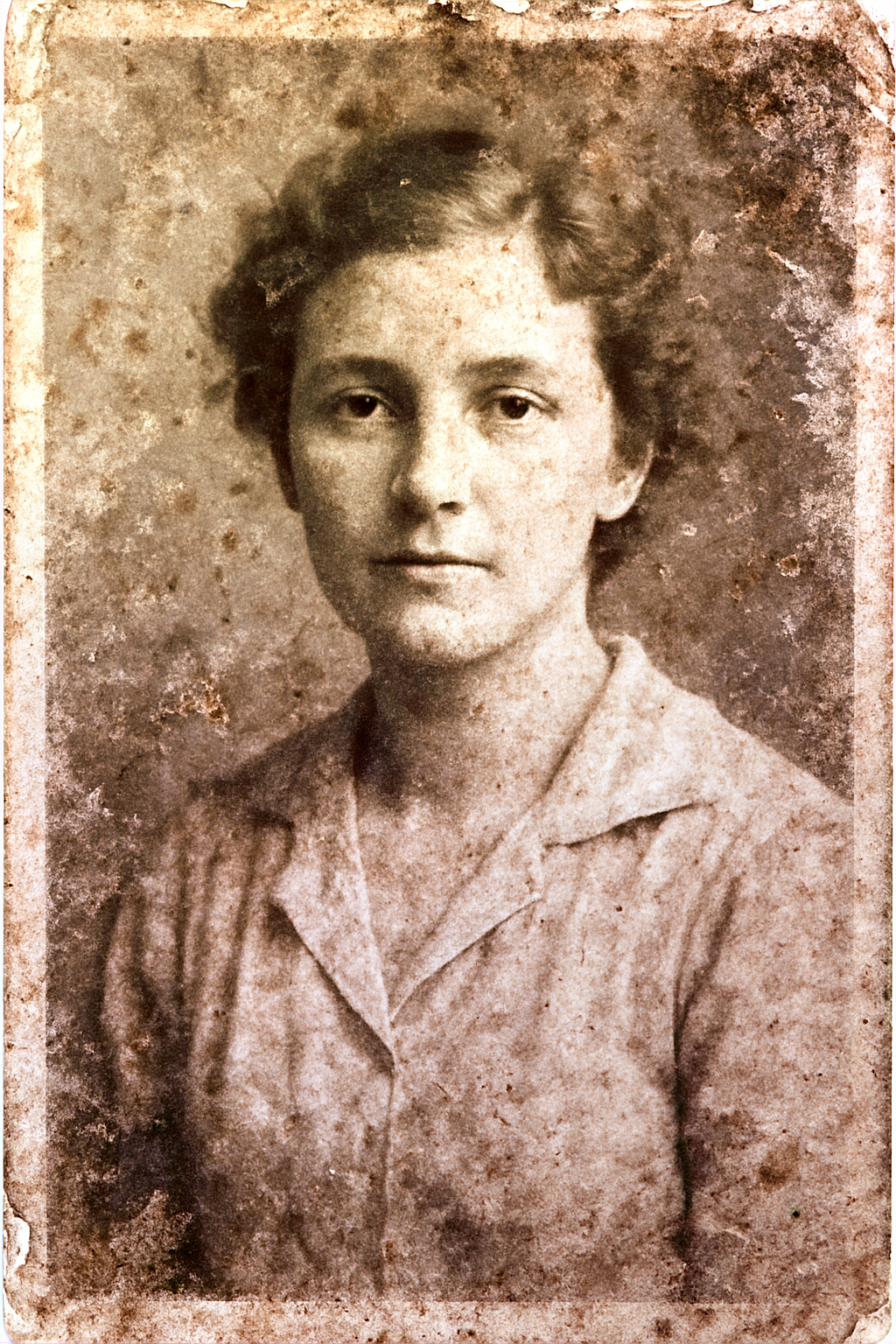
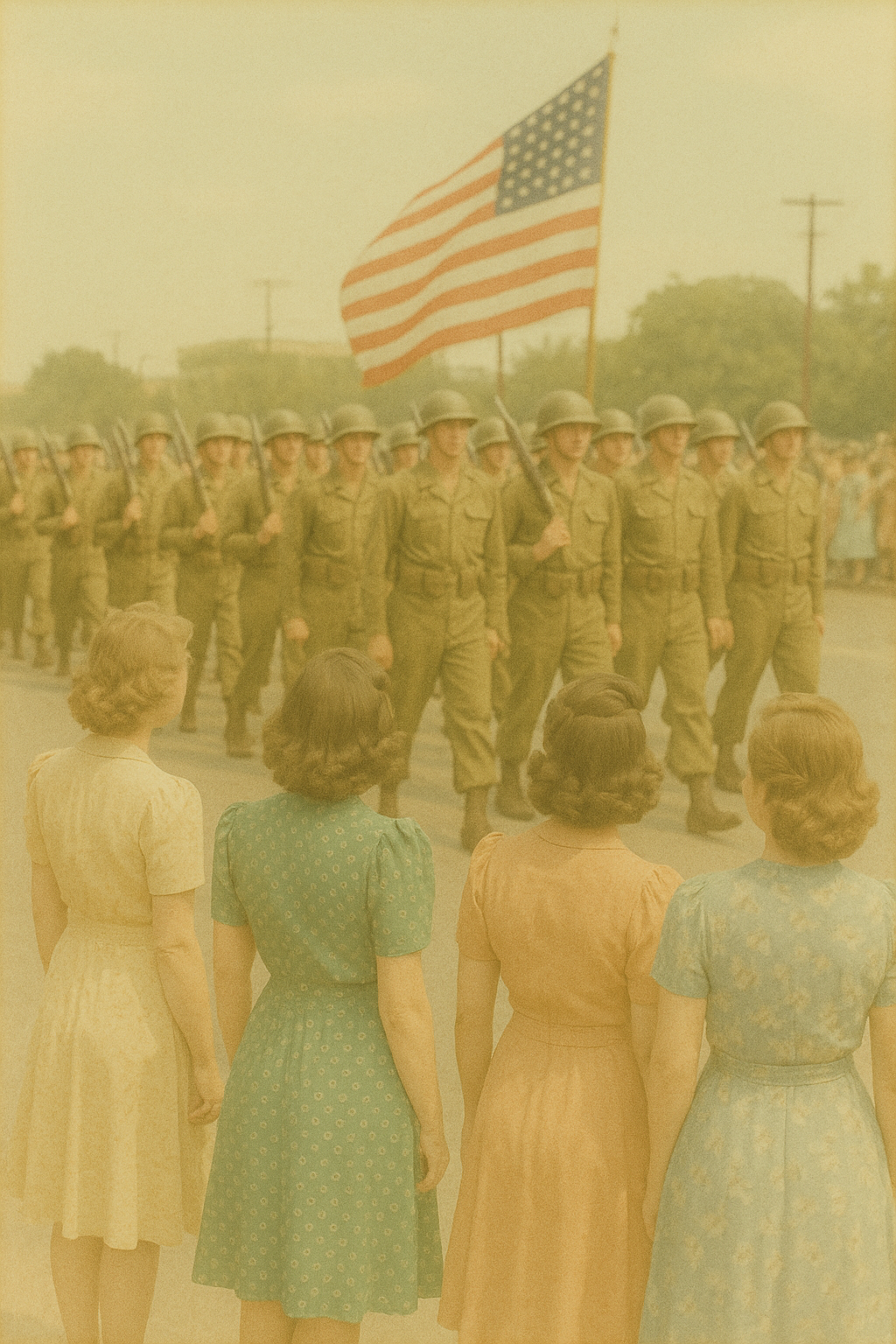
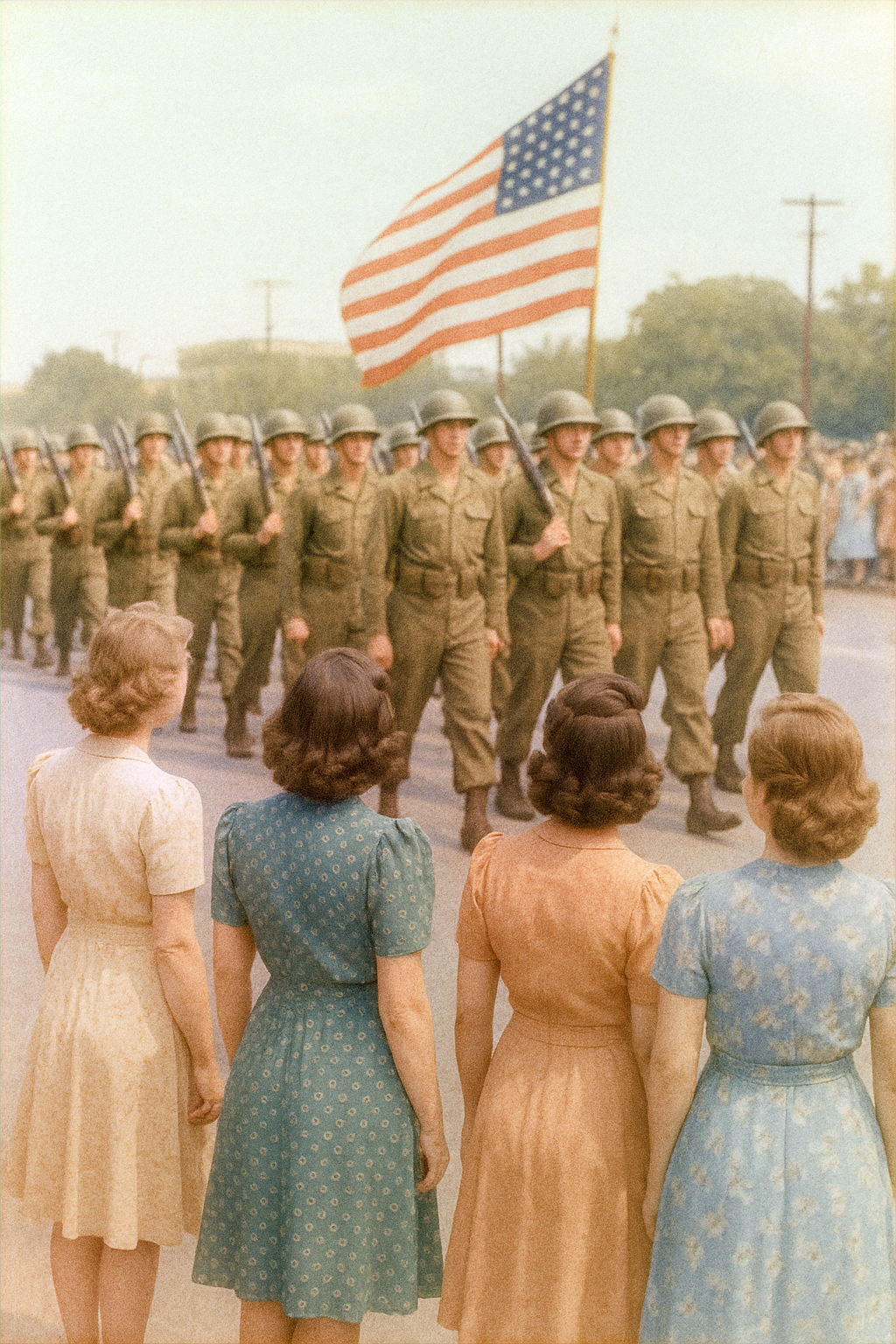
Restoration
Potential uses in old photo restorations and corrections.
| Original | SPCA | Original | SPCA |
 |
 |
 |
 |
 |
 |
 |
 |
Recommended quick-start
| Parameter | Suggested | Notes |
|---|---|---|
| Image | Image dimensions ideally <2048px | Techncially supports any size but due to 512px patch size local adjustments become increasingly obvious as size increases. |
| Max strength | 1.0 | 0.5-2.0 for subtle ➜ dramatic |
| Count | 1 | Increase for automatic strength batching up to your max strength value. E.g. Max strength 1.0 with count 2.0 runs strength at 0.5 and 1.0 outputting 2 images |
| Overlap | At least 0.3-0.4 if image is >512px | Ideally up to 0.9 if GPU / Compute permits for maximum quality. |
| Context (Image) | Leave empty | See detailed notes on context below. |
| Initial context for batch | False | Use the first input images context for all images processed. If set to True this may be useful to reduce correction variation across the batch E.g. Video frames |
How it works
- SB Load Model node loads the model
(
models/SuperBeasts_ColorAdjustment_512px_V2.safetensors). - The model analyses the image in 512 × 512 patches, predicting a residual colour grade.
- Patches are seamlessly stitched back with configurable strength, count (variant batching) and overlap for large-resolution output.
- A 64 × 64 context thumbnail guides the global colour mapping – leave it empty for natural results or experiment with creative transfers.
Known limitations / quirks
- Early and personalised model: Really this was a model built for personal use for my particular flavour for colour/levels adjustment. It's intentionally meant to be simple and have limited settings so it's not going work for everyone. Future training would be needed to improve it's range or configuration options (Not planned at this stage).
- Patch size sensitivity: The network works on 512 px tiles – with images above ~2 K you may notice slight local exposure shifts. Pushing Overlap up to 0.8-0.9 blends these out much better for higher quality results at the cost of extra compute/time.
- Atmospheric overlays: Because the model corrects blacks / whites aggressively it can dial back matte-style colour washes or cinematic tints. Keep Strength around 0.7, or increase count for variation options or blend the result back with the original.
- Very high strengths: Values above 2.0 can clip highlights or oversaturate; use sparingly for stylised effects.
Understanding the Context input
The context socket takes a 64 × 64 image that acts as a colour-map reference while the network predicts its residual. If you leave it unplugged the node automatically downsamples your source image – this mirrors how the model was trained and is the safest default.
When might you override it?
- Palette steer – pass in a small palette swatch or another artwork to pull the grade towards what would likely be the correction those hues and levels.
- Shot matching – feed a hero frame from earlier in a sequence to keep later frames corrections more tonally consistent.
- Creative grading – drop in a totally different style image (e.g. a sunset or neon sign) for experimental colour correction shifts.
Remember: the context influences global colour balance, not fine detail, so even heavily down-scaled or abstract images work great but this only plays a small role in the final correction - ultimatley the actual 512x512px patch being corrected has the greated weight in the adjustment task.
Creative workflow ideas
- HDR Sandwich – Run Super Pop, then feed the output into HDR Effects (with gentle settings) to amplify micro-contrast.
- Colour remap – Plug a palette or reference frame into the Context input to nudge the final toning into what would essentially be a correction for that provided colour space.
- Video – It works quite well across video frames! You could try experiement with Initial context for batch to subtely lock colour correction guidance across all the processed frames or leave as is for each frame to determine the correction independantly.
System Requirements
Latest version 2.0 uses .safetensors
From version 2.0 .safetensors model is in use with corresponding .pt file this model now runs natively in standard Comfy environment. GPU is still recommended where you will acheive speeds such as:
- 1024x1024px with 0.5 overlap = 1.63s
- 2048x2048px with 0.5 overlap = 5.23s
Legacy 1.0 Onnx Model
Works out-of-the-box on CPU via onnxruntime but it is extremely slow and I wouldn't recommend it.
For 10× speed improvement ensure ComfyUI can use the CUDAExecutionProvider by installing onnxruntime-gpu into the ComfyUI environment.
This node currently prints out the available providers for onnxruntime into the ComfyUI server logs when you run the node. So if you are not seeing CUDAExecutionProvider it's likely the model is using CPU instead.
For reference I use: Python version: 3.12.1 pytorch version: 2.5.0+cu124 NVIDIA GeForce RTX 4090 with onnxruntime-gpu installed in the ComfyUI Environment and C:\Program Files\NVIDIA\CUDNN\vX.X\bin on your System Path (where x.x is your version) For more on debugging try tips from the user here: https://github.com/SuperBeastsAI/ComfyUI-SuperBeasts/issues/10#issuecomment-3113530795
Server Logs show: [SuperBeasts] ONNX Runtime providers available: ['TensorrtExecutionProvider', 'CUDAExecutionProvider', 'CPUExecutionProvider'] [SuperBeasts] Using ORT providers: ['CUDAExecutionProvider', 'CPUExecutionProvider']