
82 lines
3.4 KiB
Markdown
82 lines
3.4 KiB
Markdown
# canvas_tab
|
|
ComfyUI canvas editor page
|
|
|
|
## Updates
|
|
- 2024-1-24 Added multi canvas node support.
|
|
- 2024-1-11 Added CSS for prefers-color-scheme:dark
|
|
- 2023-12-23 Added tool to scale and rotate layers (Hotkey is T, doubleClick on image to toggle between Rotate and Scale mode)
|
|
- 2023-12-4 Added hotkeys for Brush Radius, Added Duplicate Layer button. Ctrl-Click duplicates the target layer.
|
|
- 2023-12-2 Added Trigger Queue on change toggle.
|
|
- 2023-11-30 Added "Replace Targeted Layer" as an input mode, right click on a layer to set it as target to be replaced
|
|
|
|
|
|
This plugin provides two nodes to provide a full page editor that runs in another tab.
|
|
|
|
There is an input node `Edit in another Tab ` and an output node `Send to Editor Tab`.
|
|
Both are stored in the images submenu.
|
|
|
|
The can be set to trigger a queue on change. if there is something in the queue already it will wait until the queue empties before
|
|
triggering a new Queue. This should result in only one queued entry triggered by this node at a time.
|
|
|
|
## Installation
|
|
You can install either though comfy manager or by cloning this repository into the custom nodes directory.
|
|
|
|
## User Interface
|
|
You can edit multiple images at once.
|
|
Drag images around with the middle mouse button and scale them with the mouse wheel.
|
|
|
|
There is a green Tab on the side of images in the editor, click on that tab to highlight it.
|
|
The image with the highlighted tab is sent through to the comfyUI node.
|
|
|
|
Multiple Canvas Tab nodes are supported, If the title of the node and the title of the image in the editor are set to the same name
|
|
The output of the canvas editor will be sent to that node.
|
|
|
|
You can have multiple image layers and you can select generated images to be
|
|
added as a new layer, replace an existing layers, or as a new image.
|
|
|
|
You can delete layers by clicking on the layer widget with Ctrl-LeftClick. The layer must be visible for this to work as a protection against unwittingly deleting something important.
|
|
|
|
Ctrl-click on palette entries reassigns the palette color tho the current color.
|
|
Middle-click on palette entries sets the palette color to the current foreground color.
|
|
|
|
Both nodes provided by this extension support receiving files by drag and drop to
|
|
send images directly to the editor.
|
|
|
|
## Hotkeys
|
|
|
|
- B for Brush tool
|
|
- E for Erase tool
|
|
- Z for pixel editing tool
|
|
- P for color Picker
|
|
- T for layer transformation
|
|
- [ and ] to decrease and increase bush radius
|
|
- BackSpace to clear a layer
|
|
- ALT_BackSpace to fill the layer with the foreground color
|
|
- CTRL_Backspace to fill the layer with the background color
|
|
- CTRL_Z undo
|
|
- CTRL_SHIFT_Z redo
|
|
|
|
|
|
|
|
## Why would you do such a thing?
|
|
|
|
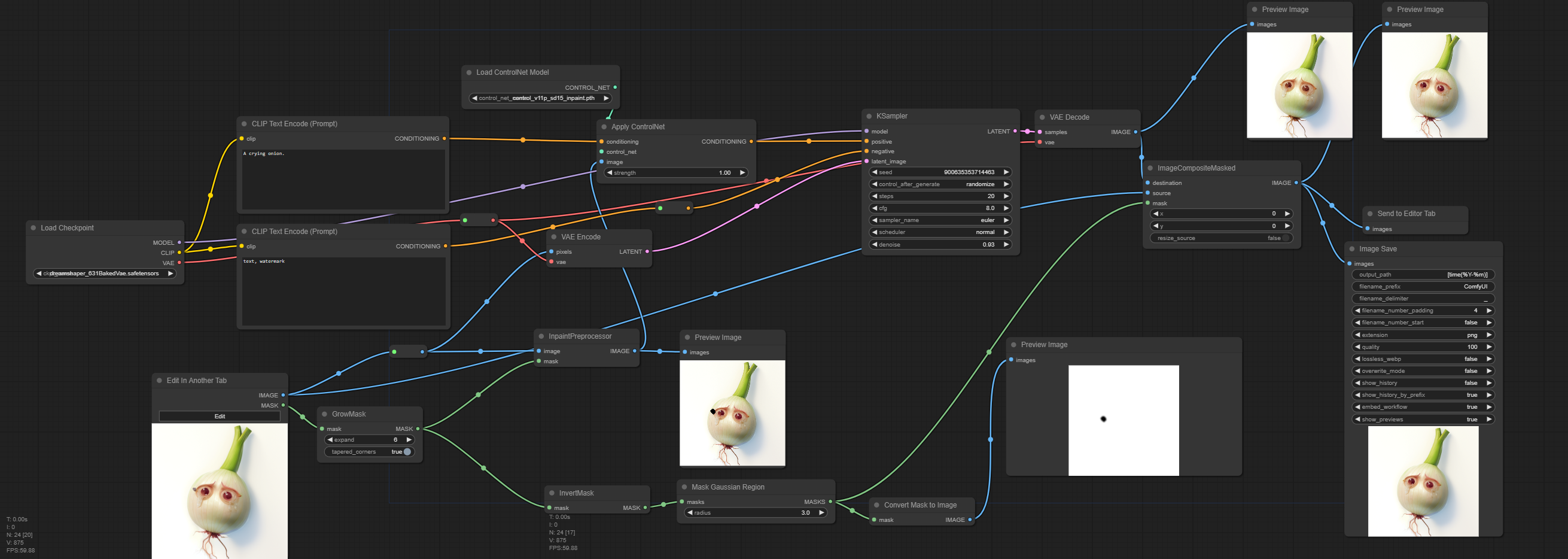
My main motivation for making this was to develop an inpainting workflow,
|
|
but I have also found it quite useful for scribble based images,
|
|
|
|
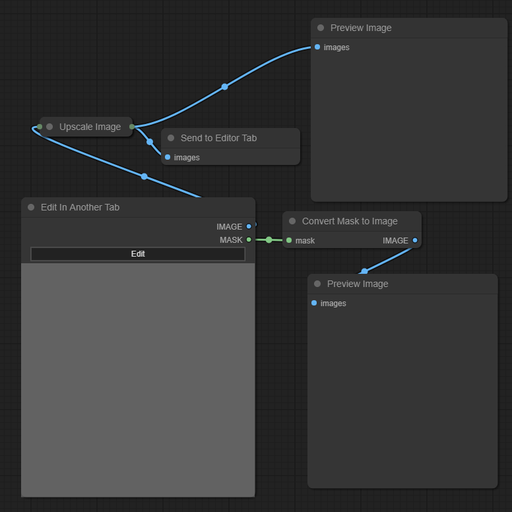
This image shows a basic workflow where it simply sends the image back to itself and shows
|
|
previews of the image and mask. The workflow is also embedded in this image.
|
|
|
|
|
|
|
|
I have been using the controlnet inpaint with a workflow like this.
|
|
|
|
|
|
|
|
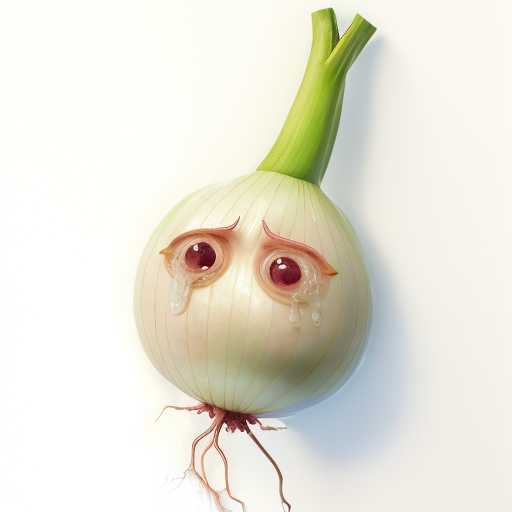
That workflow should be embedded in this image.
|
|
|
|
|
|
|
|
|
|
|
|
|