
305 lines
13 KiB
Markdown
305 lines
13 KiB
Markdown
# ComfyUI Web Viewer
|
||
|
||
[](https://deepwiki.com/VrchStudio/comfyui-web-viewer)
|
||
|
||
The **ComfyUI Web Viewer** by [vrch.ai](https://vrch.ai) is a custom node collection offering a real-time AI-generated interactive art framework. This utility integrates realtime streaming into ComfyUI workflows, supporting keyboard control nodes, OSC control nodes, sound input nodes, and more. Accessible from any device with a web browser, it enables real time interaction with AI-generated content, making it ideal for interactive visual projects and enhancing ComfyUI workflows with efficient content management and display.
|
||
|
||
**✨ Features:**
|
||
|
||
- **Real-Time AI Generation & Interaction**: Immediate response for interactive creativity.
|
||
- **Multi-Input Support**: Easily integrates keyboard, OSC, and audio input for versatile interactivity.
|
||
- **Universal Web Accessibility**: Compatible with any device equipped with a web browser.
|
||
|
||
**🔗 Related Projects:**
|
||
|
||
- **Comfyputer**: 3D Printable & Portable DIY AI Computer for running ComfyUI - Coming Soon on [Github](https://github.com/VrchStudio/comfyputer)
|
||
- **Agentic VJ**: Real-time Visual Generation with Multi-modal Agents for Live Performances - Integrated with ComfyUI Web Viewer nodes. Releasing Soon on [vrch.ai/vj](https://vrch.ai/vj) and CES 2026!
|
||
|
||
**🚀 Support Us:**
|
||
|
||
If you find the **ComfyUI Web Viewer** useful or inspiring, consider supporting us:
|
||
|
||
- 💖 **Sponsor**: Help us maintain and enhance the project through [GitHub Sponsors](https://github.com/sponsors/VrchStudio).
|
||
- ⭐ **Star the Project**: A star on GitHub greatly motivates us and helps increase visibility!
|
||
- 📩 **Business Inquiries**: For commercial collaborations, reach us at [hi@vrch.io](mailto:hi@vrch.io?subject=ComfyUI%20Web%20Viewer%20-%20Commercial%20Inquiry).
|
||
|
||
<video src="https://github.com/user-attachments/assets/cdac0293-64ce-4b74-95a8-d4dcce2300d2" controls="controls" style="max-width: 100%;">
|
||
</video>
|
||
|
||
## Changelog
|
||
|
||
see [CHANGELOG](CHANGELOG.md)
|
||
|
||
## Installation
|
||
|
||
### Install ComfyUI Web Viewer Custom Node
|
||
|
||
#### Method 1: Auto Installation (Recommended)
|
||
|
||
Simply search for `ComfyUI Web Viewer` in ComfyUI Manager and install it directly.
|
||
|
||
#### Method 2: Manual Installation
|
||
|
||
1. Clone this repo into the `custom_nodes` directory of ComfyUI
|
||
```
|
||
git clone git@github.com:VrchStudio/comfyui-web-viewer.git
|
||
```
|
||
2. Install dependencies:
|
||
```
|
||
pip install -r requirements.txt
|
||
```
|
||
or if you use the `windows` portable install, run this in `ComfyUI_windows_portable` folder:
|
||
```
|
||
python_embeded\python.exe -m pip install -r ComfyUI\custom_nodes\comfyui-web-viewer\requirements.txt
|
||
```
|
||
3. Restart ComfyUI
|
||
|
||
### Install Music2Emotion Plugin (Optional)
|
||
|
||
To use the `AUDIO Music to Emotion Detector @ vrch.ai` node, you'll need to install the Music2Emotion third-party module:
|
||
|
||
1. **Navigate to the ComfyUI Web Viewer directory:**
|
||
```bash
|
||
cd path/to/ComfyUI/custom_nodes/comfyui-web-viewer
|
||
```
|
||
|
||
2. **Initialize and download the Music2Emotion submodule:**
|
||
|
||
```bash
|
||
git submodule update --init --recursive
|
||
```
|
||
|
||
Alternatively, you may maunally install it as follows:
|
||
```bash
|
||
cd path/to/ComfyUI/custom_nodes/comfyui-web-viewer/third_party
|
||
git clone https://github.com/VrchStudio/Music2Emotion.git music2emotion
|
||
```
|
||
|
||
3. **Install dependencies using the main project's requirements.txt:**
|
||
```bash
|
||
pip install -r requirements.txt
|
||
```
|
||
or for Windows portable install:
|
||
```bash
|
||
python_embeded\python.exe -m pip install -r ComfyUI\custom_nodes\comfyui-web-viewer\requirements.txt
|
||
```
|
||
|
||
> ⚠️ **Important:** Always use the main project's `requirements.txt` instead of the third-party module's requirements file to avoid dependency conflicts. The ComfyUI Web Viewer's requirements.txt already includes all necessary Music2Emotion dependencies with compatible versions.
|
||
|
||
4. **Restart ComfyUI**
|
||
|
||
> **Note:** If the Music2Emotion module is not installed, the emotion detection node will show a warning message but remain functional for workflow compilation. Other audio nodes will work normally without this optional dependency.
|
||
|
||
## How to Use
|
||
|
||
### `Web Viewer Nodes`
|
||
|
||

|
||
|
||
- Documentation: [Usage of Web Viewer nodes](./docs/web_viewer_nodes.md)
|
||
- Example workflows:
|
||
- [Workflow Example: Image Web Viewer node](./example_workflows/example_web_viewer_001_image_web_viewer.json)
|
||
- [Workflow Example: Image Flipbook Viewer node](./example_workflows/example_web_viewer_002_image_flipbook_web_viewer.json)
|
||
- [Workflow Example: Video Web Viewer node (video only)](./example_workflows/example_web_viewer_003_video_web_viewer.json)
|
||
- [Workflow Example: Video Web Viewer node (video + sound)](./example_workflows/example_web_viewer_004_video_web_viewer_video_with_sfx.json)
|
||
- [Workflow Example: Audio Web Viewer node (voice clone)](./example_workflows/example_web_viewer_005_audio_web_viewer_f5_tts.json)
|
||
- Tutorials:
|
||
- [Fast Image to Video by LTX Videos and Ollama](./docs/tutorial_002_fast_image_to_video_by_ltx_video_and_ollama.md)
|
||
- [Fast Image to Video by LTX Vidoes, MMAudio and Ollama](./docs/tutorial_003_fast_image_to_video_by_ltx_video_and_mmaudio_and_ollama.md)
|
||
- [Real Time Voice Clone](./docs/tutorial_004_real_time_voice_clone_by_f5_tts.md)
|
||
- [Audio Picture Book with Your Own Voice](./docs/tutorial_006_srt_to_audio_picture_book.md)
|
||
|
||
### `WebSocket Web Viewer Nodes`
|
||
|
||
- Documentation: [Usage of WebSocket Viewer nodes](./docs/websocket_nodes.md)
|
||
- Example workflows:
|
||
- [Workflow Example: WebSocket Nodes](./example_workflows/example_websocket_nodes_001_basic.json)
|
||
- Tutorials: n/a
|
||
|
||
### `OSC Control Nodes`
|
||
|
||
- Documentation: [Usage of OSC Control nodes](./docs/osc_control_nodes.md)
|
||
- TouchOSC Control Panel:
|
||
- [comfyui_osc_control.tosc](./assets/touchosc/comfyui_osc_control.tosc)
|
||
- Example workflows:
|
||
- [Workflow Example: OSC Control Nodes](./example_workflows/example_osc_control_001_basic.json)
|
||
- [Workflow Example: Live Portrait + Gamepad](./example_workflows/example_osc_control_002_live_portrait_with_gamepad.json)
|
||
- [Workflow Example: IC-Light](./example_workflows/example_osc_control_003_ic-light.png)
|
||
- Tutorials:
|
||
- [Live Portrait + Gamepad](./docs/tutorial_001_live_portrait_with_gamepad.md)
|
||
|
||
### `Key Control Nodes`
|
||
|
||
- Documentation: [Usage of Key Control nodes](./docs/key_control_nodes.md)
|
||
- Example workflows:
|
||
- [Workflow Example: Key Control Nodes](./example_workflows/example_key_control_001_basic.json)
|
||
|
||
### `Gamepad Nodes`
|
||
|
||
- Documentation: [Usage of Gamepad nodes](./docs/gamepad_nodes.md)
|
||
- Example workflows:
|
||
- [Workflow Example: Gamepad Nodes](./example_workflows/example_gamepad_nodes_001_basic.json)
|
||
- [Workflow Example: Gamepad with Live Portrait](./example_workflows/example_gamepad_nodes_002_live_portrait.json)
|
||
|
||
### `Midi Device Nodes`
|
||
|
||
- Documentation: [Usage of Midi Device nodes](./docs/midi_nodes.md)
|
||
- Example workflows: TBA
|
||
|
||
### `MIDI Control Nodes`
|
||
|
||
- Documentation: [Usage of MIDI Control nodes](./docs/midi_control_nodes.md)
|
||
- Example workflows: TBA
|
||
|
||
### `Audio Nodes`
|
||
|
||
- Documentation: [Usage of Audio nodes](./docs/audio_nodes.md)
|
||
- Example workflows:
|
||
- [Workflow Example: Audio Recorder Node](./example_workflows/example_audio_nodes_001_audio_recorder.json)
|
||
- [Workflow Example: Music Emotion and Visualizer](./example_workflows/example_audio_nodes_002_audio_emotion_visualizer.json)
|
||
- [Workflow Example: Microphone and Visualizer](./example_workflows/example_audio_nodes_003_microphone.json)
|
||
|
||
### `Image Nodes`
|
||
|
||
- Documentation: [Usage of Image nodes](./docs/image_nodes.md)
|
||
- Example workflows:
|
||
- [Workflow Example: Preview Image in Background](./example_workflows/example_image_nodes_001_preview_in_background.json)
|
||
|
||
### `Logic Nodes`
|
||
|
||
- Documentation: [Usage of Logic nodes](./docs/logic_nodes.md)
|
||
- Example workflows: n/a
|
||
|
||
### `Text Nodes`
|
||
|
||
- Documentation: [Usage of Text nodes](./docs/text_nodes.md)
|
||
- Example workflows:
|
||
- [Workflow Example: Text SRT Player Node](./example_workflows/example_text_nodes_001_text_srt_player.json)
|
||
- Tutorials:
|
||
- [Storytelling with Text SRT Player](./docs/tutorial_005_storytelling_with_text_srt_player.md)
|
||
|
||
### `Other Example Workflows`
|
||
|
||
- [Rapid Text to Image (8K)](./example_workflows/example_others_001_text_to_image_8k.json)
|
||
- [Auto Switch to Instant Queue and Run Workflow](./example_workflows/example_others_002_autorun_instant_queue.json)
|
||
- [Apple Vision Pro Ultrawide Wallpaper (5K)](./example_workflows/example_others_003_text_to_image_5k_avp_ultra_wide.json)
|
||
- [Audio Picture Book with Your Own Voice (FLUX version)](./example_workflows/example_others_004_srt_to_audio_picture_book.json)
|
||
- [Audio Picture Book with Your Own Voice (SDXL version)](./example_workflows/example_others_005_srt_to_audio_picture_book_sdxl.json)
|
||
|
||
## Troubleshootings
|
||
|
||
### 1. Image Not Displayed in Popped-Up Image Viewer Window
|
||
|
||
For Chrome, you may need to add the ComfyUI server's IP address manually in `chrome://flags/#unsafely-treat-insecure-origin-as-secure` to enable access to the content. For other browsers, an http-to-http setup should allow for seamless access without additional configuration.
|
||
|
||

|
||
|
||
---
|
||
|
||
### 2. How can I resolve the CORS policy error when trying to display images?
|
||
|
||
If you’re encountering a CORS policy error with a message like this:
|
||
|
||
> `"origin 'https://vrch.ai' has been blocked by CORS policy: No 'Access-Control-Allow-Origin' header is present on the requested resource"`
|
||
|
||
or
|
||
|
||
> `"WARNING: request with non matching host and origin 127.0.0.1 !=vrch.ai, returning 403"`
|
||
|
||
you can resolve this by launching the ComfyUI service with the `--enable-cors-header` flag appended. For example:
|
||
|
||
```bash
|
||
python main.py --enable-cors-header
|
||
```
|
||
|
||
For additional details, refer to [this discussion on GitHub](https://github.com/comfyanonymous/ComfyUI/pull/413#issuecomment-1499518110).
|
||
|
||
---
|
||
|
||
### 3. How can I fix FFmpeg errors in audio nodes?
|
||
|
||
The audio recorder and WebSocket audio nodes need both:
|
||
|
||
- the FFmpeg command line tool installed and available on `PATH`;
|
||
- the Python package `ffmpeg-python`, which provides the `ffmpeg.input(...)` API.
|
||
|
||
If you see `[Errno 2] No such file or directory: 'ffmpeg'`, install FFmpeg for
|
||
your operating system and make sure the `ffmpeg` command works in the same
|
||
terminal or Python environment used to start ComfyUI.
|
||
|
||
If you see `AttributeError: module 'ffmpeg' has no attribute 'input'`, the
|
||
wrong Python package may be installed. Remove the `ffmpeg` package and install
|
||
the project requirements again so that `ffmpeg-python` is used:
|
||
|
||
```bash
|
||
pip uninstall ffmpeg
|
||
pip install -r requirements.txt
|
||
```
|
||
|
||
For Windows portable installs, run the same commands with the embedded Python
|
||
from your `ComfyUI_windows_portable` folder:
|
||
|
||
```bash
|
||
python_embeded\python.exe -m pip uninstall ffmpeg
|
||
python_embeded\python.exe -m pip install -r ComfyUI\custom_nodes\comfyui-web-viewer\requirements.txt
|
||
```
|
||
|
||
---
|
||
|
||
### 4. Why can’t the ComfyUI service run at HTTPS/TLS/SSL on port 8189?
|
||
|
||
`ComfyUI Web Viewer` provides a build-in, self-signed certificate (intended for development only, not production use). To launch the ComfyUI service with HTTPS enabled on port 8189, use the following command:
|
||
|
||
```bash
|
||
# Start ComfyUI with HTTPS using the built-in certificate and key
|
||
python main.py --tls-keyfile ./custom_nodes/comfyui-web-viewer/https/key.pem --tls-certfile ./custom_nodes/comfyui-web-viewer/https/cert.pem --port 8189 --listen
|
||
```
|
||
|
||
For more details, refer to the [ComfyUI official instructions](https://github.com/comfyanonymous/ComfyUI?tab=readme-ov-file#how-to-use-tlsssl).
|
||
|
||
|
||
## Version Update
|
||
|
||
This project uses `bump2version` for version management. To update the version:
|
||
|
||
1. Ensure you have `bump2version` installed:
|
||
```bash
|
||
pip install bump2version
|
||
```
|
||
2. To update the version, run:
|
||
```bash
|
||
python update_version.py [major|minor|patch]
|
||
```
|
||
Replace `[major|minor|patch]` with the part of the version you want to increment.
|
||
3. This will automatically:
|
||
- Update the version number in `__init__.py`
|
||
- Update the CHANGELOG.md file
|
||
- Create a new git commit and tag (if you're using git)
|
||
4. After running the script, review and update the CHANGELOG.md file with details about the new version's changes.
|
||
- Note: make sure you've put changes in `Unreleased` section manually
|
||
|
||
## Contributing
|
||
|
||
Created and maintained by the [vrch.io](https://vrch.io) team.
|
||
|
||
Contributions are welcome! Please feel free to submit a Pull Request.
|
||
|
||
## Acknowledgements
|
||
|
||
Thanks to these community contributors:
|
||
|
||
- [Penguin-Guru](https://github.com/Penguin-Guru)
|
||
- [Mirochill](https://github.com/Mirochill)
|
||
|
||
## Contact Us
|
||
|
||
For any inquiries, you can contact us at [hi@vrch.io](mailto:hi@vrch.io?subject=ComfyUI%20Web%20Viewer%20-%20General%20Inquiry).
|
||
|
||
## Star History
|
||
|
||
[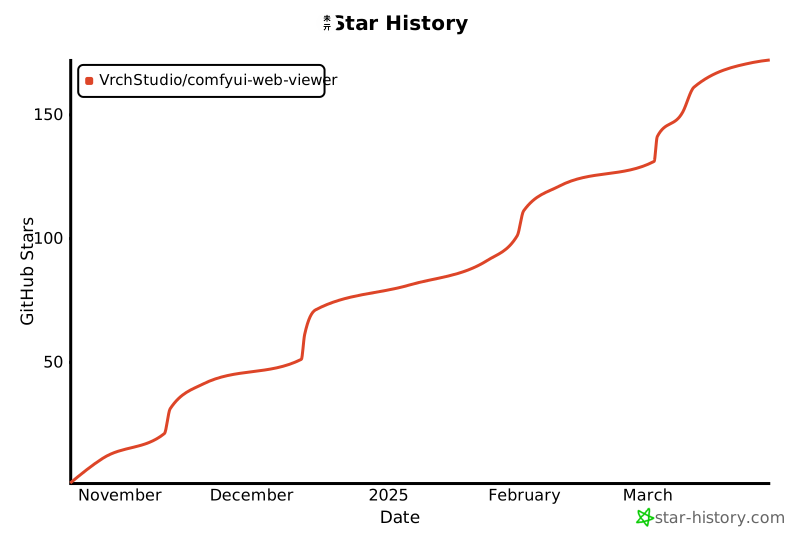](https://www.star-history.com/#VrchStudio/comfyui-web-viewer&Date)
|
||
|
||
## License
|
||
|
||
[MIT License](LICENSE)
|