
ComfyUI Video Frame Extractor 🎞️
A ComfyUI custom node that brings a DAW-style interactive video timeline directly into the node graph. Upload any video, scrub through it in real time, drag a loop region to define your extraction window, and pipe the resulting frame batch into any downstream node.

Features

- Interactive timeline — filmstrip thumbnails, brightness waveform, and a zoomable timecode ruler all rendered directly inside the node
- Loop region selection — drag the in/out handles or the region body to define start and end frames; the video preview seeks live as you drag
- Resizable video preview — drag the resize handle to make the preview pane as large as you need
- Collapsible preview section — hide the video preview to save canvas space while keeping the timeline accessible
- Transport controls — Play / Pause toggle, frame-step ◀ ▶ buttons that shift the entire loop window one frame at a time
- Zoom and pan — scroll wheel to zoom the timeline, Shift + scroll to pan horizontally
- Full outputs — forward frames, reversed frames, first and last frame as individual images, filename prefix, dimensions, and FPS
Installation
Via ComfyUI Manager (recommended)
- Open ComfyUI Manager → Custom Nodes → Search
- Search for
Video Frame Extractor - Click Install and restart ComfyUI
Manual
cd ComfyUI/custom_nodes
git clone https://github.com/comfyuiattic-989/ComfyUI-Video-Frame-Extractor
cd ComfyUI-Video-Frame-Extractor
pip install -r requirements.txt
Restart ComfyUI after installation.
Requirements
| Package | Version |
|---|---|
| Python | ≥ 3.9 |
| opencv-python | ≥ 4.7 |
| Pillow | ≥ 9.0 |
| numpy | ≥ 1.22 |
| torch | (provided by ComfyUI) |
Usage
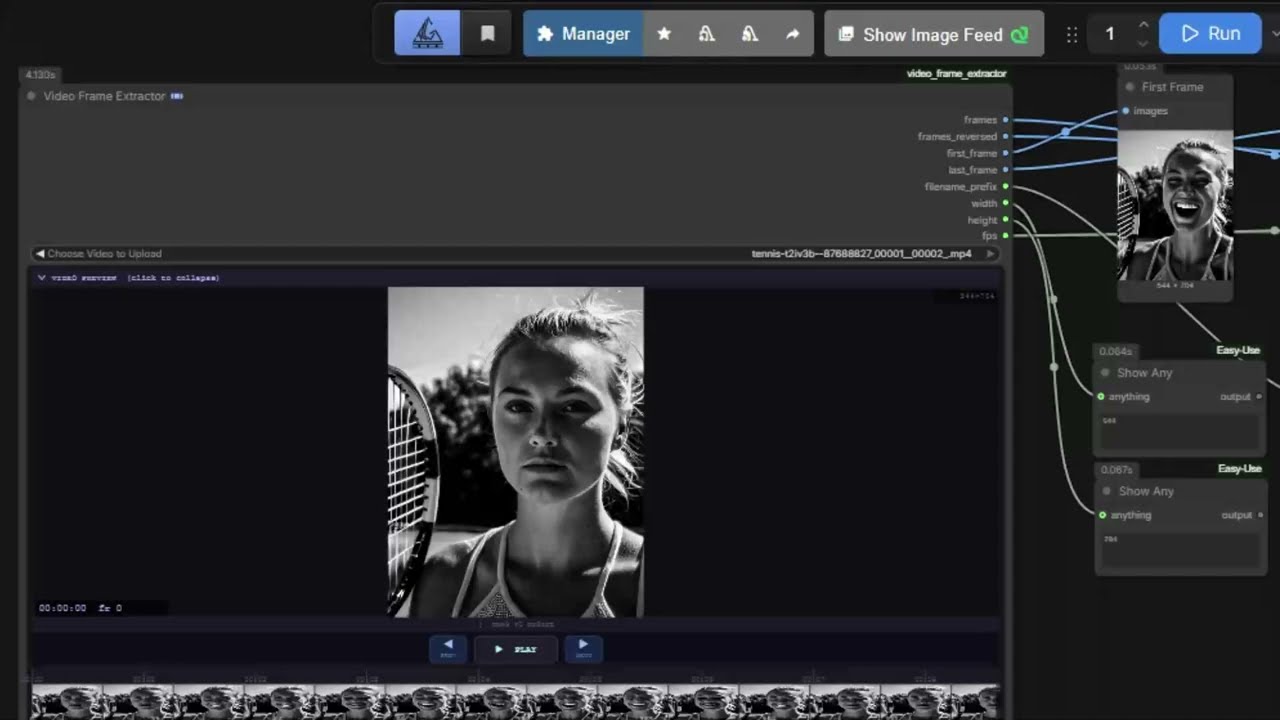
- Place a video file in
ComfyUI/input/or upload one directly via the Choose Video to Upload button on the node - Add the Video Frame Extractor 🎞️ node to your graph (right-click canvas → Add Node → video)
- Select your video from the dropdown — the timeline populates automatically
- Drag the indigo loop handles to set the extraction window, or drag the loop body to pan the whole window
- Connect the output pins to your workflow
Timeline Controls
| Interaction | Action |
|---|---|
| Drag loop handle (◀ ▶) | Resize the loop window |
| Drag loop body | Slide the window without changing its span |
| ▶ / ⏸ button | Play or pause the preview within the loop |
| ◀ / ▶ step buttons | Shift the entire loop window one frame |
| Scroll wheel | Zoom the timeline centred on the cursor |
| Shift + scroll | Pan the timeline left / right |
| Drag resize bar | Adjust the height of the video preview |
| Click collapse toggle | Show / hide the video preview and transport |
Node Reference
Inputs
| Name | Type | Description |
|---|---|---|
video |
File picker | MP4, AVI, MOV, MKV, or WebM file |
start_frame |
INT | Loop region start (auto-set by timeline) |
end_frame |
INT | Loop region end (auto-set by timeline) |
num_frames |
INT | Frames to extract — read-only, auto-computed as end − start + 1 |
Outputs
| Name | Type | Description |
|---|---|---|
frames |
IMAGE | Batch of extracted frames, forward order (N, H, W, 3) |
frames_reversed |
IMAGE | Same batch in reverse order — useful for ping-pong effects |
first_frame |
IMAGE | Single frame at the loop start (1, H, W, 3) |
last_frame |
IMAGE | Single frame at the loop end (1, H, W, 3) |
filename_prefix |
STRING | Video filename without extension, e.g. my_clip |
width |
INT | Video width in pixels |
height |
INT | Video height in pixels |
fps |
FLOAT | Source frame rate |
Example Workflows
Basic frame extraction
Video Frame Extractor → VAE Encode → KSampler
Feed a batch of video frames directly into a KSampler for video-to-video workflows.
Ping-pong loop
Video Frame Extractor (frames) ──────────────→ ┐
                                               Batch Concat → Video Combine
Video Frame Extractor (frames_reversed) ──────→ ┘
Concatenate forward and reversed frame batches to create a seamless loop.
Use filename as save prefix
Video Frame Extractor (filename_prefix) → Save Image (filename_prefix input)
Automatically name saved frames after the source video.
Supported Formats
| Format | Extension |
|---|---|
| MP4 / H.264 | .mp4 |
| AVI | .avi |
| QuickTime | .mov |
| Matroska | .mkv |
| WebM | .webm |
Any format supported by your OpenCV build will also work.
Changelog
1.0.0
- Initial release
- DAW-style timeline with filmstrip thumbnails and brightness waveform
- Loop region with drag handles and live video scrubbing
- Resizable / collapsible video preview
- Play / Pause toggle with frame-step buttons
- 8 output pins:
frames,frames_reversed,first_frame,last_frame,filename_prefix,width,height,fps - Zoom and pan on the timeline
start_frame/end_framespinners sync bidirectionally with the loop region
1.1.0
- Reduced video file opens from 6 → 2 per execution
- Halved peak memory during frame extraction by pre-allocating output buffer
- first_frame / last_frame now sliced from loaded batch instead of re-read from disk
- Fixed BytesIO buffer in thumbnail endpoint now explicitly closed after use
License
MIT © 2026