
PhotoLab – ComfyUI Node
PhotoLab is a ComfyUI node that applies classic darkroom and film photography effects to your generated images. Think of it as a one-stop finishing touch: run your image through PhotoLab at the end of your workflow and it'll come out looking like it was shot on film, printed in a darkroom, or processed through a vintage photo lab.
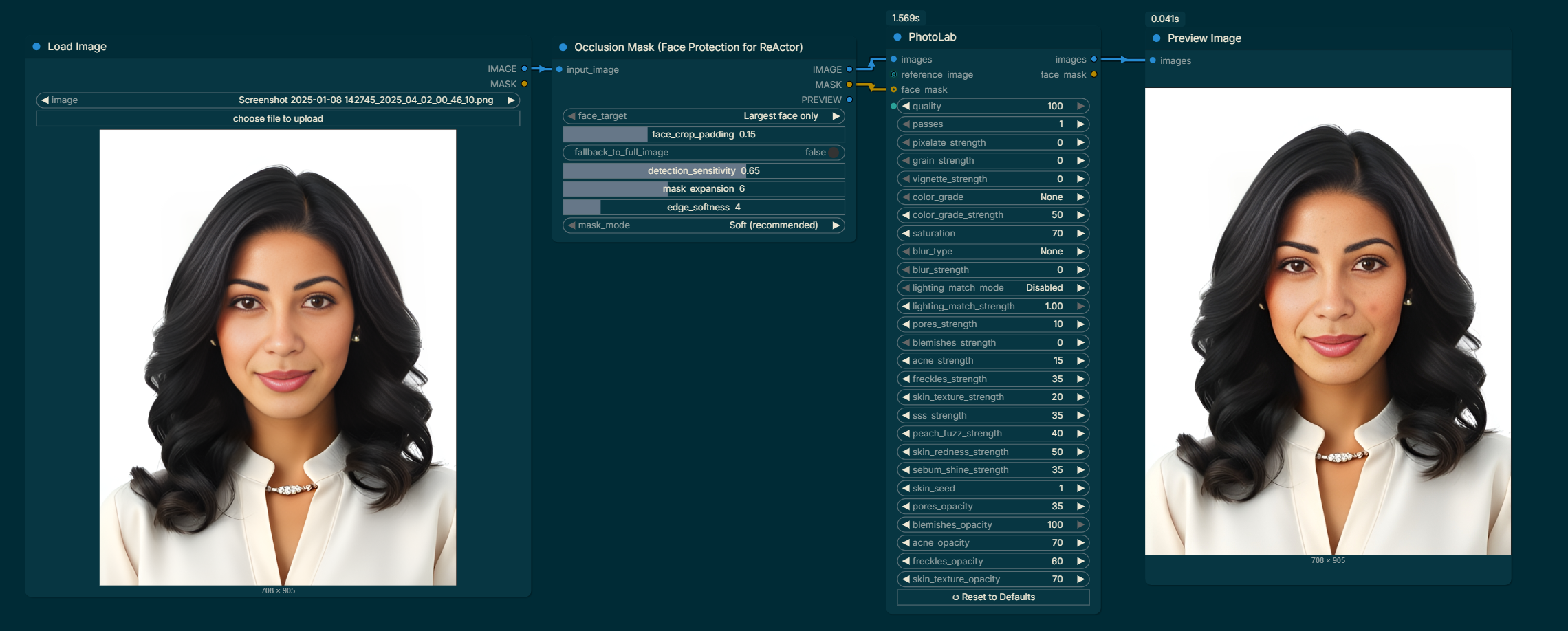
What It Does
PhotoLab stacks several effects on top of each other in a set order, giving you fine control over how "processed" your final image looks. You can push it all the way to a heavily stylized film look, or keep things subtle with just a touch of grain and a slight color grade.
Installation
- Drop
photo_lab.pyandphoto_lab.jsinto yourComfyUI/custom_nodes/PhotoLab/folder. - Restart ComfyUI.
- Find the node under image → effects → PhotoLab.
Optional: Install
scikit-imageif you want to use the Lighting Match feature:pip install scikit-image
Settings Explained
🗜️ Compression
| Setting | Range | What it does |
|---|---|---|
| Quality | 0 – 100 | Simulates JPG compression. Lower values introduce blocky artifacts and color banding, like a photo that's been saved at low quality. 70 is a good default for a subtle effect. |
| Passes | 1 – 10 | How many times the compression is applied. Each pass builds on the last, so even a quality of 80 will look heavily degraded at 5+ passes. |
Tip: Quality + Passes work together. A single pass at quality 30 looks different from five passes at quality 80 — experiment with both.
🟦 Pixelation
| Setting | Range | What it does |
|---|---|---|
| Pixelate Strength | 0 – 100 | Breaks the image into visible pixel blocks, like an 8-bit or mosaic effect. 0 = off. Higher values = larger, chunkier blocks. |
This is real pixelation — the image is literally scaled down to a tiny grid and back up. It's not the same as blur or compression artifacts. Great for retro, glitchy, or censored looks.
🌾 Grain
| Setting | Range | What it does |
|---|---|---|
| Grain Strength | 0 – 100 | Adds film-like noise to the image. 0 = off. Around 5–15 gives a natural film feel. Push it above 40 for a gritty, pushed-film aesthetic. |
🌑 Vignette
| Setting | Range | What it does |
|---|---|---|
| Vignette Strength | 0 – 100 | Darkens the edges and corners of the image, drawing the eye toward the center. 0 = off. 20–40 is natural-looking; above 60 gets dramatic. |
🎨 Color Grading
| Setting | Options / Range | What it does |
|---|---|---|
| Color Grade | None, Warm, Cool, Faded, Sepia | Applies a color preset. None disables all color changes entirely (including saturation). |
| Color Grade Strength | 0 – 100 | How strongly the grade is applied. 0 = invisible, 100 = full effect. 40–60 is a good sweet spot. |
| Saturation | 0 – 200 | Controls color intensity. 100 = original colors, 0 = black and white, 200 = heavily boosted. Only active when Color Grade is not set to None. |
Color Grade Presets:
- Warm – Pushes reds and yellows; pulls back blues. Good for golden hour or cozy scenes.
- Cool – Boosts blues, reduces reds. Works well for night scenes, sci-fi, and moody portraits.
- Faded – Reduces contrast and lifts brightness slightly. The classic "film scan" or Instagram look.
- Sepia – Full sepia tone. Vintage photographs, old documents, historical aesthetics.
⚠️ If Color Grade is set to None, the Saturation slider is ignored. This is intentional — it lets you pass the image through completely untouched in terms of color.
🌀 Blur
| Setting | Options / Range | What it does |
|---|---|---|
| Blur Type | None, Gaussian, Box, Motion Horizontal, Motion Vertical, Radial, Lens, Soft Focus | The style of blur to apply. None = disabled. |
| Blur Strength | 0 – 100 | How strong the blur is. Has no effect if Blur Type is set to None. |
Blur Type Guide:
- Gaussian – Smooth, natural-looking blur. The classic.
- Box – Slightly harsher, geometric blur. More stylized than Gaussian.
- Motion Horizontal / Vertical – Simulates camera movement or subject motion in one direction.
- Radial – Zoom blur from the center outward, like a camera zooming during exposure.
- Lens – Keeps the center sharp and blurs the edges, mimicking shallow depth of field from a real lens.
- Soft Focus – A gentle, dreamy glow — not pure blur, but a softening of the whole image.
💡 Lighting Match (Optional)
This feature adjusts the brightness and shadows of your image to match a reference photo. Useful when you want your generated image to have the same mood or exposure as a photo you already like.
| Setting | Options / Range | What it does |
|---|---|---|
| Lighting Match Mode | Disabled, Histogram (L-channel), Reinhard Transfer, Full LAB Histogram | The algorithm used to transfer lighting from the reference. |
| Lighting Match Strength | 0.0 – 1.0 | Blends between your original image (0.0) and the fully matched result (1.0). |
| Reference Image | Image input | The image whose lighting you want to copy. Only used when Lighting Match Mode is not Disabled. |
Which mode to pick?
- Histogram (L-channel) — Best all-around choice. Matches how bright or dark the image is without changing colors.
- Reinhard Transfer — Faster and subtler. Good for small corrections or when you just want to nudge the exposure.
- Full LAB Histogram — Matches everything including color tone. Can shift colors noticeably — useful for matching a specific mood but may need lower strength.
⚠️ Lighting Match requires
scikit-image. If it's not installed, this section is silently skipped.
Effect Order
PhotoLab applies effects in this fixed order:
- Lighting Match (if enabled)
- Saturation
- Color Grade
- Pixelation
- Film Grain
- Blur
- Vignette
- JPG Compression (applied once per pass)
This order is intentional. For example, grain is applied before vignette so the edges darken over the grain, which is how real film vignetting works. If you're after a specific look, understanding this order helps you predict the result.
The Reset Button
The node includes a ↺ Reset to Defaults button at the bottom. Click it to restore all settings to their original values in one go — handy when you've tweaked too many things and want a clean slate.
Suggested Presets
Here are some starting points to get you going:
🎞️ Natural Film Scan
Quality: 75 · Passes: 1 · Grain: 8 · Vignette: 20 · Color Grade: Faded · Grade Strength: 50 · Saturation: 85
📷 Warm Vintage
Quality: 65 · Passes: 2 · Grain: 15 · Vignette: 35 · Color Grade: Warm · Grade Strength: 60 · Saturation: 75
🌑 Moody Black & White
Quality: 80 · Passes: 1 · Grain: 20 · Vignette: 45 · Color Grade: Faded · Grade Strength: 100 · Saturation: 0
👾 Retro Pixel
Quality: 85 · Passes: 1 · Pixelate: 45 · Grain: 5 · Color Grade: Cool · Grade Strength: 40
📼 Degraded & Worn
Quality: 40 · Passes: 4 · Grain: 25 · Vignette: 30 · Color Grade: Faded · Grade Strength: 70 · Blur Type: Soft Focus · Blur Strength: 15
Tips
- Less is more. It's easy to over-process. Start with subtle settings and work up.
- Grain + Faded is the most versatile combo for a film look that works on almost anything.
- Lighting Match at 0.5–0.7 strength gives you the feel of a reference without making the image look forced.
- Pixelation and grain pair well — the grain breaks up the hard block edges for a more organic retro feel.
- Vignette last (in the pipeline) means it always sits cleanly on top of everything else, which is what you want.