
PhotoLab — ComfyUI Node
A ComfyUI node that turns clean AI-generated portraits and photos into images that look like they were shot on real film, edited in a darkroom, or simply lived-in and human. It combines classic photo effects (compression artifacts, grain, vignette, color grading) with a full suite of face skin effects that break the plastic, over-smooth look common in AI art.
Quick Start
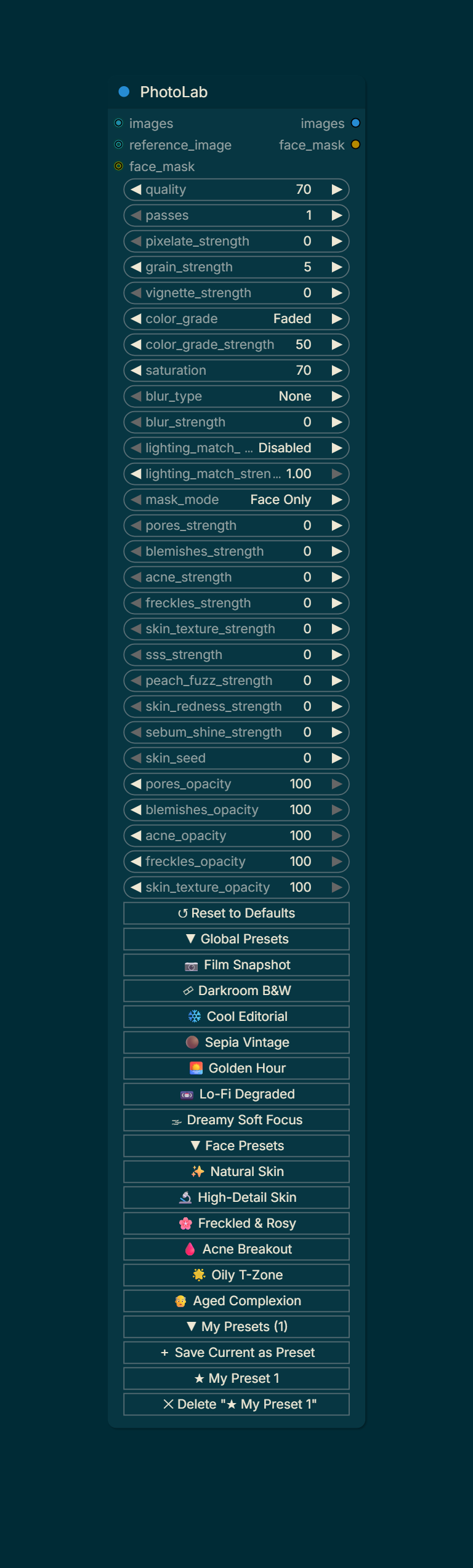
The node has a lot of inputs, but most of them default to 0 (disabled). A good starting point for making an AI portrait look real:
| Setting | Value | Why |
|---|---|---|
quality |
75 | Adds subtle JPEG texture |
grain_strength |
12 | Light film grain |
color_grade |
Faded | Lifts blacks like old film |
color_grade_strength |
40 | Keeps it subtle |
mask_mode |
Face Only | Confine skin effects to the face when a mask is connected |
skin_texture_strength |
35 | Breaks the plastic-skin look |
pores_strength |
30 | Adds visible pore detail |
sss_strength |
18 | Warm inner glow under skin |
skin_redness_strength |
20 | Natural cheek/nose flush |
New to the node? Click one of the built-in preset buttons at the bottom of the node to instantly load a starting point, then tweak from there.
All Settings Explained
Photo Effects
quality (0–100, default 70)
Controls JPEG compression. Lower values add the blocky artifacts and colour banding you see in old scanned photos or heavily-compressed images. Values around 65–80 give a subtle film-scan texture. Go below 50 for a heavily degraded look.
passes (1–10, default 1)
How many times the image is compressed. Each pass compounds the degradation. 1–2 passes is subtle; 5+ starts to look like a photo that was saved and re-saved many times over the years.
pixelate_strength (0–100, default 0)
Downscales the image to a coarse pixel grid and scales it back up, creating hard blocky pixels. Good for lo-fi or retro game aesthetics. Keep at 0 for realistic photography.
grain_strength (0–100, default 5)
Adds monochromatic film grain noise. Real film grain is coarser in shadow areas — this effect is uniform, so keep it subtle (5–20) for realism, or push higher for a pushed-film or high-ISO look.
vignette_strength (0–100, default 0)
Darkens the corners and edges of the image, drawing the eye toward the centre. Classic in portraiture and old-lens photography. 15–35 is natural; above 60 becomes very dramatic.
saturation (0–200, default 70)
Controls colour intensity. 100 = unchanged. Below 100 desaturates toward black and white. Above 100 boosts colours. The default of 70 gives a slightly muted, film-like palette.
Color Grading
color_grade (None / Warm / Cool / Faded / Sepia)
Applies a colour tone to the whole image:
- None — no colour change at all (saturation is also bypassed)
- Warm — boosts reds and yellows, pulls back blues. Good for golden-hour or portrait looks.
- Cool — pulls back reds, lifts blues. Cinematic, slightly cold feel.
- Faded — reduces contrast and lifts shadows, like an old print that has lost some depth. The most "film" feeling of the presets.
- Sepia — classic warm brown tone, like early photography.
color_grade_strength (0–100, default 50)
How strongly the color grade is applied. At 0 it has no effect even if a grade is selected. Use this to dial back any preset that feels too heavy-handed.
Blur
blur_type (None / Gaussian / Box / Motion Horizontal / Motion Vertical / Radial / Lens / Soft Focus)
Adds various types of blur:
- Gaussian / Box — general softening, like a slightly out-of-focus shot
- Motion Horizontal / Vertical — simulates camera shake or fast movement
- Radial — zoom-burst effect, blurs outward from the centre
- Lens — sharp centre, increasingly blurry toward the edges, like a fast lens wide open
- Soft Focus — a dreamy, glamour-photography softness that preserves some edge detail
blur_strength (0–100, default 0)
How strong the blur is. Has no effect if blur_type is None.
Lighting Match & Mask Mode
These settings let you transfer the lighting mood from one image onto another — useful for making a generated portrait match the lighting of a reference photo.
lighting_match_mode (Disabled / Histogram L-channel / Reinhard Transfer / Full LAB Histogram)
- Disabled — no matching
- Histogram (L-channel) — the best general-purpose option. Matches the brightness distribution of the reference without shifting colours.
- Reinhard Transfer — faster, matches the average brightness and contrast. Good for subtle corrections.
- Full LAB Histogram — matches brightness and colour tone. Use when you want the reference's colour mood, not just its lighting.
lighting_match_strength (0.0–1.0, default 1.0)
Blend between the original (0.0) and fully matched (1.0). Use 0.5–0.8 to get the mood of the reference without fully overriding the original.
reference_image (optional image input)
Connect any image here to use as the lighting reference. Only active when lighting_match_mode is not Disabled.
mask_mode (Face Only / Inverted / Disabled, default Face Only)
Controls how the connected face_mask is applied, and acts as a master on/off switch for all skin effects below it.
| Value | Behaviour |
|---|---|
| Face Only | All skin effects are confined to the white (masked) region — great for keeping effects on the face only when a mask is connected |
| Inverted | Skin effects are applied outside the mask — useful for adding texture to the body or neck while leaving the face untouched |
| Disabled | All skin effect widgets are completely skipped. Only the global effects above (colour grade, blur, grain, vignette, compression) run. Use this when you want a pure film/grade look with no skin processing |
When
mask_modeis Disabled, none of the skin sliders below it have any effect regardless of their values. This is the fastest way to use the node as a global-only effects unit without zeroing every skin slider manually.
Face Skin Effects
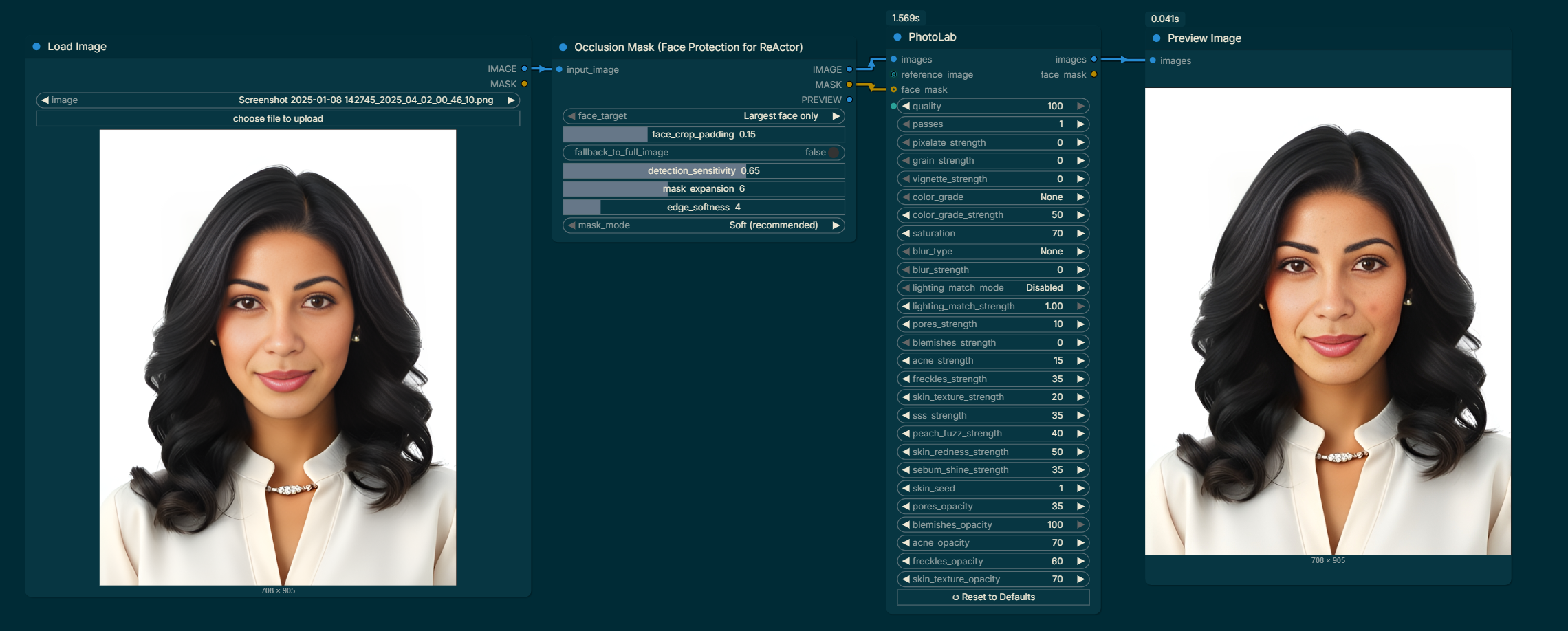
These effects are designed specifically to fix the over-smooth, plastic look of AI-generated faces. They work best when combined with a face mask input so they only apply to skin and not the background or hair.
Tip: All skin effects share a
skin_seedcontrol. Change it to get a different arrangement of pores, freckles, hairs, and spots while keeping the same strength settings.
skin_texture_strength (0–100)
The most important setting for breaking the plastic-skin look. Uses a professional frequency-separation technique (High-Pass + Linear Light blend) to inject fine surface relief — pore rims, fine lines, micro-shadows — plus a layer of organic skin-grain noise. This is what makes skin look like it has actual geometry rather than being painted on.
- 15–25: barely noticeable, good for close-up checks
- 30–50: natural, unretouched look
- 55–75: strong detail, older/textured skin
skin_texture_opacity (0–100, default 100)
Final visibility of the texture effect. Use this to blend it back if skin_texture_strength feels too heavy.
pores_strength (0–100)
Simulates visible skin pores as tiny dark indentations. Denser around the nose, forehead, and chin (the T-zone) where pores are naturally larger. Uses a procedural grid of small ellipses combined with a depth-enhancement layer that deepens any pore-like structure already in the source image.
- 10–20: subtle, mostly felt rather than seen
- 25–45: natural visible pores
- 50–70: enlarged, oily-skin look
pores_opacity (0–100, default 100)
Controls overall visibility independently of density.
freckles_strength (0–100)
Scatters small melanin freckles concentrated on the nose bridge and cheeks — exactly where real sun-exposure freckles appear. Each freckle is a slightly irregular ellipse (not a perfect circle) with soft edges, and the colour is tuned to the detected skin tone using pheomelanin colour science (warm tan-to-brown on fair skin, near-black on dark skin).
- 10–20: a light dusting, barely noticeable
- 25–50: natural freckled look
- 55–100: heavily freckled
freckles_opacity (0–100, default 100)
Useful for creating many faint freckles (high strength, low opacity) vs. few vivid ones (low strength, high opacity).
blemishes_strength (0–100)
Adds flat pigmentation marks — post-inflammatory hyperpigmentation, sunspots, and uneven skin tone. Two types are mixed: warm brown melanin spots and reddish post-inflammation marks. They sometimes appear in small clusters, like real PIH. These are flat (no raised texture), which distinguishes them from acne.
- 10–20: a few marks
- 25–50: noticeable uneven skin
- 55–100: heavy pigmentation
blemishes_opacity (0–100, default 100)
acne_strength (0–100)
Renders inflammatory acne lesions with anatomically correct layers: a wide diffuse redness halo, a tighter inflammatory ring, a central spot core, and — for pustules — a white/yellow pus dome with a specular highlight to suggest a raised bump. About 30% of spots are rendered as pustules (with a visible centre), the rest as papules (solid red bumps).
- 10–20: a few spots
- 25–50: moderate breakout
- 55–100: severe
acne_opacity (0–100, default 100)
sss_strength (Subsurface Scattering) (0–100)
Adds the warm inner glow of real skin. Human skin is slightly translucent — light enters the surface, scatters through the dermis, and exits nearby, giving skin its life-like warmth. This effect simulates that by Screen-blending a warm-tinted blurred copy of the image. The tint colour is tuned to skin tone (peachy-orange for fair skin, deeper warm brown for dark skin). This is one of the most effective single settings for making AI skin look alive.
- 5–15: subtle warmth
- 16–35: natural living-skin glow
- 36–60: strong, slightly translucent look
peach_fuzz_strength (0–100)
Adds vellus (peach fuzz) hair — the fine short hairs that cover almost all of the human face and are one of the most reliably missing elements in AI portraits. Each hair is a short stroke oriented mostly downward, at very low individual opacity. Colour is skin-tone aware: near-white blonde fuzz on fair skin, dark brown on deeper skin tones. The effect is cumulative — individual hairs are nearly invisible, but together they break the perfectly-smooth surface.
- 5–15: barely visible, mostly a texture feel
- 16–40: natural fuzz
- 41–70: dense, clearly visible
skin_redness_strength (0–100)
Adds natural redness zones to the cheeks, nose tip, and chin from blood vessels near the skin surface. This is the warm flush that most real faces have and AI portraits consistently lack. Uses anatomically-placed soft blobs in Soft-Light blend so they shift the skin tone without looking painted on.
- 5–20: subtle flush
- 21–50: rosy cheeks, clear nose redness
- 51–80: strong redness, rosacea-like
sebum_shine_strength (0–100)
Simulates the natural oil/sebum shine of the T-zone (forehead, nose bridge, chin). Rendered as small specular highlight spots in Screen blend mode — they only brighten, never darken, which is physically correct for surface reflection. Adds the natural sheen that oily skin has without overexposing the whole face.
- 5–20: light healthy sheen
- 21–55: oily skin
- 56–80: very oily / sweaty
Seed & Mask
skin_seed (0–2,147,483,647, default 0)
Controls the random pattern for all procedural skin effects (pores, freckles, blemishes, acne, peach fuzz, shine). The same seed always produces the same pattern on the same image. Change this number to get a completely different arrangement while keeping all your strength settings. Useful when generating multiple images of the same character.
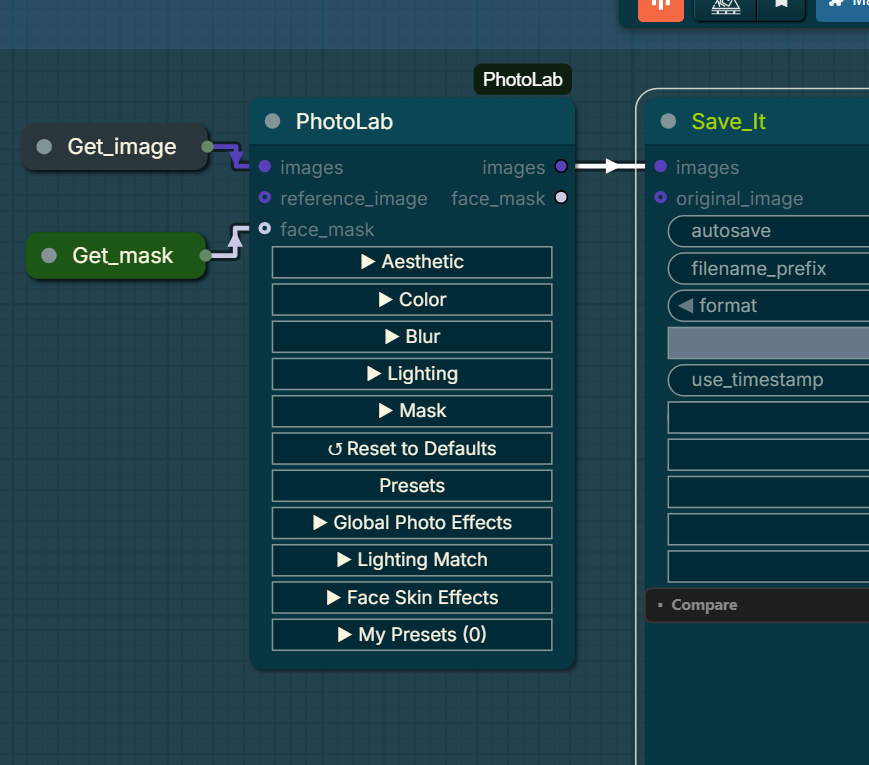
face_mask (optional mask input)
Connect a face mask here to spatially control where skin effects apply. Behaviour depends on mask_mode:
- Face Only — effects apply inside the mask (face skin only)
- Inverted — effects apply outside the mask (body / neck skin)
- Disabled — this input is ignored entirely; all skin effects are skipped
Any ComfyUI mask node works — face detection segmenters (like BiSeNet), hand-painted masks, or SAM segments. The mask edges are automatically feathered for a seamless blend.
When a mask is connected, it is also passed through as the second output (face_mask) so you can reuse it in other nodes without needing a second mask node.
Presets
The node includes a built-in preset system directly on the node panel, split into two collapsible sections. Click any section header (▼/▶) to expand or collapse it. The active preset is highlighted with a ● marker so you always know which one is loaded.
Global Presets
Affect colour grade, grain, blur, compression, and vignette. Skin effects are intentionally left unchanged so these can be freely combined with any face preset.
| Preset | Description |
|---|---|
| 📷 Film Snapshot | Faded warm tones, grain, soft vignette — classic point-and-shoot feel |
| 🎞 Darkroom B&W | Desaturated, high-contrast with heavy grain — analogue darkroom aesthetic |
| ❄️ Cool Editorial | Crisp cool tones, minimal grain — modern editorial / fashion look |
| 🟤 Sepia Vintage | Full sepia with soft vignette and light compression artifacts |
| 🌅 Golden Hour | Rich warm saturation boost — sunset / golden hour atmosphere |
| 📼 Lo-Fi Degraded | Aggressive compression + pixelation + grain — VHS / lo-fi look |
| 🌫 Dreamy Soft Focus | Soft-focus blur with faded lift — hazy, ethereal portrait look |
Face Presets
Affect skin effect widgets only. mask_mode is set to Face Only so effects are automatically confined to the face when a mask is connected.
| Preset | Description |
|---|---|
| ✨ Natural Skin | Subtle texture and SSS — realistic, non-plastic skin |
| 🔬 High-Detail Skin | Macro-level pores, texture, fuzz — great for close-up hero shots |
| 🌸 Freckled & Rosy | Light freckles with rosy cheeks — fair to medium skin types |
| 🩸 Acne Breakout | Moderate acne with blemishes — realistic skin condition portrayal |
| 🌟 Oily T-Zone | Sebum shine on forehead, nose and chin — natural oily-skin sheen |
| 👴 Aged Complexion | Heavy texture, blemishes and visible pores — mature / aged skin |
My Presets (User-Saved)
Click + Save Current as Preset to snapshot all current widget values under a custom name. Saved presets are stored in your browser's localStorage and persist across sessions. To remove a preset click the ✕ Delete button that appears beneath it.
Global and Face presets only change their own group of settings — click one from each section to combine them.
Outputs
| Output | Type | Description |
|---|---|---|
images |
IMAGE | The processed image batch |
face_mask |
MASK | Pass-through of the connected face mask, or a full-white mask if none was connected |
Recommended Workflows
Natural Portrait (AI skin fix)
skin_texture_strength: 35  skin_texture_opacity: 85
pores_strength: 28          pores_opacity: 80
sss_strength: 20
skin_redness_strength: 22
peach_fuzz_strength: 25
grain_strength: 8
color_grade: Faded          color_grade_strength: 30
quality: 78
Film Portrait (vintage feel)
quality: 65       passes: 2
grain_strength: 22
color_grade: Warm   color_grade_strength: 55
saturation: 75
vignette_strength: 25
skin_texture_strength: 20
sss_strength: 15
Heavy Blemished Skin
skin_texture_strength: 55   skin_texture_opacity: 90
pores_strength: 50
blemishes_strength: 45      blemishes_opacity: 70
acne_strength: 30           acne_opacity: 80
skin_redness_strength: 40
sss_strength: 15
Freckled Fair Skin
freckles_strength: 55   freckles_opacity: 75
skin_redness_strength: 30
sss_strength: 22
peach_fuzz_strength: 20
skin_texture_strength: 30
pores_strength: 20
Notes
mask_modeis a master switch for all skin effects. Set it to Disabled to skip every skin slider and run the node as a global-only effects unit. Set to Inverted to apply skin effects outside the mask instead of inside.- Skin effects apply to the entire image when no
face_maskis connected andmask_modeis not Disabled. Connect aface_maskto restrict them to the face. - Effects are applied in a fixed order: lighting match → color grade → pixelate → skin effects → grain → blur → vignette → JPEG compression. The JPEG pass happens last so compression interacts with all effects.
- The
skin_seedaffects pores, freckles, blemishes, acne, peach fuzz, and sebum shine. It does not affect film grain (use a differentgrain_strengthvalue for variation there). - Skin tone is automatically detected from the centre of the image and used to tune freckle colour, SSS tint, and peach fuzz colour. No manual skin tone setting is needed.
- Lighting match requires
scikit-image. If it's not installed:pip install scikit-image. The node will skip lighting match and print a warning if it's missing. - Motion blur types (Horizontal, Vertical) require
scipy. Peach fuzz and skin texture also usescipy. Install with:pip install scipy.
License: MIT
Developed by: ialhabbal