
328 lines
16 KiB
Markdown
328 lines
16 KiB
Markdown
# noEmbryo Nodes
|
||
|
||
[![made-with-python][Python]](https://www.python.org/) [![License: MIT][MIT]](LICENSE)
|
||
A diverse set of nodes for ComfyUI.
|
||
You can access them through "Add node > noEmbryo" submenu.
|
||
|
||
* [Json Prompt Loader](#json-prompt-loader)
|
||
* [Load Image (from path)](#load-image-from-path)
|
||
* [Image Composer](#image-composer)
|
||
* [Resolution Scale](#resolution-scale)
|
||
* [Regex Text Chopper](#regex-text-chopper)
|
||
* [H3 Motion Context Clip Stitcher](#h3-motion-context-clip-stitcher)
|
||
* [H3 Clip Refiner](#h3-clip-refiner)
|
||
* [H3 Motion Context Clip Purge](#h3-motion-context-clip-purge)
|
||
* [H3 AV Latent from Video](#h3-av-latent-from-video)
|
||
* [H3 Context Latent Converter](#h3-context-latent-converter)
|
||
* [Auto Save Workflow](#auto-save-workflow)
|
||
* [PromptTermList 1-6](#prompttermlist-1-6)
|
||
* [Installation](#installation)
|
||
|
||
---
|
||
## Json Prompt Loader
|
||
|
||
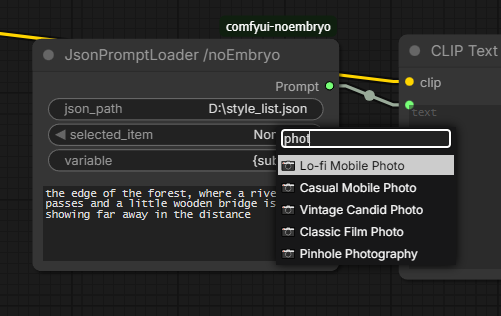
A node that can load a `.json` file with `item:prompt` pairs and outputs the selected item's prompt, while combining it with a custom prompt.
|
||
It can load `.json` files from any directory, not just the node's directory.
|
||
For the custom text integration, there is a variable (can be specified by the user), that can be used in the item's prompt text to insert the custom text anywhere in the body of the prompt.
|
||
|
||
- **UI controls**
|
||
|
||
- **json_path** is the path to the `.json` file.
|
||
It can be an absolute path of your hard drive, or a relative path to the ComfyUI's installation directory.
|
||
- **selected_item** selects one of the `.json` file's items (prompts).
|
||
- **variable** is the variable that will be used to insert the custom text into the item's prompt text.
|
||
- **custom_text** is the custom text that will be inserted into the item's prompt text.
|
||
- **Advanced Usage**
|
||
|
||
|
||
- **Adding new items**
|
||
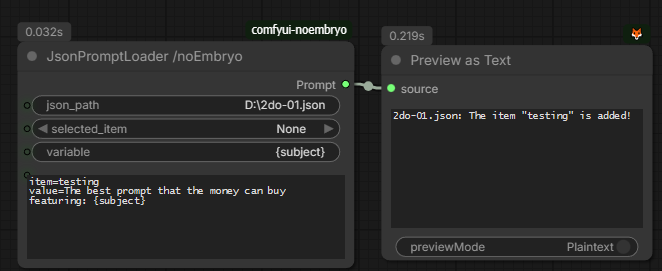
To add a new item, we have to write it in the `custom_text` input, using the following format:
|
||
```
|
||
item=The prompt's title/keyword
|
||
value=The prompt's text, including our variable
|
||
```
|
||
- **Updating items**
|
||
To update an item, we use the same method, just write the specific item we want to update.
|
||
```
|
||
item=An existing title/keyword
|
||
value=The new prompt's text, including our variable
|
||
```
|
||
- **Deleting items**
|
||
To delete an item, we use the same format, but we just leave the `value` empty.
|
||
```
|
||
item=An existing title/keyword
|
||
value=
|
||
```
|
||
All of these methods will update the `.json` file, and the node will output a message about the success or failure of the operation.
|
||
We can also load an empty `.json`file and use this method to populate it.
|
||
|
||
<u>_**After changing the `.json` file, we must reload the ComfyUI page, so the node can reload the updated file.**_</u>
|
||
|
||
---
|
||
## Load Image (from path)
|
||
|
||
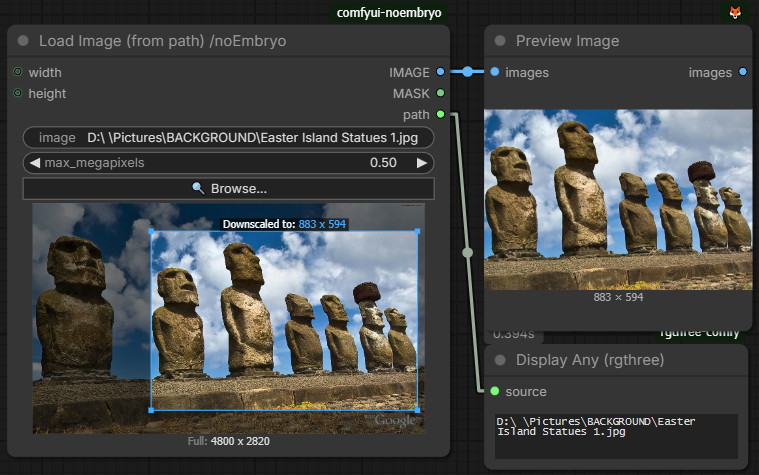
Load an image from **any path on your computer or a URL**. Paste an absolute path or a link to an image, use an annotated path (`input/file.png`), or click the **Browse** dialog to pick a file from your drives.
|
||
The file is read from its **original location**; it is **not** copied into ComfyUI’s `input` folder.
|
||
Use a selection rectangle at the preview to crop it.
|
||
Limit (downscale) the output's size in megapixels or pixels.
|
||
Click the ↻ button (top-right, mouse over the preview), to rotate the image 90° clockwise.
|
||
|
||
|
||
|
||
### Interactive crop
|
||
|
||
The node shows a live preview. You can crop directly on it:
|
||
|
||
- **Drag** on the image to draw a crop rectangle
|
||
- **Drag inside** the selection to move the crop rectangle
|
||
- **Drag a corner** to resize it
|
||
- **Click** (without dragging) outside the rectangle to clear it
|
||
|
||
With no crop drawn, the **full image** is output. The crop is stored in the workflow as normalized coordinates, so it survives save/reload. Changing the path clears the crop.
|
||
|
||
The output (cropped or full) will be downscaled only (not upscaled), by the value in the `max_megapixels` field.
|
||
|
||
Outputs match the stock Load Image node: **IMAGE**, **MASK** (from the alpha channel when present), plus the original **path** string.
|
||
|
||
|
||
|
||
- **Controls**
|
||
- **image**: Paste an absolute path, (or a relative one with a prefix input/), or a URL to an image file.
|
||
- **max_megapixels**: Cap the output (crop, or full image if uncropped) to this many megapixels, downscaling only if it's bigger.
|
||
Smaller images are left untouched. 1.0 = 1024x1024 px. 0 disables the cap.
|
||
- **Browse...**: to open an image file from your drives.
|
||
|
||
- **Inputs/Outputs**
|
||
- **Width/Height** inputs: Force the output width in px (upscale or downscale), center-cropping first if the aspect ratio differs.
|
||
Leave disconnected (None) to keep natural width.
|
||
Only applies if BOTH width and height are connected, and when set (not 0). It overrides the `max_megapixels` value.
|
||
- **IMAGE/MASK**: The final, processed image/mask.
|
||
- **path**: A string with the image's path.
|
||
|
||
|
||
|
||
**Credits:**
|
||
Built as a much more enhanced version of [Load Image From Path (Enhanced)](https://github.com/Chaoses-Ib/ComfyUI_Ib_CustomNodes#load-image-from-path-enhanced) from [ComfyUI_Ib_CustomNodes](https://github.com/Chaoses-Ib/ComfyUI_Ib_CustomNodes), with parts of the interactive crop UI inspired from [Load Image & Crop](https://github.com/obvpm/comfyui-obvpm#load-image--crop) in [comfyui-obvpm](https://github.com/obvpm/comfyui-obvpm).
|
||
|
||
|
||
|
||
---
|
||
|
||
## Image Composer
|
||
|
||

|
||
|
||
Compose several images into ONE image.
|
||
Images keep their order and relative pixel sizes (natural sizing, never enlarged) and are packed as tightly as possible; rows are chosen automatically.
|
||
The preview refreshes instantly when an upstream image, crop, rotation or megapixel cap changes; no workflow run needed.
|
||
|
||
The inputs are automatically increase, every time you connect a new image loader.
|
||
|
||
---
|
||
## Resolution Scale
|
||
|
||
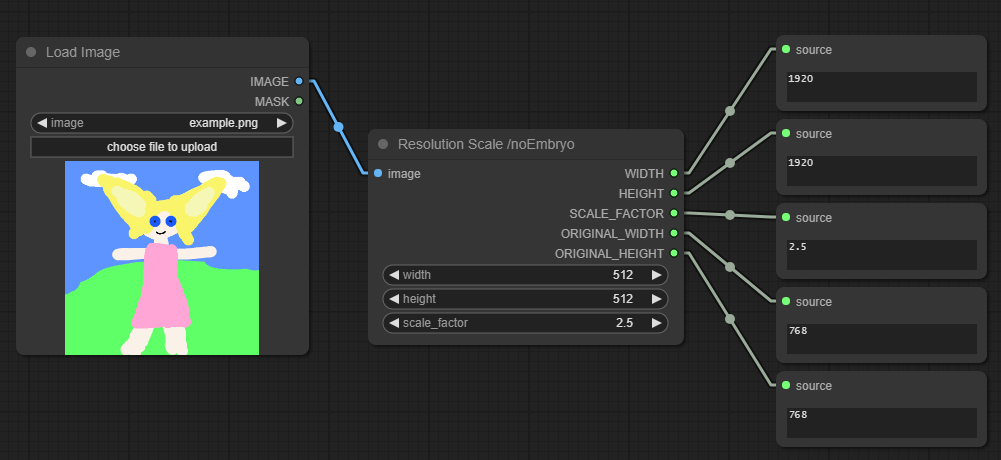
A simple node that outputs the resolution of an image using the dimensions of an input image or some custom user-defined dimensions, using a Scale Factor.
|
||
|
||
If there is an input image connected, setting either `width` or `height` to 0 will use the other dimension to scale the image (but always multiple of 4).
|
||
|
||
---
|
||
## Regex Text Chopper
|
||
|
||
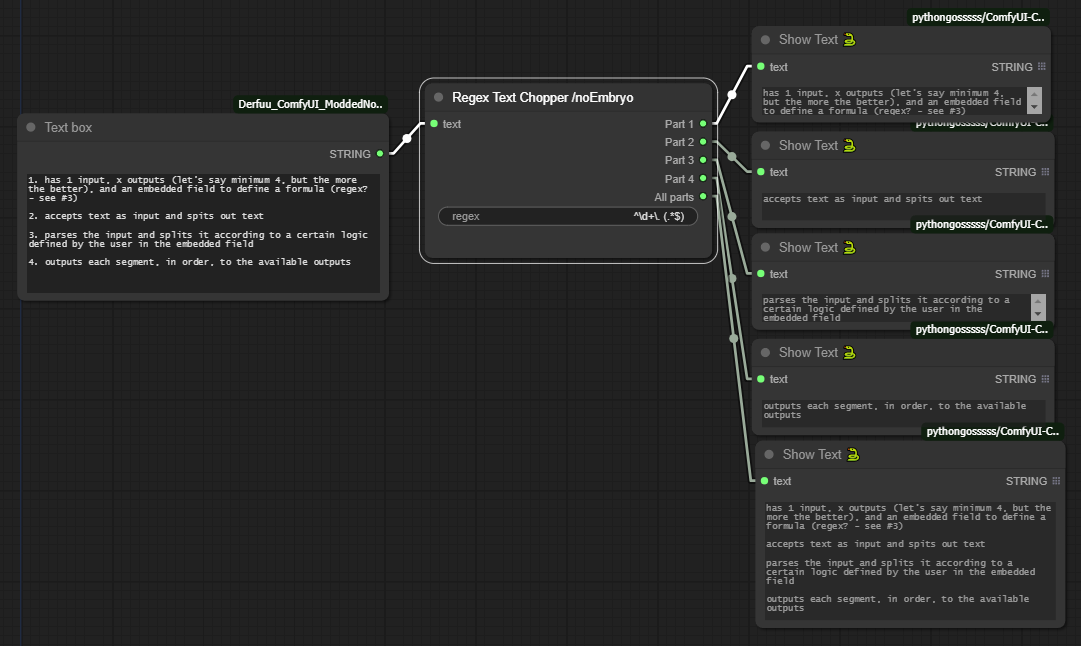
A node that "chops" a text using a regular expression and outputs the chopped parts of the text.
|
||
|
||
---
|
||
## H3 Motion Context Clip Stitcher
|
||
|
||
|
||
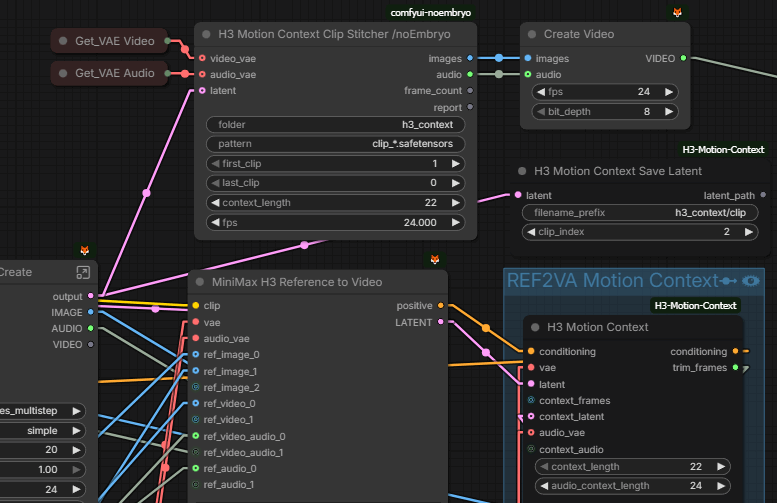
Final assembly for [NikoDemon80's H3 Motion Context](https://github.com/NikoDemon80/ComfyUI-H3-Motion-Context) AV clip archives.
|
||
|
||
It loads numbered h3_motion_context_av_v1 files (clip_xx.safetensors), decodes one clip at a time to avoid memory peaks, dissolves the overlap between adjacent clips (video + synchronized audio), and concatenates them to a final video and audio stream.
|
||
No quality loss, like when trying to concatenate encoded videos.
|
||
|
||
- **Inputs**
|
||
- Video VAE
|
||
- Audio VAE
|
||
- (Optional), the current generated AV latent to be added as the last part of the stitching
|
||
|
||
- **Controls**
|
||
- **folder** is the folder containing clip_00001.safetensors, clip_00002.safetensors, etc.
|
||
Absolute paths and paths relative to ComfyUI/output are accepted.
|
||
- **pattern** is the filename glob. The final five-digit number is treated as the clip index.
|
||
- **first_clip**is the first approved clip to include.
|
||
- **last_clip** is the last clip to include. 0 = every clip from first_clip onward.
|
||
- **context_length** is the number of decoded frames to crossfade at each clip boundary.
|
||
Keep the same number here as in the H3 Motion Context nodes.
|
||
The normal setting is 22 frames. This is the overlap length that is dissolved between adjacent clips.
|
||
5, 22, 39 or 56 are the lengths that are a whole number of latent steps, which is why other numbers aren't offered.
|
||
- **fps** is the H3 native output rate. Keep this at 24 unless your workflow deliberately changes it.
|
||
- **Outputs**
|
||
- **images**: The final stitched image stream to be saved
|
||
- **audio**: The final audio stream to be saved
|
||
- **frame_count**: The total number of frames
|
||
- **report**: Logging of some of the node's actions
|
||
|
||
|
||
|
||
---
|
||
|
||
## H3 Clip Refiner
|
||
|
||

|
||
Inline texture-ratchet correction node for `H3 Motion Context` clips.
|
||
|
||
Place this node BETWEEN the sampler (`SamplerCustomAdvanced`) and the `H3 Motion Context Save Latent` node.
|
||
It operates on the LATENT level (no VAE decode/encode needed for measurement) to fix the "texture ratchet": high-band noise/grain increases monotonically at each join (+4.2% mid-band per join).
|
||
The statistic is band_ratio = high-band std / total std.
|
||
Measured across a chain it goes 0.3643 -> 0.3673 -> 0.3702 (monotone increase).
|
||
|
||
|
||
|
||
- **Inputs**
|
||
- **latent** gets the generated AV latent from your H3 sampler (SamplerCustomAdvanced output).
|
||
- **reference_latent** is optional. It gets the reference latent (e.g., first clip) to measure target_ratio from it automatically.
|
||
If connected, target_ratio is ignored and measured from this latent.
|
||
|
||
- **Outputs**
|
||
- **latent** is the refined latent.
|
||
- **report**: shows the report of the latent analysis.
|
||
|
||
|
||
|
||
- **Controls**
|
||
- **target_ratio** is the ratio to rescale the high-band so the band_ratio matches the target clip (first)
|
||
- **strength** is how much change it finally produces.
|
||
- 0 = None
|
||
- 1.0 = Full
|
||
- > 1.0 = Overshoot
|
||
|
||
1. **Usage**:
|
||
1. First run: set target_ratio=0.0 (measure mode).
|
||
The node measures the band_ratio (high-band std / total std) of the video latent and logs it (e.g., "band_ratio=0.3673").
|
||
The latent passes through unchanged.
|
||
2. Note the reported band_ratio from the FIRST clip (e.g., 0.3643).
|
||
3. Subsequent runs: set target_ratio to the first clip's band_ratio (e.g., 0.3643).
|
||
The node applies match_band to rescale the high-band so the band_ratio matches the target, fixing the texture ratchet.
|
||
|
||
|
||
*TO MAKE IT LESS GRAINY*:
|
||
If a clip measures at 0.3917, and you want it less grainy, set target_ratio to a LOWER value (e.g., 0.3800).
|
||
The lower the target_ratio, the more the high-band grain is reduced.
|
||
|
||
---
|
||
## H3 Motion Context Clip Purge
|
||
|
||
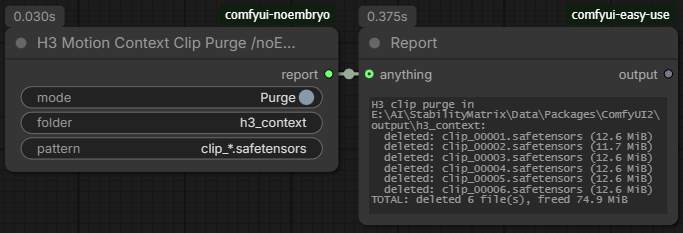
Deletes the numbered `h3_motion_context_av_v1` clip archive files at the root of a folder (default: `h3_context`).
|
||
Only files matching the pattern are removed; sub-folders and everything inside them are left untouched.
|
||
|
||
- **Controls**
|
||
- **mode**: Purge (Enabled): delete the matching files.
|
||
Preview (dry run, Disabled): delete nothing; the report just lists the files that would be deleted.
|
||
- **folder** is the folder whose root-level clip archives will be deleted.
|
||
Absolute paths and paths relative to ComfyUI/output are accepted.
|
||
- **pattern** is the filename glob. Only root-level FILES matching this pattern are deleted.
|
||
Sub-folders are never touched.
|
||
- **Outputs**
|
||
- **report**: Shows the actions of the node.
|
||
|
||
---
|
||
|
||
## H3 AV Latent from Video
|
||
|
||

|
||
Encodes a whole video (IMAGE frames + AUDIO) with the MiniMax H3 VAEs into an AV latent that can be saved with `H3 Motion Context Save Latent` and stitched into later generations.
|
||
|
||
- **Inputs**
|
||
- **video_vae** for encoding the video.
|
||
- **audio_vae** for encoding the audio
|
||
- **images** The whole video as frames (e.g. from VHS Load Video).
|
||
Leave un-connected when using the latent input.
|
||
- **latent** (optional) alternative to images.
|
||
Accepts either a nested AV latent from `LTXVConcatAVLatent` (its audio stream is used directly), or an already-encoded H3 video LATENT from VAE Encode.
|
||
A standard [B,C,H,W] latent is wrapped as a one-frame H3 video stream
|
||
Connect AUDIO separately when it has no audio stream.
|
||
- **audio** (optional) The video's audio (e.g. from VHS Load Video).
|
||
Leave un-connected for a silent clip.
|
||
Ignored when latent already contains an audio stream.
|
||
|
||
- **Outputs**
|
||
- **latent** is the `H3 Motion Context` AV latent
|
||
- **Controls**
|
||
- **source_fps** The frame rate of the loaded video.
|
||
Frames are resampled to H3's native 24 fps by time-based frame picking, so audio stays in sync at any source rate.
|
||
|
||
|
||
|
||
|
||
---
|
||
|
||
## H3 Context Latent Converter
|
||
|
||
A utility node that converts an `H3 Motion Context` archive latent (as loaded by `MiniMaxH3MotionContextLoadLatent`, whose 'samples' is a plain list) into the AV latent form that comfy-core's `LTXVSeparateAVLatent` expects (av_latent["samples"].unbind() -> (video, audio)).
|
||
|
||
|
||
---
|
||
## Auto Save Workflow
|
||
|
||
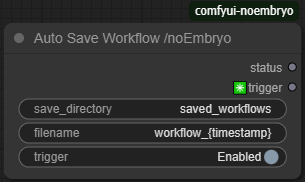
This node can save the current workflow to a `.json` file, every time a generation job is run.
|
||
- **UI controls**
|
||
- **save_directory** is the directory where the `.json` file will be saved.
|
||
It can be a relative path inside the ComfyUI's output directory, or an absolute path of your hard drive.
|
||
- **filename** is the name of the `.json` file.
|
||
It can contain the `{timestamp}` placeholder, which will be replaced with the current timestamp (for unique filenames).
|
||
- **trigger** switch will enable (or not) the saving of the workflow.
|
||
- **Outputs**
|
||
- **status** outputs a text with the status of the saving process (the path of the saved file, or an error message).
|
||
- **✳️trigger** is a dummy output that's used to trigger the saving process, even if nothing is connected to the node.
|
||
|
||
---
|
||
## PromptTermList 1-6
|
||
|
||
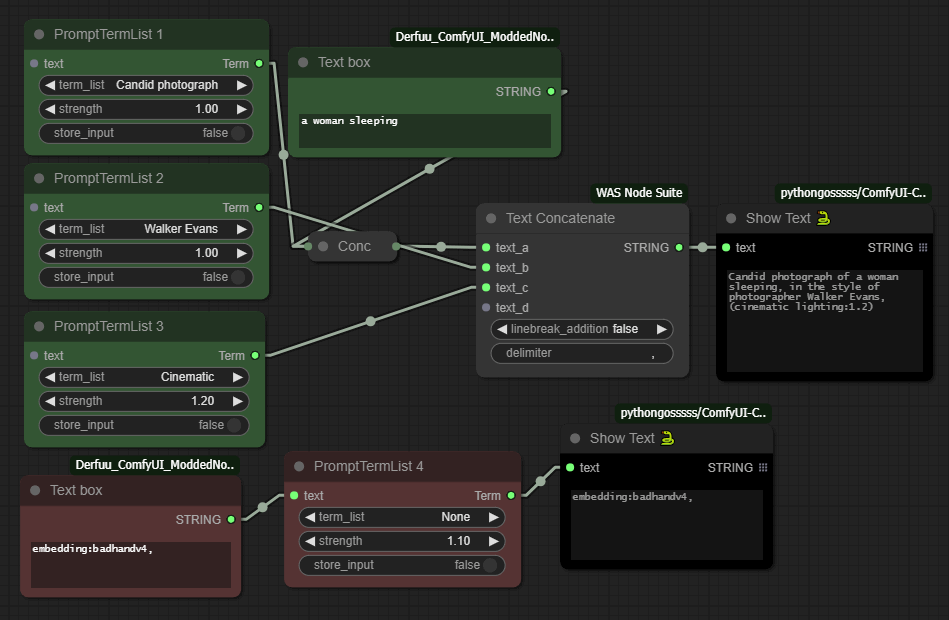
<u>**The PromptTermList nodes are now obsolete, and can mostly be replaced by the [Json Prompt Loader](#json-prompt-loader) node.
|
||
I won't remove them for compatibility reasons, but I would recommend using the [JsonPromptLoader](#json-prompt-loader) node instead.**</u>
|
||
|
||
|
||
These are some nodes that help with the creation of Prompts inside [ComfyUI](https://github.com/comfyanonymous/ComfyUI).
|
||
|
||
### Usage
|
||
|
||
Every one of these 6 nodes have a different `json` file that stores its Prompt Terms in "label"/"value" pairs.
|
||
The "label" part is what we see at the node's dropdown menu, and the "value" part is what it produces at its `Term` output when we run a generation job.
|
||
|
||
These `json` files are located inside the `TermLists` directory, in the node's folder.
|
||
There are two ways to add a new term.
|
||
- From within ComfyUI:
|
||
- Connect a text box to the node's `text` input.
|
||
- Write the "label"/"value" part in the box using the following format:
|
||
```
|
||
label=Descriptive text
|
||
value=masterpiece, artful and cozy
|
||
```
|
||
- Enable the `store_input` switch.
|
||
- Run a generation job.
|
||
- Refresh the page.
|
||
- Manually:
|
||
- Just open the `json` file and add/remove/change entries.
|
||
|
||
Ofcourse we must be very careful with this, to keep the `json` format of labels/values (with the appropriate commas), otherwise the file will not be parsed.
|
||
|
||
This `text` input is also useful if we want to manually add something *after* our term, or as the *only* term if we select the `None` label of the dropdown.
|
||
The `strength` value is changing the impact of the term by using the parenthesis format like this: `(a great term:1.3)`
|
||
|
||
We can delete a term by sending an empty value to the `text` input like this:
|
||
```
|
||
label=The label to be deleted
|
||
value=
|
||
```
|
||
|
||
---
|
||
## Installation
|
||
* Use the ComfyUI Manager
|
||
* Or manually
|
||
* cd to `ComfyUI\custom_nodes`
|
||
* git clone https://github.com/noembryo/ComfyUI-noEmbryo.git
|
||
* Restart ComfyUI
|
||
|
||
---
|
||
[Python]:https://img.shields.io/badge/Made%20with-Python-1f425f.svg
|
||
[MIT]:https://img.shields.io/badge/License-MIT-green.svg
|